← CloudScale Plugin Help/CloudScale Backup & Restore, Free WordPress Backup Plugin with One-Click Restore & Cloud Sync
SFTP / FTP Server
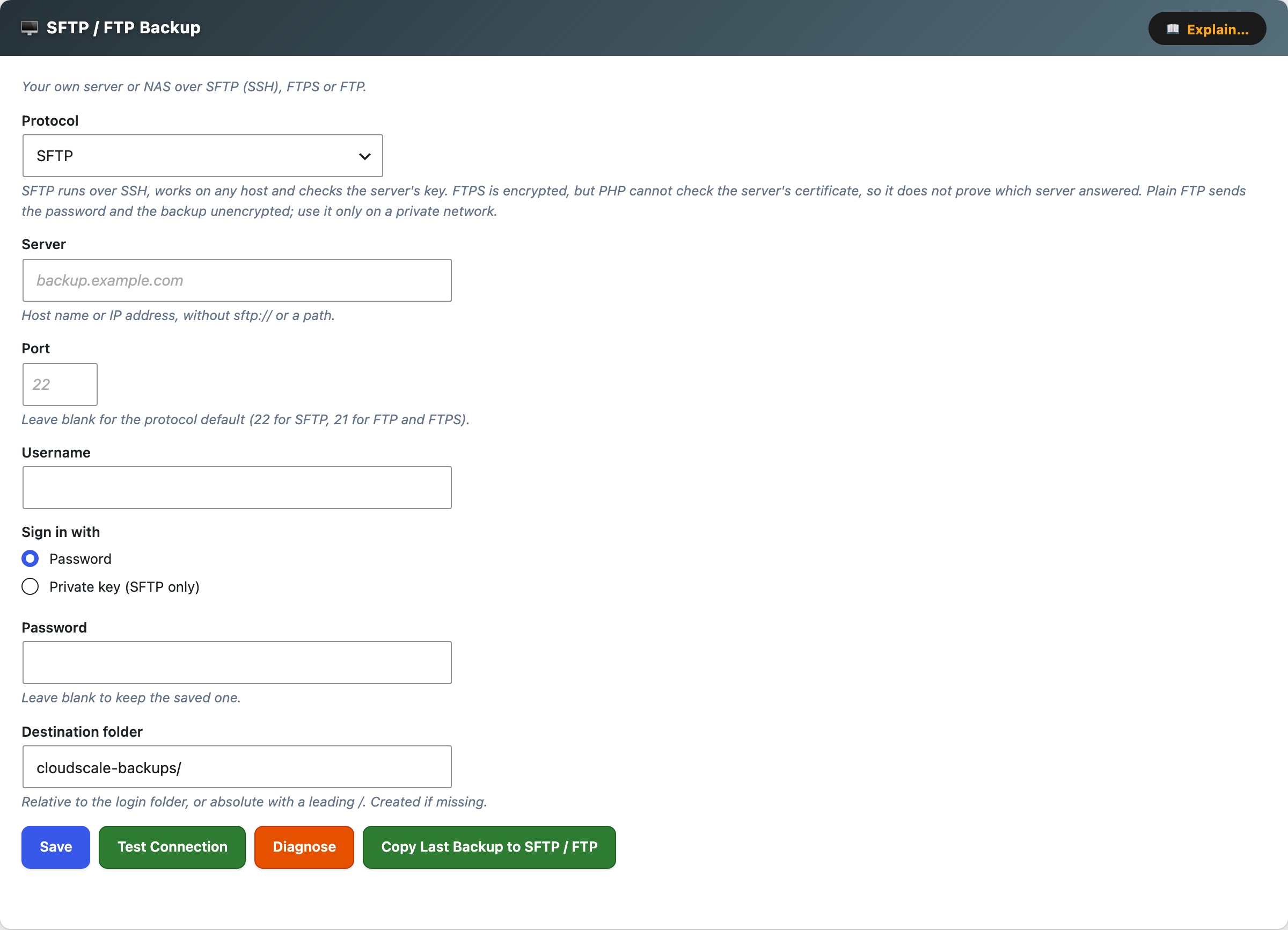
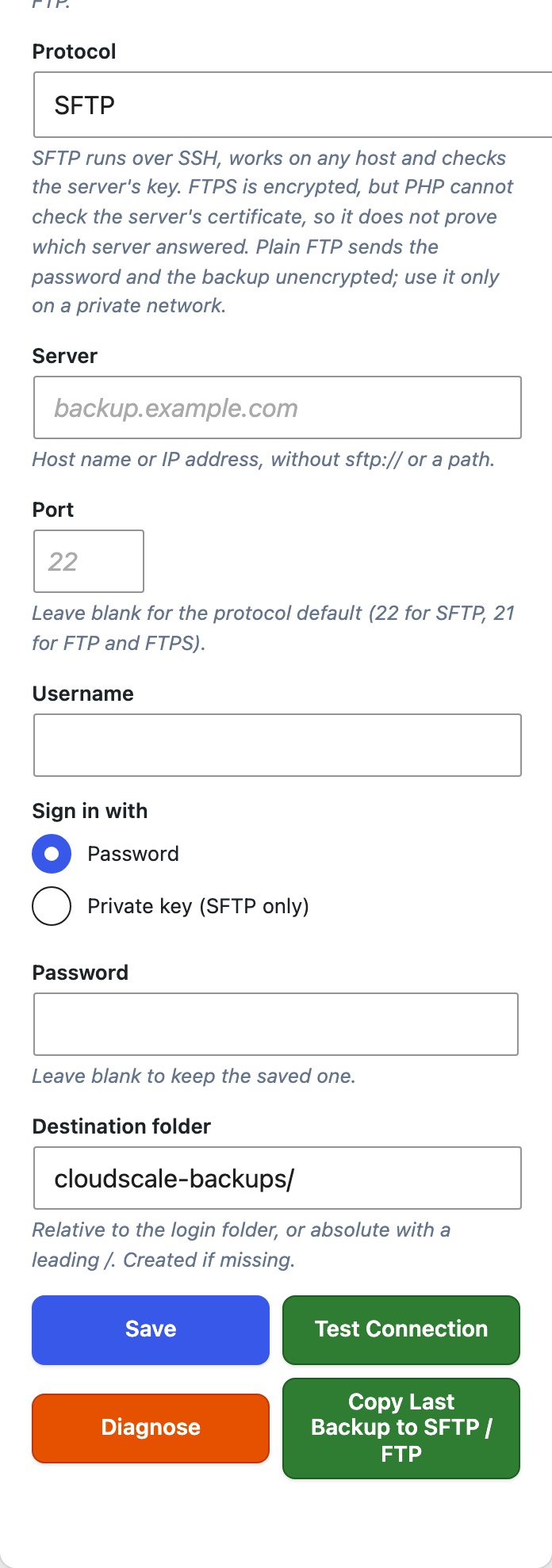
The SFTP / FTP Backup card copies backups to a server you run yourself: a VPS, a NAS, or hosting space with SSH or FTP access. Nothing has to be installed on either server; SFTP support is built into the plugin.
Protocol, SFTP (over SSH, works on any host and is the one to choose when you can), FTPS (FTP over TLS) or FTP. From version 3.2.884 the choices say what each one protects. FTP (not encrypted) sends the password and the backup in the clear, so use it only on a private network. FTPS (encrypted, server identity not checked) encrypts them, but a machine pretending to be your server would not be detected, because its certificate is not checked. A standby will not automatically restore from either until it holds your signing key. FTPS and FTP need PHP’s ftp extension; when it is missing the card says so, and SFTP still works.
Server, host name or IP address, without sftp:// or a path. Port, leave blank for the default (22 for SFTP, 21 for FTP and FTPS).
Username and Sign in with, a password, or for SFTP a private key (OpenSSH, PEM or PuTTY format, with its passphrase if it has one). Passwords and keys are kept in a protected file outside the database. Leave the field blank to keep the saved one.
Destination folder, relative to the login folder, or absolute with a leading /. It is created if missing.
Server key (SFTP), the first connection records the server’s host key. Every later connection checks it and refuses to send anything if it has changed, which is what a machine pretending to be your server would look like. If you rebuilt the server or changed its key on purpose, click Forget Server Key and test again. Changing the server or port forgets it automatically.
Buttons on this card: Save, Test Connection (signs in, opens the destination folder and counts the backups in it), Diagnose, Forget Server Key, and Copy Last Backup to SFTP (or FTPS or FTP), which uploads the most recent local backup straight away without creating a new one.
Large backups. Uploads go to a .part file and are renamed only when complete, so a half-sent file is never mistaken for a backup, and an interrupted upload or download resumes from where it stopped. Retention, golden backups, tags, download, and restore from the Restore tab work the same as for the other providers.
Signing in with a key (recommended for SFTP)
- On the server, create a user just for backups and the folder it writes to.
- On any computer, make a key pair:
ssh-keygen -t ed25519 -f csbr_backup -C "wordpress backups". - Add the public half,
csbr_backup.pub, as a line in that user’s~/.ssh/authorized_keyson the server. - On the card, choose Private key under Sign in with and paste the whole of
csbr_backup(from-----BEGINto-----END), plus its passphrase if you set one.
The WordPress server must be able to reach yours on the SFTP port. A NAS at home usually needs that port forwarded, or a VPN. An address on your private network is refused until you allow private destinations.
Setup: fill in the card, click Save, then Test Connection. Then tick SFTP Backup (FTPS or FTP Backup, after the protocol you saved) under Include in cloud backup in Cloud Backup Settings and click that card’s Save, otherwise uploads are skipped.