← CloudScale Plugin Help/CloudScale Backup & Restore, Free WordPress Backup Plugin with One-Click Restore & Cloud Sync
Backup Signing and Security

A backup holds your whole site, including everything an attacker would want, and a restore runs whatever the archive contains. These protections guard both directions: who can read your backups, and whether a backup can be trusted.
Backup signing
Every backup made on your live site is signed automatically with a key kept in wp-content/csbr-secrets.php. The key is never in the database, so it is never inside the backups it signs. The integrity check proves an archive is undamaged; only the signature proves who made it.
This matters for a standby, which restores whatever is newest in the cloud with nobody watching. Without signing, anyone able to write to your bucket could have it restore their own archive. To close that:
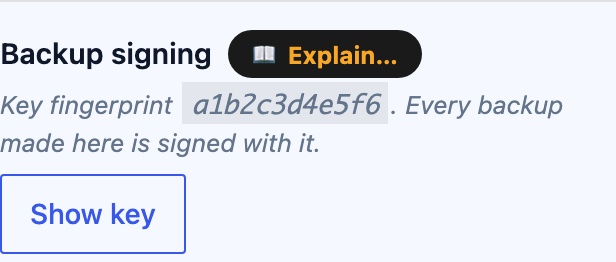
- On the live site, open Local Backups, find Backup signing and click Show key. Who asked is written to the Activity Log. Treat the key like a password.
- On the standby, paste it into Primary’s key and click Save key.
- Check both sites show the same Key fingerprint. The fingerprint is a short name for the key and is safe to share.
From then on an automatic restore refuses an archive that is unsigned, signed with another key, or changed after signing, and sends an alert. A standby with no key still restores, with a warning in its Activity Log. Restores you start by hand are not blocked.
Your backups are not public
The backup folder has a random name, deny rules for Apache, nginx and IIS, and 0700 permissions. A daily self-check then places a small test file in the folder and requests it over the web to confirm it is refused. If your server would hand it out, a red notice appears across the admin with the server rule to add. The plugin’s own state files are checked the same way and reported on the plugin’s screen.
Passwords and keys
Cloud credentials and the encryption password are kept in a protected file outside the database, so they never travel inside your backups and a restore never overwrites them. Encrypt backups adds AES-256 encryption with your own password before a backup leaves your server, so a storage provider cannot read it.
Storage addresses
An address you enter for S3-compatible storage, SFTP, FTP or WebDAV cannot point at a cloud metadata service or a reserved network range. Private and local addresses are refused too, so a stolen admin session cannot use the plugin to reach machines behind your firewall. If your storage really is on your private network, such as a NAS beside the server, allow it in wp-config.php:
define( 'CSBR_ALLOW_PRIVATE_DESTINATIONS', true );
WordPress multisite
The plugin does not run on multisite, from version 3.2.884. A backup reads every site’s tables and a restore overwrites the whole network, while the permission its screens check belongs to each single site’s administrator. On a network it shows a notice and does nothing else, which also means it makes no backups, so use a different backup method there.