← CloudScale Plugin Help/CloudScale Cleanup, Free WordPress Database Cleaner, Image Optimizer & Cron Manager
Storage
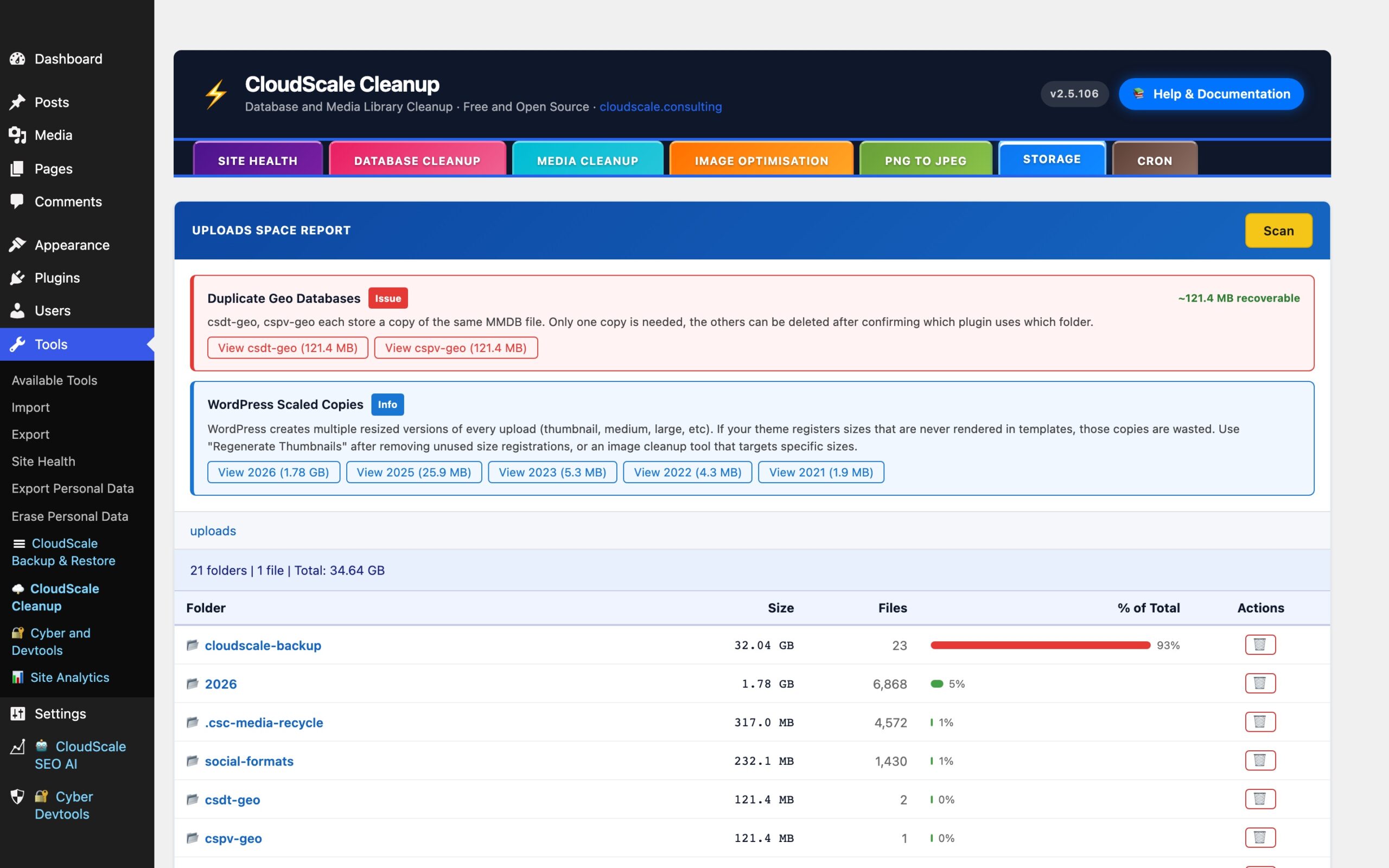
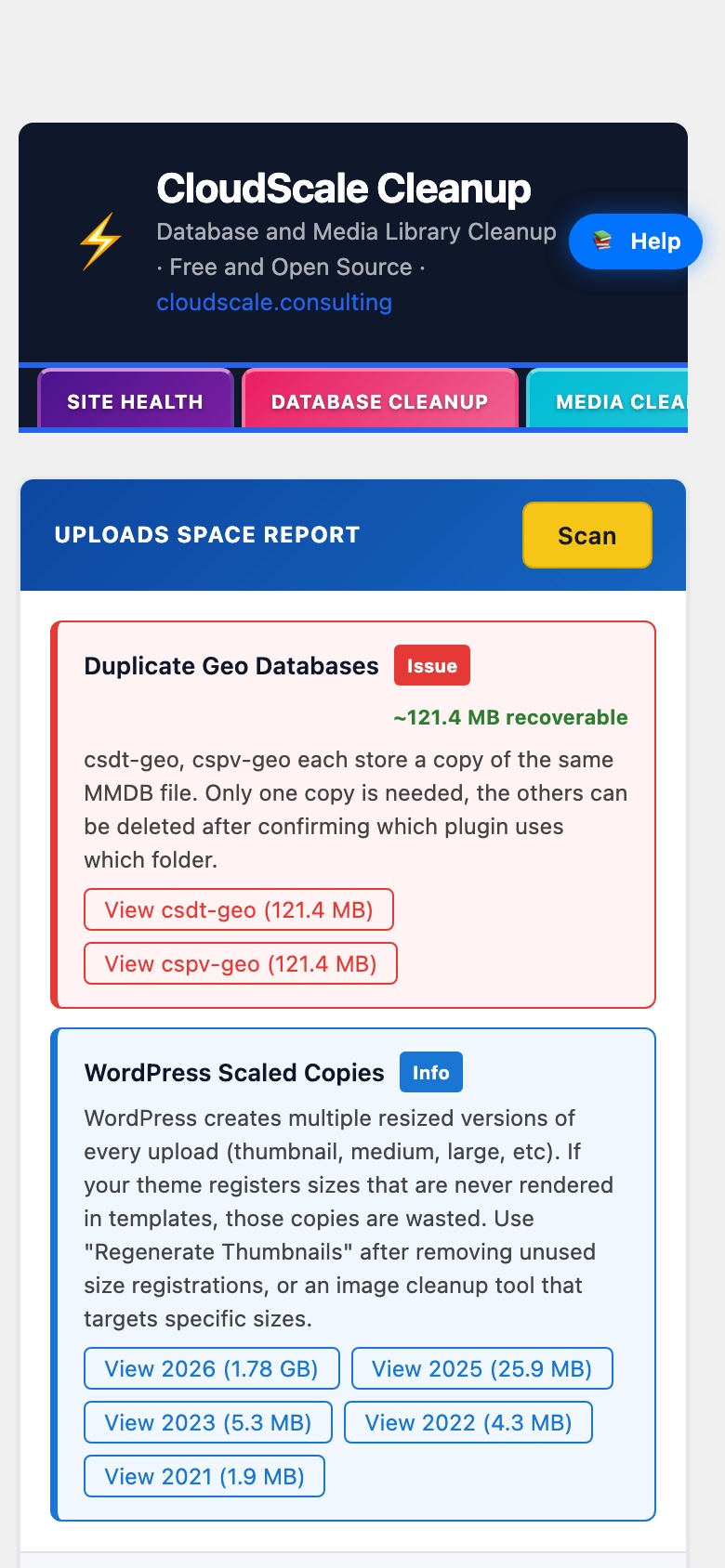
The Storage tab is an Uploads Space Report: an interactive, drill-down map of exactly what is consuming disk space inside your wp-content/uploads folder. Press Scan to walk the uploads directory and break usage down folder by folder, so you can find the heavy items long before your disk fills up.
Folder breakdown
After a scan, the main table lists each sub-folder with its Size, Files count, and % of Total, largest first. A summary bar shows the totals for the level you are viewing, and the breadcrumb plus per-row actions let you drill into a folder or step back up the tree, so you can pinpoint a single bloated year or month directory in seconds.
Largest files
Drill into any folder and the Largest Files (all subfolders) table appears, listing the single biggest files beneath it by Path, Size, and Type. This is the fastest way to surface a forgotten video, a stray backup archive, or an oversized original image that is quietly dominating your storage.
Storage Recycle Bin
Deletions from the Storage report are not immediately permanent. Removed files move to the Storage Recycle Bin, where each entry keeps its original path, size, and the date it was trashed, so you can restore anything you cleared by mistake. When you are certain, use Empty Bin to reclaim the space for good.
Tip: run the Storage scan before taking a backup. Clearing large orphaned uploads first keeps your backups smaller and faster, and pairs well with the Media Library Cleanup tab for removing files that are no longer attached to any post.