← CloudScale Plugin Help/CloudScale Cleanup, Free WordPress Database Cleaner, Image Optimizer & Cron Manager
PNG to JPEG Converter
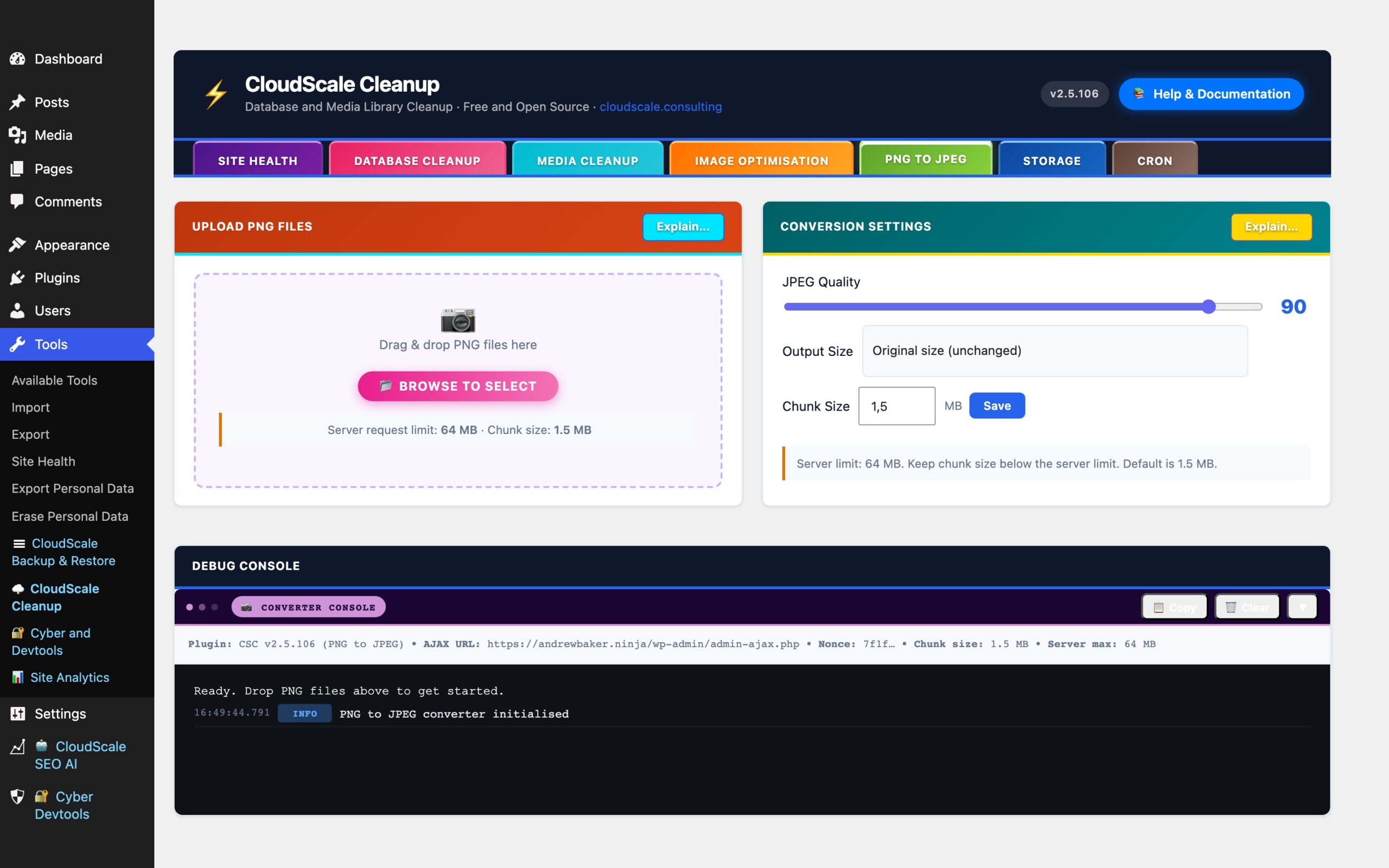
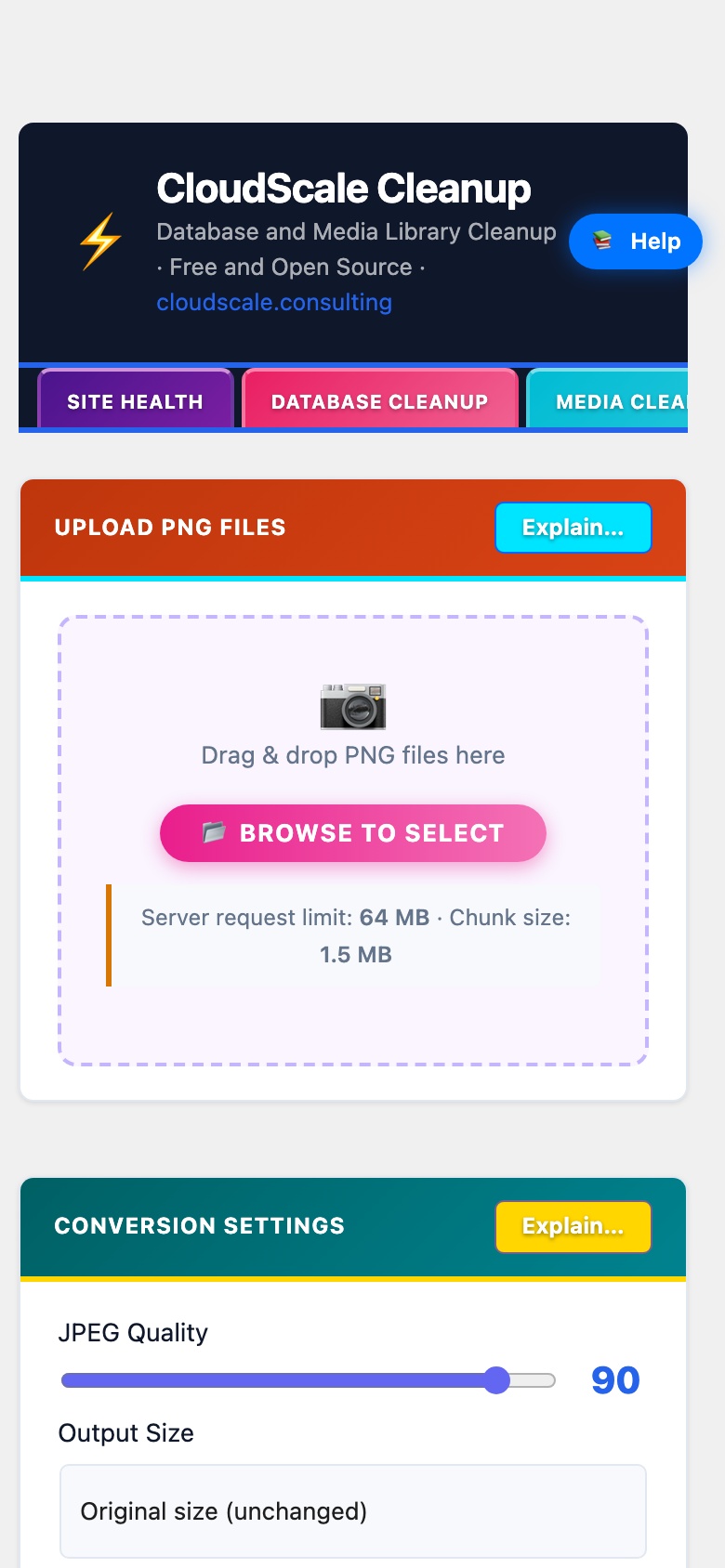
The PNG to JPEG tab is a standalone drag-and-drop converter that takes PNG files from your local computer, converts them to JPEG server-side, and optionally saves the result directly into your WordPress media library, without modifying any existing media library files.
This is intended for pre-processing new images before uploading them, not for batch-converting your existing library (use the Image Optimisation tab for that).
How to use it
- Configure settings, set your JPEG quality, choose an output size preset or enter custom dimensions, and adjust the chunk size if your server has strict upload limits.
- Add files, drag one or more PNG files onto the upload area, or click Browse. Multiple files can be queued at once.
- Convert, click Convert All. Each file is uploaded in chunks, assembled server-side, converted, and returned as a downloadable JPEG. Progress for each file is shown in real time in the Converter Console.
- Download or save to library, each converted file shows a Download button and a Save to Media Library button. Saving prompts for a filename (the
.jpgextension is added automatically) and registers the new image in your WordPress media library.
PNG transparency is composited onto a white background before JPEG conversion, so no content is lost even if the source PNG uses an alpha channel.
Conversion Settings
- JPEG Quality (1 to 100), controls JPEG compression. 80 to 92 is recommended for web use. Default: 90. Use 95+ for print; 60 to 75 for web thumbnails where file size matters more than quality.
- Output Size, choose a resolution preset:
- 4K (3840 × 2160), 2K (2560 × 1440), Full HD (1920 × 1080), HD (1280 × 720), XGA (1024 × 768), SVGA (800 × 600), VGA (640 × 480), Square 512, Square 256, or Custom.
- Chunk Size (MB), large PNG files are automatically split into chunks before uploading, each chunk staying within your server’s request size limit. Default: 1.5 MB. The setting shows your current server request limit alongside the chunk size so you can keep the chunk below the limit. Allowed range: 0.25 to 1.95 MB.
Converter Console
The dark terminal panel at the bottom of the tab logs all activity in real time:
- Server environment summary (PHP memory limit, upload limits, GD / Imagick availability).
- Per-file chunk upload progress.
- Conversion results with original size, output size, and compression ratio.
- Any server-side errors with full detail to help diagnose PHP configuration issues.
Use Copy to export the full log, and Clear to reset it before a new batch.