← CloudScale Plugin Help/CloudScale Cleanup, Free WordPress Database Cleaner, Image Optimizer & Cron Manager
Image Optimisation
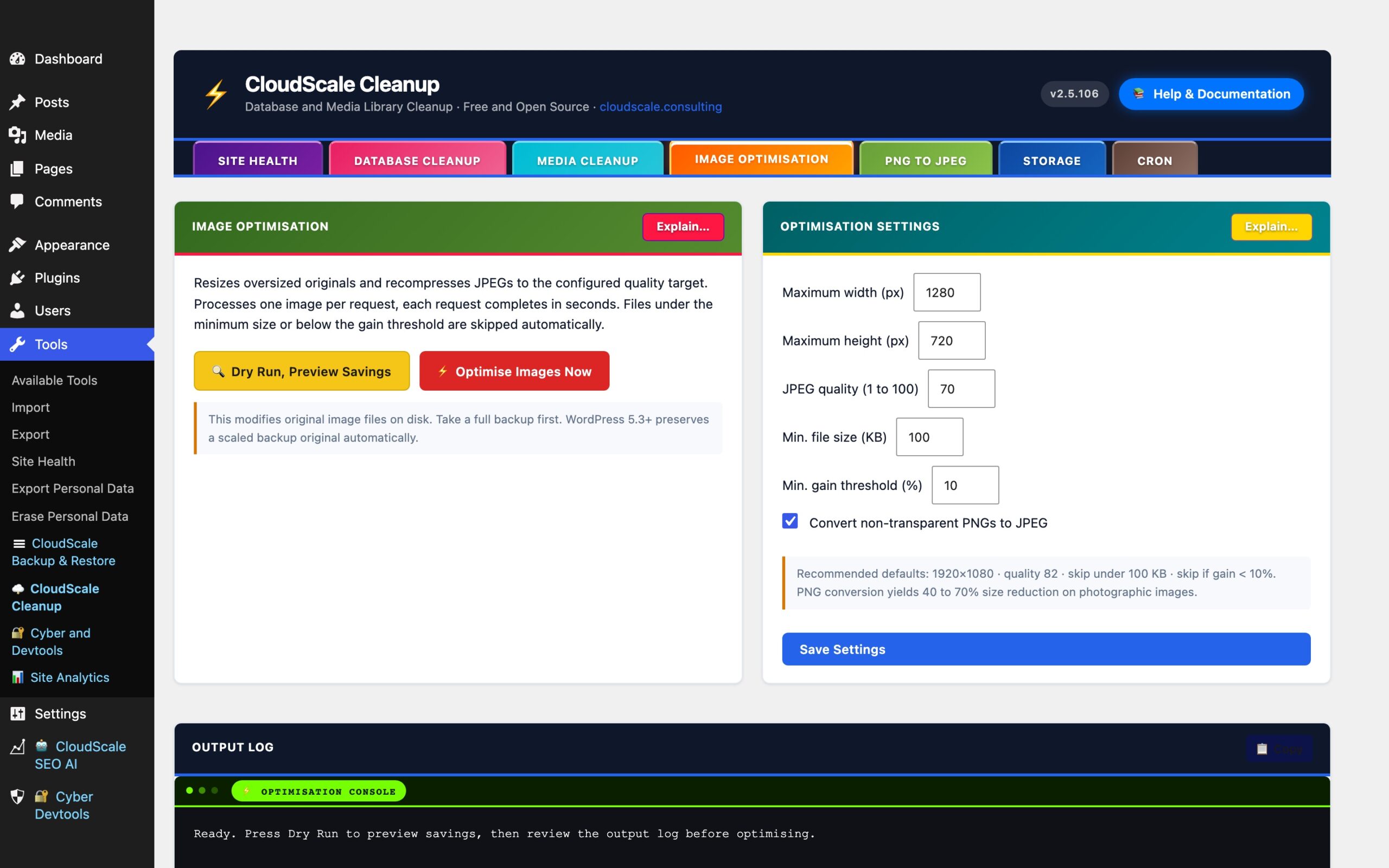
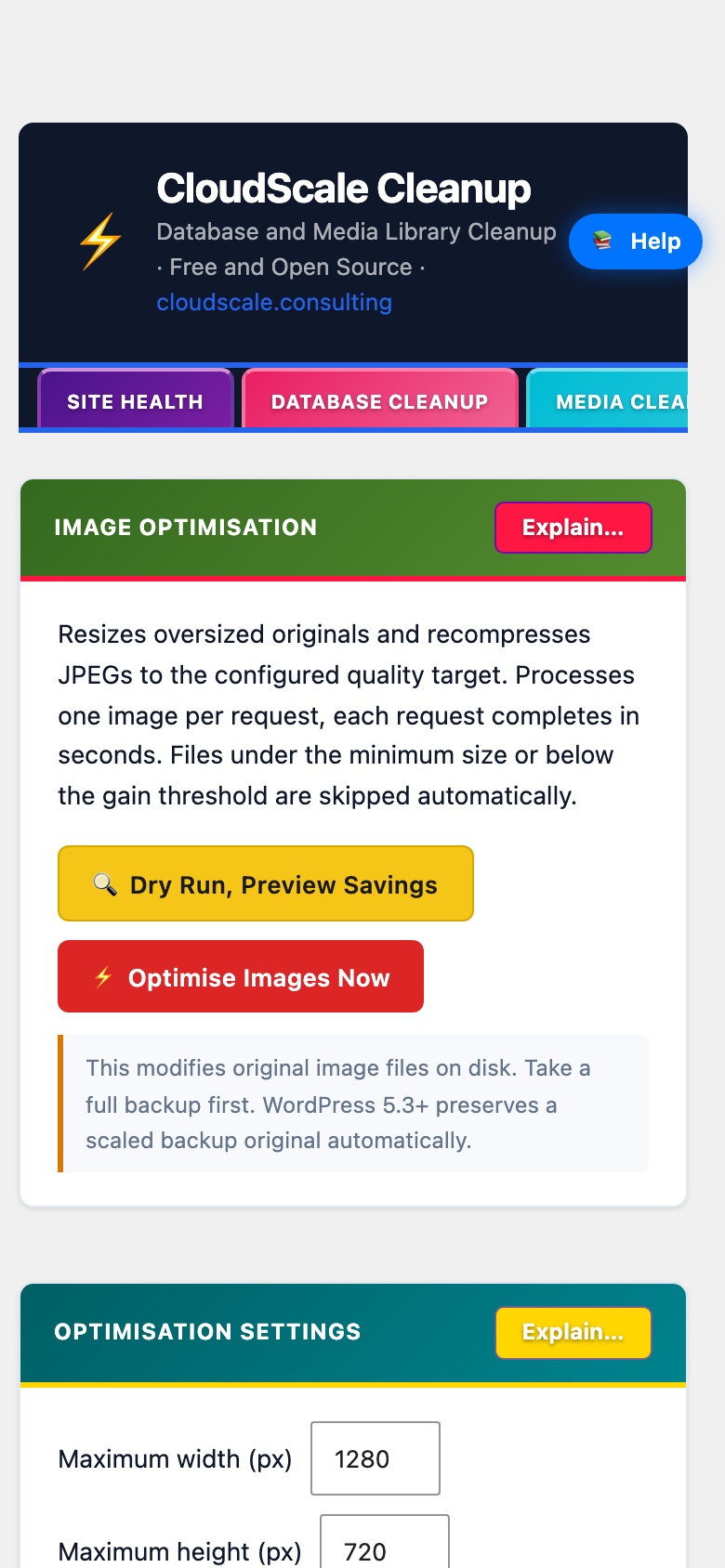
The Image Optimisation tab reduces the on-disk file size of images already in your media library using PHP’s GD or Imagick library. No external service, API key, or data transfer is involved, all processing runs locally on your server.
How it works
The optimiser processes original uploaded images in two passes:
- Resize, any image whose width or height exceeds the configured maximum is scaled down proportionally. The aspect ratio is preserved. Smaller images are left untouched.
- Recompress, the image is re-saved as JPEG at the configured quality level. PNG images are left as PNG unless the Convert non-transparent PNGs to JPEG setting is enabled on the Settings tab.
After each image is processed, all registered WordPress thumbnail sizes are regenerated from the new optimised original to ensure every size on the site stays consistent.
Processing runs at 5 images per AJAX request. The JavaScript engine queues all images and fires requests in sequence until the entire library has been processed, showing a live progress bar and per-image savings in the console.
Always run Dry Run first. The dry run previews estimated file size savings for each image (resize savings, recompress savings, and total) without modifying any files. Check the savings column to identify images where the gain is marginal before committing.
Important: this operation modifies original image files on disk. Take a full backup of your wp-content/uploads directory before running on a production site. WordPress 5.3+ automatically preserves a -scaled backup copy of very large originals, but this is not a full backup.
Optimisation Settings
- Maximum width (px), any image wider than this value is scaled down proportionally. The height is recalculated to preserve aspect ratio. Default: 1920 px. If your theme never displays images wider than 1200 px, setting this to 1200 will produce better storage savings.
- Maximum height (px), any image taller than this value is scaled down. Default: 1080 px.
- JPEG quality (1 to 100), controls JPEG compression when saving. 80 to 85 is the recommended range for web photography. Default: 82. Below 70 introduces visible banding in gradients. Above 90 produces diminishing returns with disproportionately larger file sizes.
- Convert non-transparent PNGs to JPEG, when enabled, PNG files without an alpha-channel are converted to JPEG. PNG files with any transparency pixel are automatically detected and skipped to prevent white-box artefacts. Typical size reduction for photographic PNGs: 40 to 70%. WordPress attachment metadata (post record, URLs, thumbnail paths) is updated so all existing references continue to work. This setting lives on the Optimisation Settings panel on this tab.
Conversion Settings (PNG to JPEG inline conversion)
The same PNG-to-JPEG conversion setting available on the Image Optimisation tab also appears here as a toggle. When enabled it applies during every optimisation run, not only to newly uploaded images but to the entire media library.
Server requirements
- PHP 7.4+ with GD compiled with JPEG and PNG support, or the Imagick extension.
- Check with:
php -m | grep -i "gd|imagick" - Minimum recommended
memory_limit: 128 MB for standard images; 256 MB for images larger than 5000 × 5000 px. - No external network access required.