← CloudScale Plugin Help/CloudScale Cleanup, Free WordPress Database Cleaner, Image Optimizer & Cron Manager
Media Library Cleanup
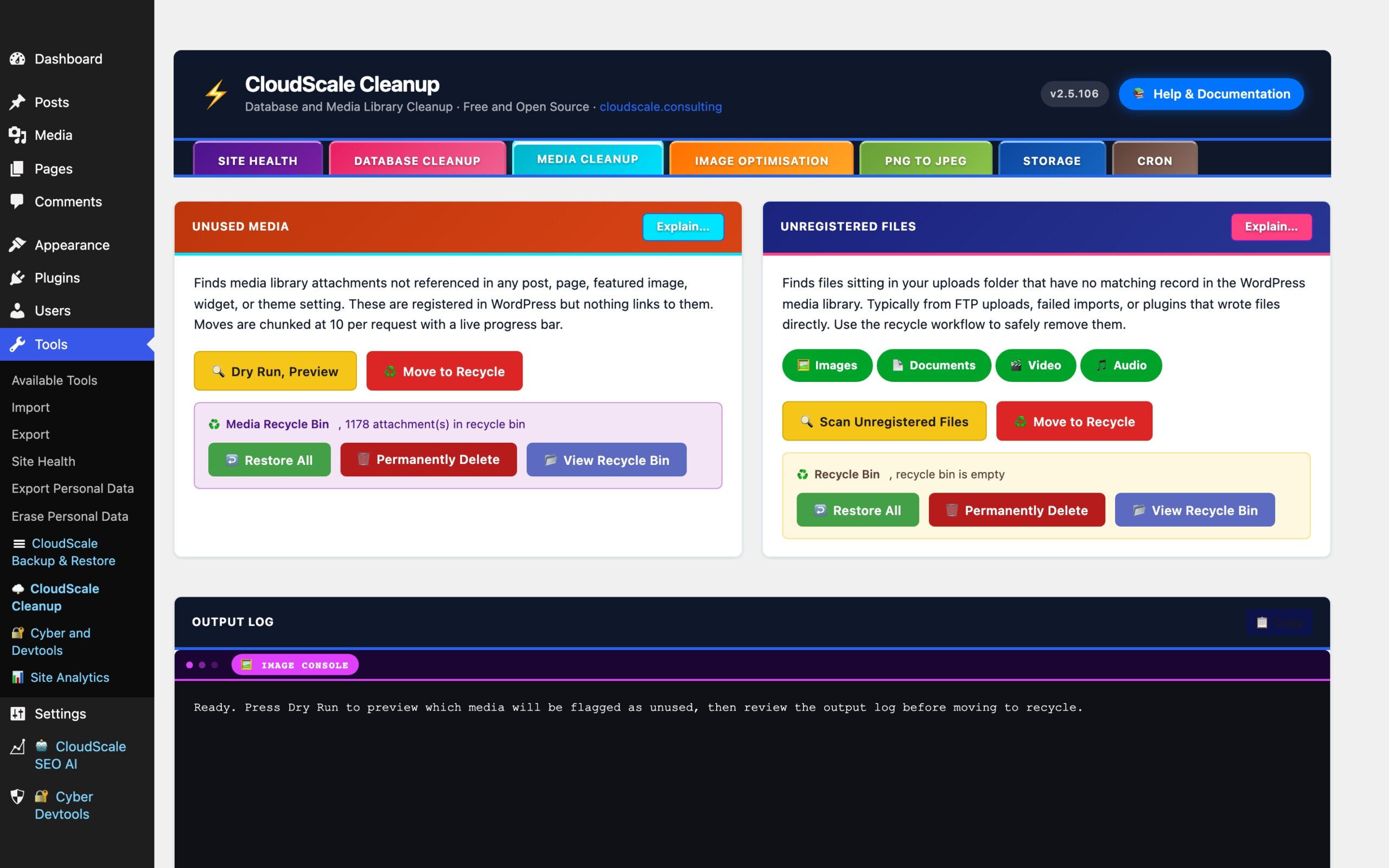
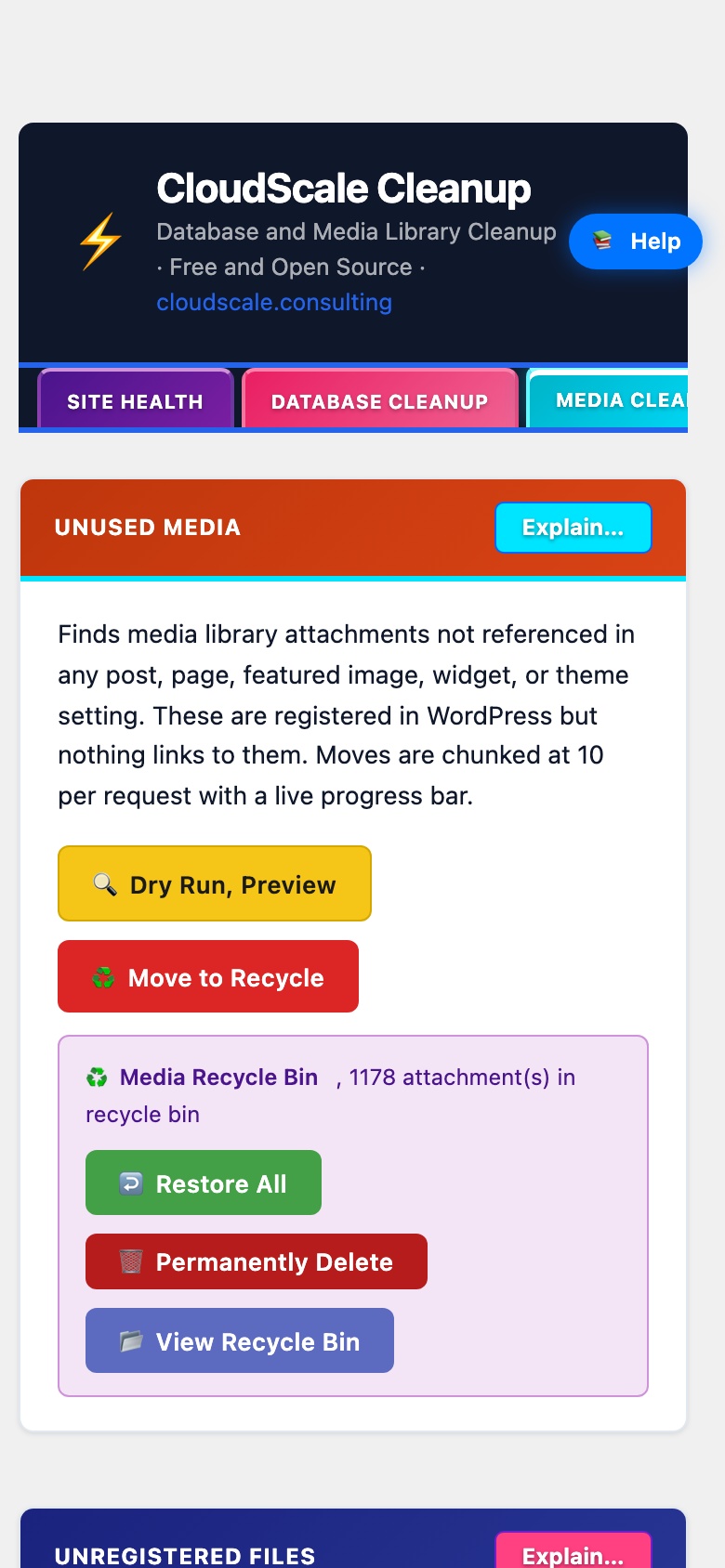
The Media Library Cleanup tab identifies and safely removes media attachments and upload files that are no longer used, freeing disk space and reducing backup sizes. All removal operations use a recycle bin, nothing is permanently deleted until you explicitly choose to empty it.
Unused Media
Finds attachments that exist in the WordPress database but are not referenced anywhere on the site. The scan checks all of these locations for every attachment:
- Post content (
wp_posts.post_content), direct<img>tags, Gutenberg block attributes, and shortcode references. - Post meta (
wp_postmeta), featured image (_thumbnail_id), WooCommerce product gallery images (_product_image_gallery), and any meta value containing the attachment ID or its URL. - Options (
wp_options), widget configurations, theme customizer settings, and site logo/icon settings. - Site logo and site icon, always protected regardless of whether they appear elsewhere.
Note: some page builders and slider plugins store image references in custom tables not covered by this scan. When in doubt, move items to the recycle bin and use View Recycle Bin to restore anything needed later.
Workflow:
- Dry Run, Preview, scans the media library and lists all attachments flagged as unreferenced. Review the list carefully. No files are moved at this stage.
- Move to Recycle, moves flagged attachments to a protected recycle bin folder. The original file, all generated thumbnail sizes, the database record, and all attachment metadata are preserved. Processing runs at 10 attachments per AJAX request to stay within PHP memory limits on any server.
Recycle bin actions (shown after a move):
- Restore All, moves all recycled media back to the active media library, exactly as before the move. Database records are re-inserted.
- Permanently Delete, removes recycled files from disk and their database records permanently. This cannot be undone. Always confirm the recycle bin contains only items you want to lose.
- View Recycle Bin, opens a modal listing all recycled attachments with filenames and original sizes, so you can verify before committing to permanent deletion.
The recycle bin persists between page loads. Items remain recycled until you either restore or permanently delete them.
Unregistered Files
Finds files that exist physically on disk inside wp-content/uploads but have no corresponding record in the WordPress media library. These are different from unused media: unused media has a database record with no content references; unregistered files have no database record at all.
Common causes:
- Files uploaded via FTP without being registered in WordPress.
- Partially completed uploads that left temporary files on disk.
- Images imported from another CMS without running the media importer.
- Files left behind by deleted plugins that created their own upload subdirectories.
Use the file type filter pills, Images, Documents, Video, Audio, to include or exclude each category before scanning. The same Dry Run → Move to Recycle → Restore / Permanently Delete workflow applies as for Unused Media.
Broken Image Links
A read-only scan that checks all published posts and pages for <img> tags referencing files in your uploads directory and verifies each file actually exists on disk. Detects broken images caused by deleted files, renamed files, failed optimisation runs, or incomplete migrations.
Results show the post title, the missing file path, and the post edit URL so you can fix the content directly. Use Copy Results to export the full list for bulk repair.
Scheduled Media Cleanup
When enabled, automatically runs the unused media cleanup on the selected days at the configured hour. Flagged attachments are moved to the media recycle bin, not permanently deleted. The same detection logic as the manual scan is used; the site logo and site icon are always protected. After each run the next execution is automatically registered.