← CloudScale Plugin Help/CloudScale Cleanup, Free WordPress Database Cleaner, Image Optimizer & Cron Manager
Cron
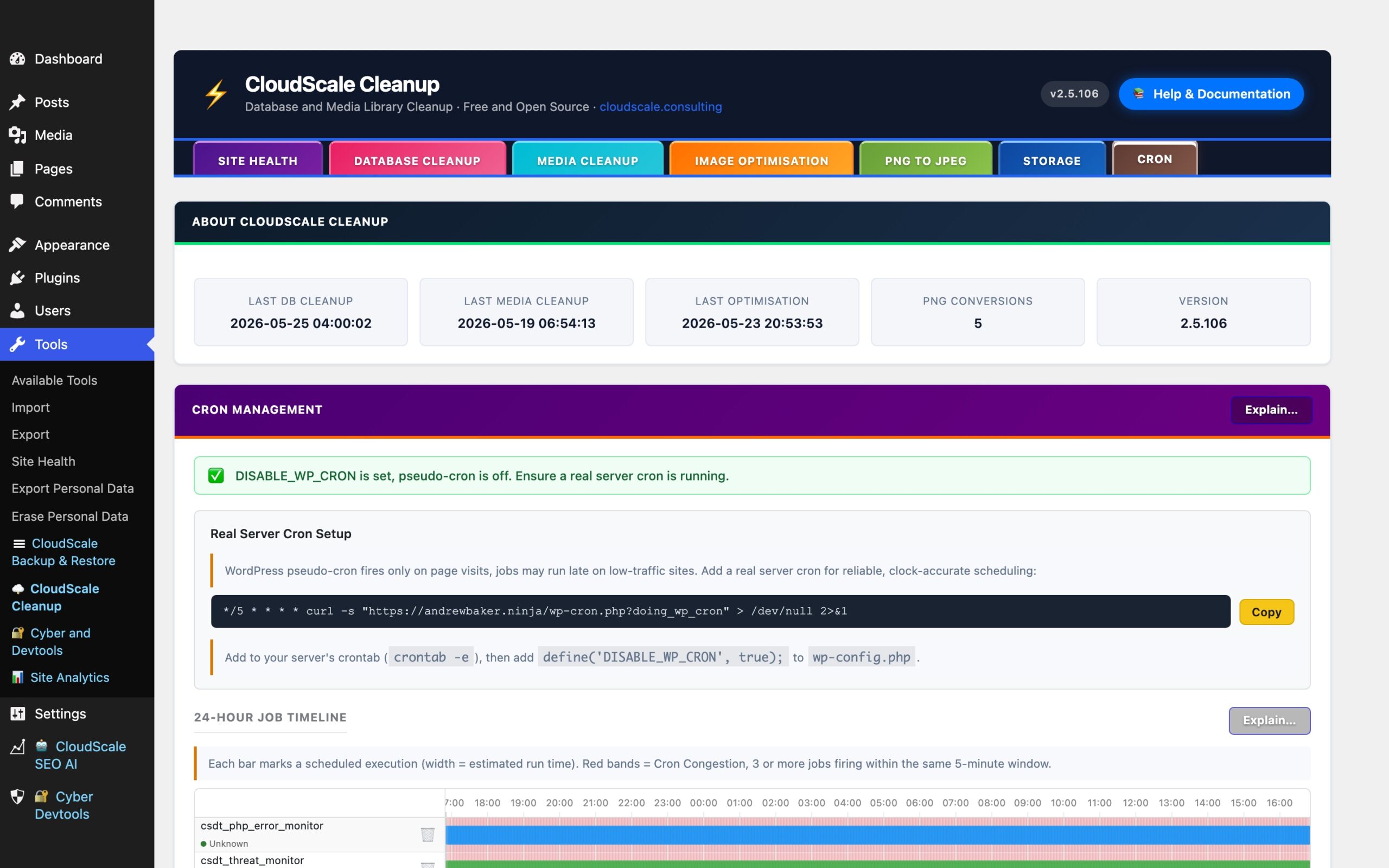
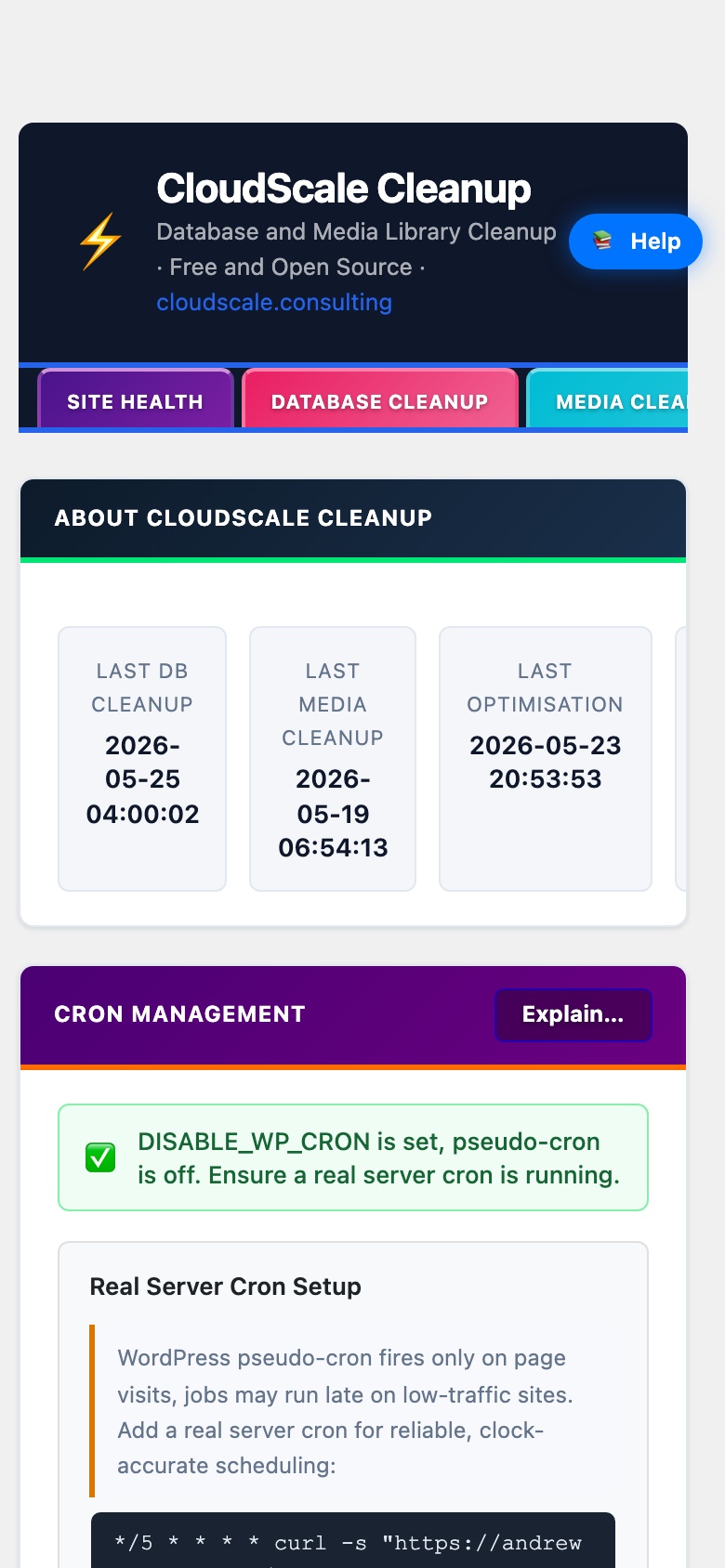
The Cron tab is a full cron management console for your WordPress installation. It shows every background job registered in the WordPress scheduler, visualises when they fire, detects scheduling conflicts, identifies which plugin owns each job, and lets you delete orphaned or unwanted jobs safely via a recycle bin.
What is WordPress Cron?
WordPress has no connection to the operating system’s real scheduler. Instead it simulates cron by checking a job queue on every page visit. When a visitor loads any page, WordPress checks whether any scheduled jobs are overdue and fires them inline during that request. This approach is called pseudo-cron or WP-Cron.
The main limitation: on low-traffic sites, a job scheduled for 3 AM may not actually run until the first visitor arrives after that time, which could be hours later. On high-traffic sites this works reliably, but the extra processing on visitor page loads adds latency.
WP-Cron health banner
The coloured banner at the top of the tab summarises the cron system status:
- Green, OK: WP-Cron is running normally with no overdue events.
- Amber, Warning: one or more issues detected, overdue events or congestion zones.
- Blue, DISABLE_WP_CRON is set: pseudo-cron is disabled. This is the recommended state if you have a real server cron configured.
Real Server Cron Setup
For precise, clock-accurate job execution, disable WP-Cron and use a real server cron instead:
- Add this line to your server crontab (
crontab -e):
The crontab command is pre-filled with your site URL, click Copy to copy it.*/5 * * * * curl -s "https://yourdomain.com/wp-cron.php?doing_wp_cron" > /dev/null 2>&1 - Add this line to
wp-config.phpto stop WordPress from running pseudo-cron on page visits:define('DISABLE_WP_CRON', true);
This runs wp-cron.php every 5 minutes from a real OS-level scheduler, no visitor required, no page-load overhead.
24-Hour Job Timeline
A canvas chart plotting every scheduled WordPress cron job across the next 24 hours. The x-axis shows local clock time in your browser’s timezone, snapped to clock hours. The left edge is “Now”.
How to read it:
- Bars, each coloured bar represents one scheduled firing of a job. The bar’s horizontal position is when it fires; its width is proportional to estimated execution time (half the repeat interval, capped at 5 minutes, minimum 8 px). A wider bar means a longer-running job.
- Dashed spine, for recurring jobs, a dashed line connects the first and last bar, making it easy to see the repeat pattern at a glance.
- Red congestion bands, a red background highlight marks any 5-minute window where 3 or more jobs are scheduled to fire simultaneously. These windows can cause CPU and database spikes. See the Cron Congestion section below.
- Job labels, the left column shows each hook name as selectable HTML text. Below each hook name, a coloured dot and plugin name indicate which plugin owns the job and whether it is installed and active.
- Trash icon, click the bin icon next to any job to move it to the Cron Recycle Bin (see below). Nothing is permanently deleted immediately.
Plugin identification
Each job in both the timeline and the Cron Job Queue is matched against a built-in lookup table of 200+ WordPress plugins. The match uses the hook name prefix (e.g. jetpack_, wpseo, updraftplus_). The status badge next to each plugin name indicates:
- Blue, Core: a built-in WordPress function; always present.
- Green, Active: the plugin is installed and active. Detected by checking whether the hook has registered PHP callbacks at runtime, the most reliable signal possible.
- Orange, Installed: the plugin directory exists on disk but the plugin is not active. The job will fire but find no callbacks.
- Red, Not installed: the plugin directory does not exist and there are no callbacks. This is an orphaned cron entry, a job left behind by a deleted plugin. These fire on schedule, consume server resources, do nothing, and should be removed.
Cron Congestion
When 3 or more jobs fire within the same 5-minute window, they compete for CPU time, PHP memory, and database connections simultaneously. This can cause:
- Visible page slowdown for any visitors hitting the site during that window.
- PHP memory exhaustion on servers with a low
memory_limit. - MySQL connection timeouts when all connection slots are occupied.
The congestion warning box beneath the timeline lists each congested window with its local clock time and the names of the conflicting jobs. Consider staggering recurring jobs to different hours or disabling orphaned jobs that are contributing to congestion without doing any useful work.
Cron Job Queue
A complete table of every entry in the WordPress cron schedule, the authoritative source of what is registered, not just what fires in the next 24 hours. Columns:
- Hook, the internal action name WordPress calls when the job fires. This is selectable text, you can copy it to search for its definition in plugin code.
- Plugin, resolved plugin name with status badge (Core / Active / Installed / Not installed).
- Schedule, the recurrence label (e.g.
hourly,twicedaily,daily, orone-time). - Next Run, how long until the job fires next. Overdue means the job was due to run in the past but hasn’t fired yet, typically because no page visit triggered pseudo-cron at the scheduled time.
- Last Run, how long the job took the last time it ran, and how long ago that was. This data is collected by CloudScale Cleanup’s lightweight timing hooks which wrap each cron hook with before/after timestamps during real cron runs. Only appears after the job has fired at least once since the plugin was activated.
- Status, OK or Overdue.
- Trash icon, move the job to the Cron Recycle Bin.
Click Refresh to reload the table and timeline from the current cron state.
Manual Triggers
Fires a CSC scheduled job immediately without waiting for the next scheduled time:
- Run DB Cleanup Now, fires
csc_scheduled_db_cleanupusing the currently saved cleanup settings. - Run Media Cleanup Now, fires
csc_scheduled_img_cleanup.
Useful for testing that scheduled jobs work correctly before relying on the scheduler, or for forcing an immediate run after changing settings.
Cron Recycle Bin
When you click the trash icon on a job (in either the timeline or the Cron Job Queue), the job is removed from the WordPress cron schedule and placed in the Cron Recycle Bin. The original hook name, schedule, recurrence interval, and scheduled time are all preserved so the job can be fully restored.
Actions in the recycle bin:
- Restore, re-schedules the job in the WordPress cron queue. If the original scheduled time is in the past, the job is scheduled to run 30 seconds from now to avoid an immediate overdue state.
- Delete Forever, permanently removes the entry from the recycle bin. This cannot be undone.
The recycle bin persists across page loads and is stored in wp_options. It holds up to 200 entries.
Plugin statistics
The About card at the top of the Cron tab shows lifetime activity statistics:
- Last DB Cleanup, date and time of the most recent database cleanup run (manual or scheduled).
- Last Media Cleanup, most recent media library cleanup run.
- Last Optimisation, most recent image optimisation run.
- PNG Conversions, total number of PNG files converted to JPEG since the plugin was installed.
- Version, currently installed plugin version.