← CloudScale Plugin Help/CloudScale Cyber and Devtools: Free WordPress Security, AI Penetration Testing & Developer Toolkit
AI Site Auditor
One button scans all your published content and database, then returns a prioritised list of SEO gaps, thin content, missing images, database bloat, and security misconfigurations, each with a specific fix instruction. No external crawlers, no data sent to third parties, no Screaming Frog licence required.
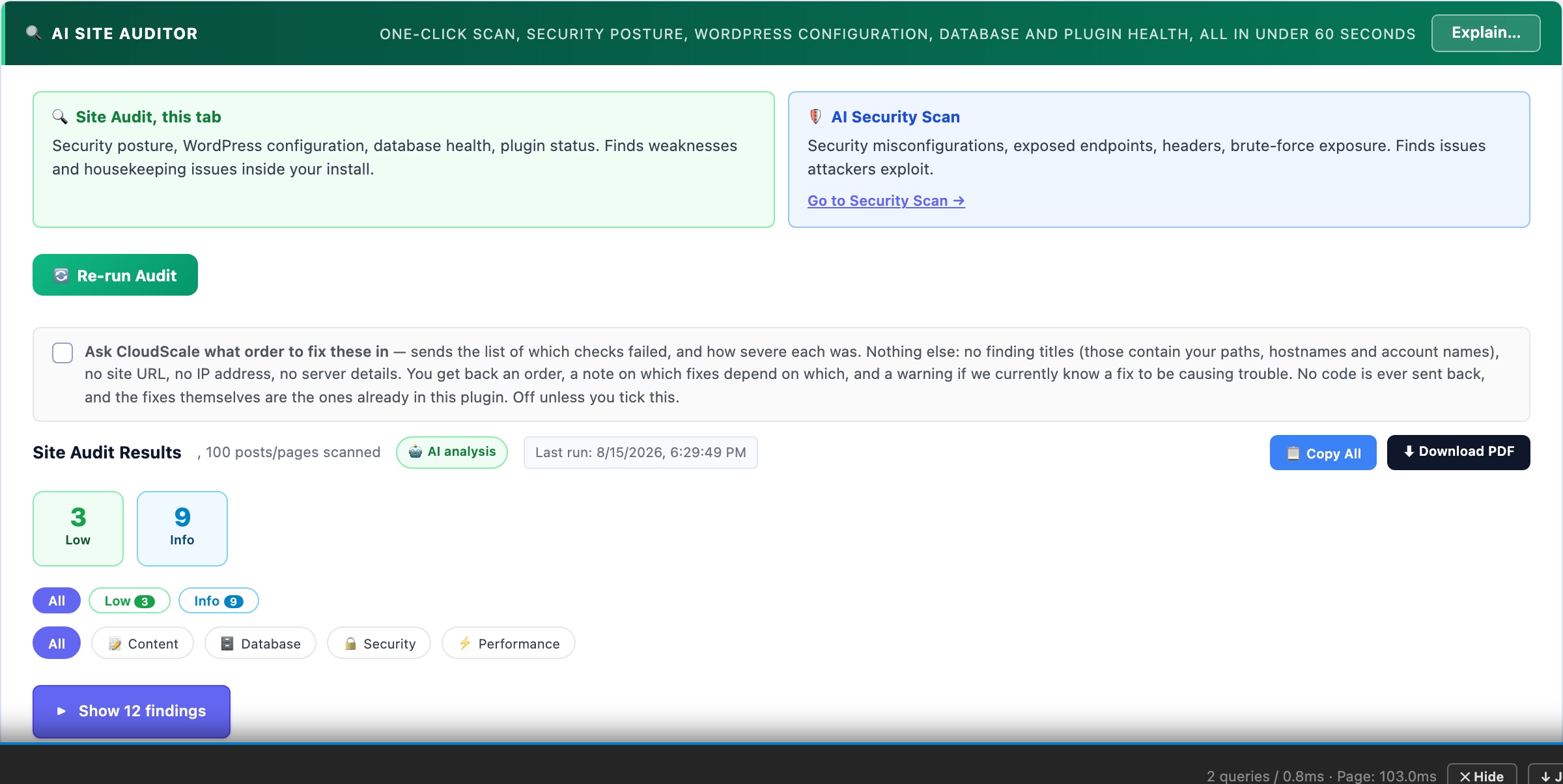
🔍 Your Entire Site Audited in Under 60 Seconds
One button. CloudScale scans all your published content and your database, then uses AI to return a prioritised list of issues scored by impact, SEO gaps, thin content, missing images, database bloat, inactive plugins, security misconfigurations. No external crawlers, no data sent to third parties, no Screaming Frog licence required.
Works without an AI key, rule-based findings run instantly. Add an API key on the Security tab for AI-written summaries, root-cause explanations, and deeper recommendations.
Most WordPress site owners have no idea what their site actually looks like to Google. Their posts feel complete when written, but from the outside the picture is different: a meta description missing on half the posts so Google writes its own (usually a random sentence pulled from the article body that is rarely anyone’s best pitch to a reader), featured images absent on a quarter of posts making social shares look blank, the autoload table quietly growing to 5MB so every admin page loads sluggishly, and post revisions accumulating until they consume 30% of total database storage. None of this is visible when you are reading your own content. The Site Auditor shows you what Google and your database actually see.
The audit runs entirely inside your WordPress installation. No external crawler visits your site, no third party receives your content. The scanner reads your database directly, inspects your published posts, checks your WordPress configuration, and assembles a prioritised findings report in seconds. If you have an AI API key configured, the gathered statistics are sent to the AI for deeper interpretation, but your actual post content is never transmitted, only counts and metadata.
What the audit checks
- SEO, missing meta descriptions: posts and pages with no meta description written. Google writes its own for these pages, pulling a random sentence from your content. That sentence is rarely your best pitch to a reader deciding whether to click. Each finding links directly to the affected posts so you can fix them one by one, or use the AI Meta Description Writer (if you have the CloudScale SEO plugin) to fix them in bulk.
- SEO, missing SEO titles: pages where the title tag defaults to the raw post title with no customisation. A well-written title targets a keyword naturally, includes your brand name where appropriate, and stays under 60 characters. Posts without a custom title are flagged with a link to edit them.
- SEO, duplicate page titles: multiple posts sharing the same title tag. Google treats these as competing for the same search query, which dilutes ranking signals across both. Usually caused by applying the same template title to similar posts without customising the SEO field per post.
- Content, thin pages: published posts under 300 words. Thin content pages are unlikely to rank for competitive queries and can dilute your site’s overall quality score in Google’s assessment. The audit shows each thin post with its word count so you can decide whether to expand it, redirect it to a related page, or mark it noindex.
- Content, missing featured images: posts with no featured image set. Featured images are used for OpenGraph social previews (what LinkedIn, WhatsApp, Slack show when someone shares your link), related article thumbnails, and Google Discover cards. A missing featured image means blank or placeholder previews everywhere your posts are shared.
- Performance, autoloaded options bloat: WordPress loads certain plugin settings on every single page request via the
wp_optionstable withautoload=yes. When deactivated plugins leave their data behind, or when plugins store large amounts of data in autoloaded options, the total grows and slows every page. CloudScale flags this when total autoloaded data exceeds 500KB and tells you the exact size so you can measure improvement after cleanup. - Performance, excess active plugins: sites with more than 20 active plugins. Each plugin adds PHP execution time, potential database queries, and JavaScript or CSS assets to every page request. This is an informational finding, not every plugin is replaceable, but it prompts a review of whether every installed plugin is genuinely active and necessary.
- Database, expired transients: WordPress caches temporary data in the
wp_optionstable as transients with an expiry time. Expired transients should be removed automatically by WP-Cron, but on sites with unreliable cron execution they accumulate as dead rows, contributing to autoload bloat and slower queries on a table that WordPress reads on every request. - Database, post revisions: every draft save or published-post update creates a revision. With no limit configured, a heavily-edited post can accumulate hundreds of revisions. These rows are safe to remove once a post is live and they represent no SEO value. The audit shows the total revision count and the number of rows that can be safely cleaned.
- Database, orphaned post meta: when a post is deleted, its corresponding rows in
wp_postmetaare not always cleaned up by WordPress or the plugin that created them. Orphaned meta rows accumulate over time and slow queries that join against the meta table. - Plugins, inactive plugins on disk: deactivated plugins remain on your server and present an attack surface even when disabled. A plugin with a known CVE is exploitable via direct file access even if it is not active. The audit lists every inactive plugin as a reminder to remove rather than just deactivate plugins you no longer use.
- Security, WP_DEBUG in production: when
WP_DEBUGis enabled on a live site, PHP notices, warnings, and errors are displayed to visitors. This leaks file paths, function names, database structure details, and plugin version information that attackers use to identify and target specific vulnerabilities. WP_DEBUG should only be enabled in local development environments.
Reading the results
Findings are sorted by severity: Critical → High → Medium → Low → Info. The scorecard at the top shows the count at each level so you know at a glance how much work you have. Each finding card shows the severity badge and category for quick triage, the affected post count or database metric, a plain-English explanation of why the finding matters, and a specific fix instruction. For content findings, clickable post links open the post editor directly so you can address each one without leaving the audit results.
Use the category filter buttons (SEO, Content, Performance, Database, Security) to focus on one area at a time. Run the audit again after each fix session to see your score improve.
Quick Fix buttons
Database findings (expired transients, post revisions, orphaned meta) show a Fix It button that runs the cleanup operation server-side and immediately re-checks the finding. Each operation is safe to run on any live WordPress site. The fix shows you the number of rows removed so you can see the before and after impact on your database size.
Privacy and data handling
All scanning runs inside your WordPress installation, no content or metadata leaves your server during the rule-based analysis pass. If you have an AI API key configured, aggregated site statistics (post counts, word counts, database metrics) are sent to the AI provider for deeper interpretation. Your actual post content is never transmitted, only counts and aggregate measurements.
Run the audit before and after making changes
Run the Site Audit before a major plugin change or cleanup sprint to establish a baseline. After making fixes, run it again and compare the scorecards. This is especially useful before and after cleaning up database bloat, the autoloaded options KB figure should drop measurably after removing redundant plugin data. Save a screenshot of the findings list before a sprint and compare it to the results afterwards to confirm the improvements are real.