← CloudScale Plugin Help/CloudScale Cyber and Devtools: Free WordPress Security, AI Penetration Testing & Developer Toolkit
Plugin Optimizer
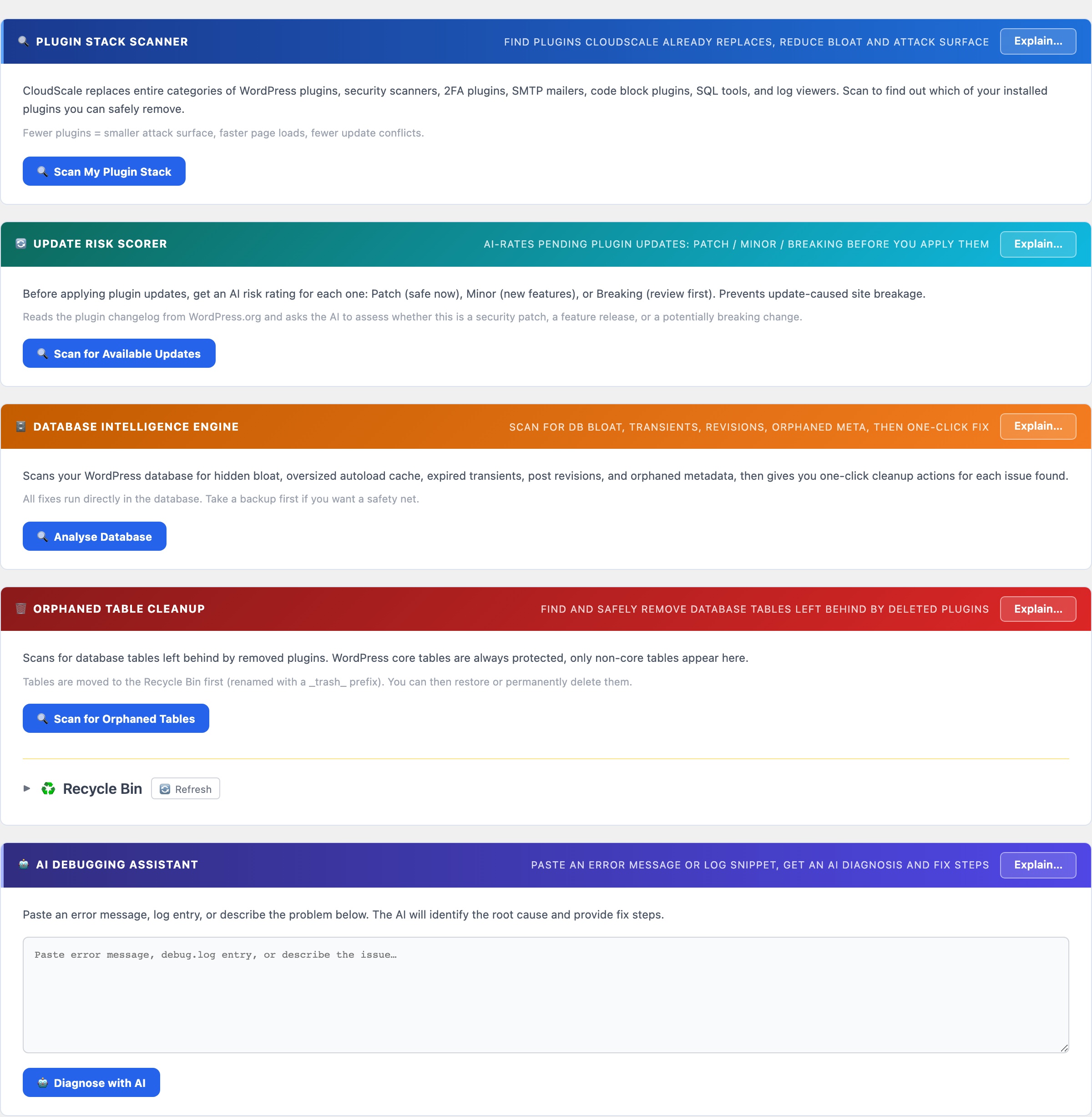
Two tools in one tab: a plugin stack scanner that maps your installed plugins against everything CloudScale already replaces (so you know exactly which ones to remove), and an AI debugging assistant that diagnoses PHP errors, stack traces, and WordPress warnings instantly with step-by-step fix instructions.
🔧 Reduce Your Plugin Stack. Fix Errors Faster.
The average WordPress site runs 17 active plugins. Each one adds HTTP requests, CSS, JavaScript, and potential conflict vectors to every page load. The Optimizer tab gives you two tools to fight back: a plugin scanner that finds redundancy, and an AI assistant that diagnoses errors instantly.
No other plugin does this. The Plugin Stack Scanner is the only tool that maps your installed plugins against a known replacement table and tells you which ones to remove, with direct links to the CloudScale features that replace them.
Most WordPress sites accumulate plugins the same way: one plugin gets installed to solve an immediate problem, then another, then another. Each one made sense in isolation. Together they form a stack of 15-20 plugins where nobody is sure which ones are still needed, several are doing overlapping jobs, and the combined page weight and PHP load is measurably slower than it needs to be. The Plugin Stack Scanner makes this visible: it shows you exactly which of your current plugins CloudScale already replaces, what the annual saving is for premium ones, and gives you a direct link to the CloudScale equivalent so you can verify it before deactivating anything.
The AI Debugging Assistant solves a different problem: PHP errors, stack traces, and WordPress warnings that require reading documentation, searching Stack Overflow, or posting in a forum and waiting. Paste the error, get a structured diagnosis with the root cause and numbered fix steps in under 10 seconds. The AI receives your WordPress and PHP version as context so the answer is specific to your environment rather than generic.
Plugin Stack Scanner
Click Scan My Plugin Stack. CloudScale reads your active and inactive plugin list and checks each against a database of 30+ categories it replaces: security scanners, 2FA plugins, SMTP mailers, code block plugins, SQL tools, log viewers, and social preview tools.
The results show:
- Plugin name and version: what you currently have installed and whether it is active or inactive
- CloudScale replacement: the specific feature within CloudScale that covers this plugin’s function, with the tab name so you can find it immediately
- Annual saving: the cost of the premium licence for paid plugins. Free plugins show a dash. This figure is useful for quantifying the value of consolidation when making the case to a client or a budget holder
- Go to tab link: a direct link to the CloudScale equivalent so you can set it up and verify it is working before deactivating the original plugin
Safe process for removing a plugin:
- Click the CloudScale tab link and configure the equivalent feature
- Test the CloudScale version works correctly on your site
- Take a full backup with CloudScale Backup and Restore
- Deactivate the original plugin
- Verify nothing broke, then delete the plugin entirely rather than leaving it deactivated (inactive plugins still present an attack surface)
AI Debugging Assistant
Paste any PHP error, WordPress warning, stack trace, deprecation notice, or plain-language problem description into the text area. Good inputs to try:
- A PHP fatal error from your server log (copy the full error including file and line number)
- A WordPress admin notice you don’t understand
- A plugin conflict description (“when I activate X, Y breaks”)
- A 500 server error message
- An unexplained behaviour (“checkout page goes blank after placing an order”)
Click Diagnose with AI. The AI returns a structured response with three sections:
- Root Cause: what is actually broken, in plain English, not the error message itself but what it means
- Why It Happens: the underlying mechanism so you understand the problem and can prevent it recurring, not just fix it blindly this time
- How to Fix It: numbered steps specific to the error you provided, tailored to your WordPress and PHP version
The AI receives your WordPress version, PHP version, and active plugin list as context with every query. This means it can identify that an error is caused by a known incompatibility between two specific plugins you have installed, rather than giving a generic answer that applies to every WordPress site.
Using the AI Debugging Assistant with the CS Monitor
The CS Monitor panel (visible on every admin page for logged-in administrators) has a clipboard copy button on every tab. If you see a PHP error in the CS Monitor’s Logs tab, click Copy to get the full error text, then paste it directly into the Debugging Assistant. The two tools are designed to work together: CS Monitor catches the error in real time, the Debugging Assistant explains it and tells you how to fix it.
Requires an AI API key. Add one on the Security tab under AI Settings. Google Gemini’s free tier works perfectly for debugging queries, a single debugging session uses a fraction of the free daily quota.