← CloudScale Plugin Help/CloudScale Cyber and Devtools: Free WordPress Security, AI Penetration Testing & Developer Toolkit
OPcache Monitor
Displays the current PHP OPcache status: memory usage, hit rate, and the number of cached vs. uncached scripts. A hit rate below 90% or a full cache means PHP is recompiling scripts on every request, significantly slowing your site. Includes a one-click Reset button to flush the cache after code deployments.
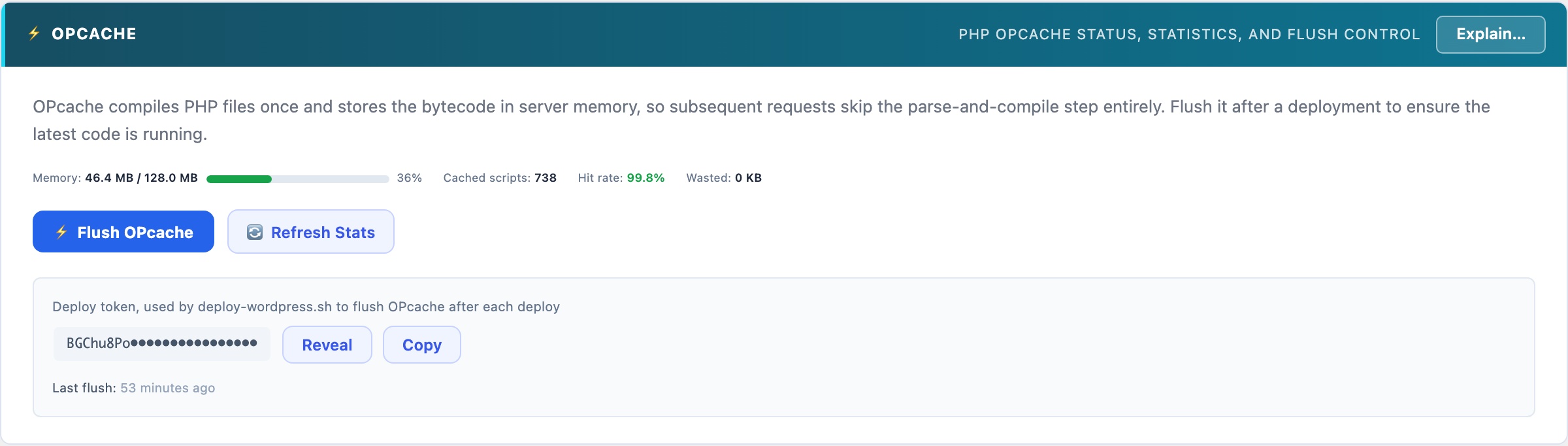
PHP OPcache: the Single Biggest PHP Performance Win
PHP compiles source code to bytecode every time a script runs, unless OPcache is enabled. With OPcache, the bytecode is compiled once and stored in shared memory. Every subsequent request skips compilation entirely. On a WordPress site with 200+ PHP files loading per request, this typically cuts PHP execution time by 30-50%.
Reading the Status Panel
- Hit rate: the percentage of PHP script requests served from cache. A healthy hit rate is 95% or higher. Below 90% means either the cache is too small, too many unique scripts are being loaded, or OPcache is not configured correctly.
- Memory usage: how much of the configured OPcache memory is currently in use. If this is above 90%, increase
opcache.memory_consumptionin your php.ini, a full cache means PHP starts evicting cached scripts, causing recompilation and dramatically degrading performance. - Cached scripts: the number of PHP files currently compiled and stored in the cache. For a standard WordPress installation, expect 400-800 scripts.
- Interned strings: OPcache also caches repeated string values (class names, function names, etc.) to reduce memory duplication across worker processes.
Reset button
After deploying code changes (new plugin versions, theme updates, custom code), the cached bytecode may no longer match the files on disk. Click Reset OPcache to flush all cached scripts. WordPress will recompile them on the next few requests. The site remains available during the reset, there’s no downtime.