← CloudScale Plugin Help/CloudScale Cyber and Devtools: Free WordPress Security, AI Penetration Testing & Developer Toolkit
Code Blocks
Mermaid diagrams drawn right in your posts, plus syntax-highlighted code blocks powered by highlight.js, zero CDN calls, 37 languages, 14 professional colour themes, batch migration from any legacy block plugin, bulk theme re-apply, and live GitHub Linking that keeps published code in sync with a public repo automatically.
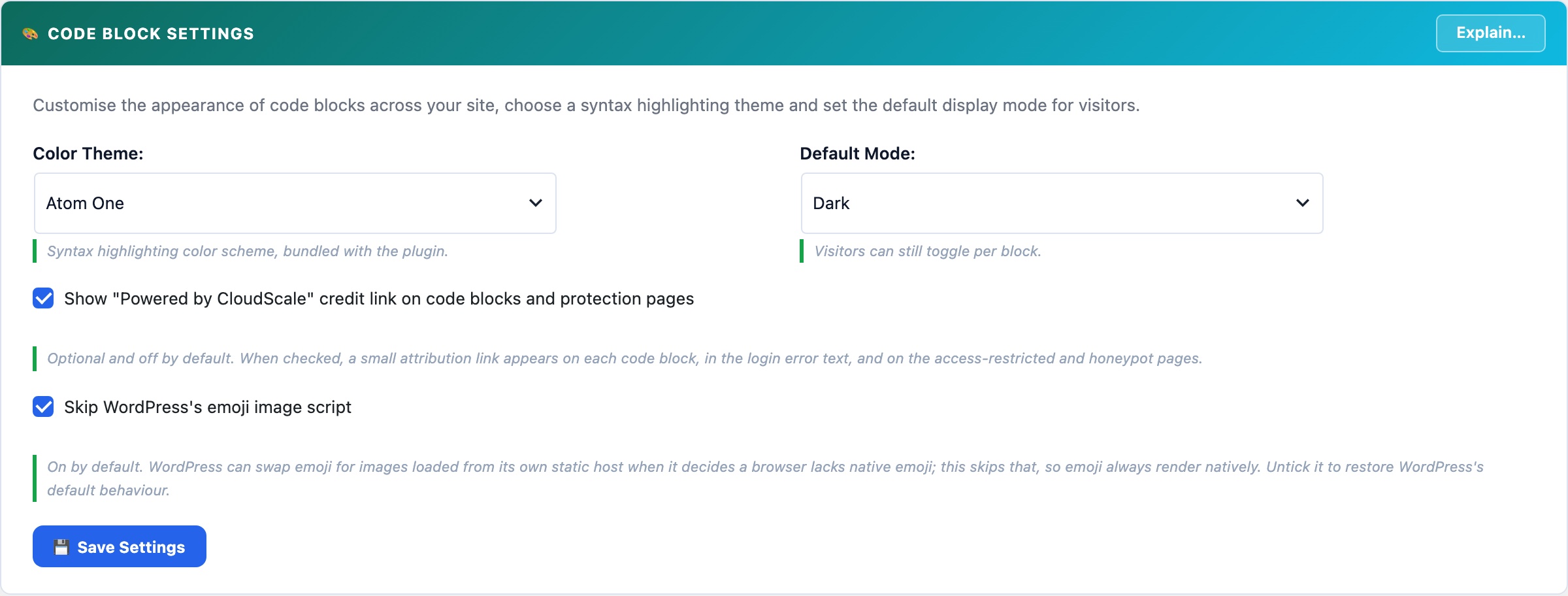
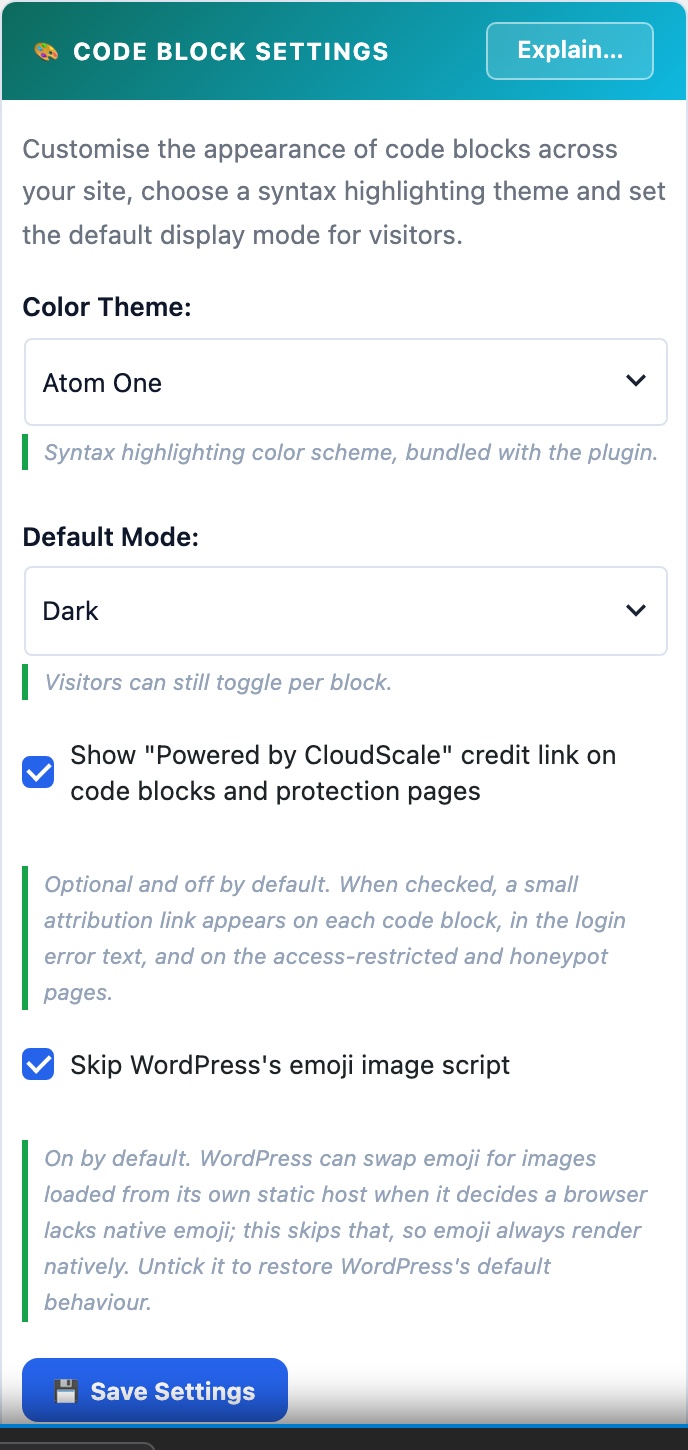
💻 Beautiful Code Blocks Without Paying $50/Year or Slowing Your Site Down
Most WordPress code highlighting plugins have one of two problems: they load scripts from an external CDN (adding 100 to 300ms to every page load, hurting your Core Web Vitals score, and breaking if the CDN goes down), or they charge $30 to $50/year for features that should be free. Enlighter loads from their own servers. SyntaxHighlighter Evolved loads from WordPress.com’s CDN. Prismatic charges $29/year for a theme switcher.
CloudScale bundles highlight.js 11.12.0 entirely on your own server: zero external HTTP requests, zero CDN dependency, zero annual fee. Your pages load faster, your cache hit rates improve, and your syntax highlighting works even when third-party services are down.
The Code Block is a native Gutenberg block (cloudscale/code-block) and a [csdt_devtools_code] shortcode. It works everywhere WordPress renders content.
✨ Mermaid Diagrams
Any code block whose language is Mermaid diagram is drawn as a diagram on the page. Your readers see the picture; you keep editing plain text.
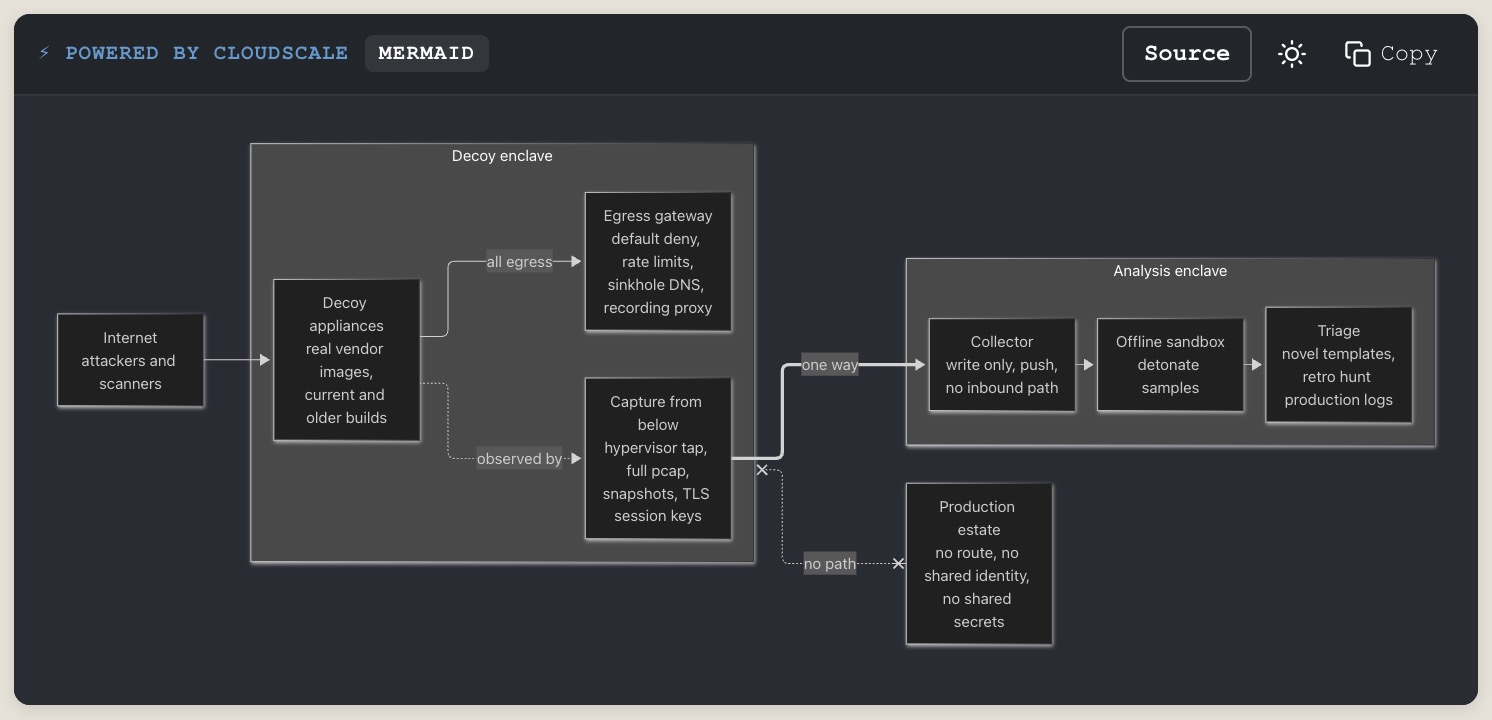
To add one:
- Add a CloudScale Code Block (search the inserter for mermaid, diagram or flowchart).
- Set Language to Mermaid diagram in the block sidebar. Pasting a
```mermaidfence sets it for you. - Type or paste the diagram text, then preview or publish. The editor shows the text; the page shows the diagram.
This is the source of the diagram above:
flowchart LR
    internet["Internet<br/>attackers and scanners"]
    subgraph decoy["Decoy enclave"]
        appliances["Decoy appliances<br/>real vendor images"]
        egress["Egress gateway<br/>default deny, rate limits"]
        capture["Capture from below<br/>hypervisor tap, full pcap"]
    end
    subgraph analysis["Analysis enclave"]
        collector["Collector<br/>write only, no inbound path"]
        sandbox["Offline sandbox"]
        triage["Triage"]
    end
    production["Production estate"]
    internet --> appliances
    appliances -- all egress --> egress
    appliances -. observed by .-> capture
    capture == one way ==> collector
    collector --> sandbox --> triage
decoy x-. no path .-x production- Source switches the block between the diagram and its text; Copy copies the text.
- The theme toggle redraws the diagram in light or dark.
- A syntax error shows the source with a one-line reason, so a typo never leaves a blank box.
- Mermaid 12.0.0 is bundled and loads only on pages that contain a Mermaid block; every other page is unaffected. Labels are sanitised with Mermaid’s strict security level.
- Diagram syntax reference: mermaid.js.org.
37 languages with auto-detection (112 names once aliases are counted). CloudScale detects the language automatically from the code content. Override it manually in the block sidebar when detection picks the wrong one.
14 professional colour themes: Atom One Dark/Light, GitHub, Monokai, Nord, Dracula, Tokyo Night, VS Code, VS 2015, Stack Overflow, Night Owl, Gruvbox, Solarized, Panda, Shades of Purple. A toggle button on each block switches it between the dark and light variants.
Copy to clipboard with one click. Line numbers are rendered via CSS counter so they are never included when someone copies the code.
INI/TOML auto-repair: Gutenberg breaks INI and TOML files at bare [section] headers by treating them as block delimiters. CloudScale detects this silently and reassembles the fragments, showing a brief toast so you know it happened.
🔄 Code Block Migrator
Switching code highlighting plugins normally means opening every post by hand. The Migrator scans your database for posts and pages using any supported legacy format, shows you a precise before/after diff, and converts them all to CloudScale blocks in a single operation.
Supported source formats:
- WordPress core
<!-- wp:code -->and<!-- wp:preformatted -->blocks - Code Syntax Block plugin (
<!-- wp:code-syntax-block/code -->) - Legacy shortcodes:
[code],[sourcecode], and common variants
Workflow:
- Scan, finds every post and page with supported blocks. Shows title, status, date, and block count.
- Preview, shows the exact before/after content diff per post. Nothing is written to the database at this stage.
- Migrate, convert one post at a time, or migrate everything in a single click.
Located under Tools → CloudScale DevTools → Code Block Migrator tab. ⚠ The migrator writes directly to post_content. Always take a database backup first.
🎨 Re-apply Default Theme
Once you’ve settled on a site-wide default colour palette and dark/light mode, you still have all the blocks already published with their own theme overrides. This panel gives you the picker AND the bulk action in one place.
Three-step flow (on the Code Block Migrator tab, second panel):
- Pick, use the Color Theme dropdown (Atom One, Nord, Dracula, Tokyo Night, GitHub, Monokai, Stack Overflow, Night Owl, Gruvbox, Solarized, Panda, Tomorrow Night, Shades of Purple, VS Code) and the Default Mode dropdown (Dark or Light).
- Save, click 💾 Save default theme. The site-wide options are written. New blocks automatically inherit these from now on.
- Apply, click 🎨 Re-apply default theme to all blocks. The plugin scans every post containing CloudScale Code Blocks and clears each block’s per-block
themeattribute so existing blocks inherit the new default too.
What gets reset: only the theme attribute on each cloudscale/code-block. What is left alone: language, title, GitHub source attributes, prefix/suffix wrappers, and block content itself. ⚠ There is no undo, back up first if you have intentional per-block overrides to preserve.
🔗 GitHub Linking
Most code blogs go stale the moment you ship a refactor. CloudScale Code Blocks can link directly to a file in a public GitHub repo: the block content mirrors the GitHub source, refreshing on demand from the block sidebar or automatically every night via WP-Cron. Your blog stays accurate with zero effort.
⚡ Quick start, link your first block in 30 seconds
- Open a post in the WordPress editor and add (or select) a CloudScale Code Block.
- In the block’s toolbar at the top of the block, click the 🐙 GitHub button. A small popover opens.
- Paste the URL of any public GitHub or GitLab file into the GitHub URL field. GitHub:
https://github.com/OWNER/REPO/blob/BRANCH/path/to/file.ext. GitLab:https://gitlab.com/OWNER/REPO/-/blob/BRANCH/path/to/file.ext(self-hosted GitLab instances work too). Just open the file on the provider’s site and copy the URL from the address bar. - Click Fetch from GitHub. The block’s body fills with the file’s contents and the toolbar button turns green with a Linked label. The language is auto-detected from the extension. Save the post.
- You’re done. The block now refreshes every night from GitHub. Click the toolbar button again any time to pull updates on demand or change the URL.
The GitHub button, your primary entry point
Every CloudScale Code Block has a GitHub button in the block’s own toolbar (the dark bar above the code, alongside Copy, Paste, Clear). Click it and a popover opens right where you’re working, no need to dig into the sidebar:
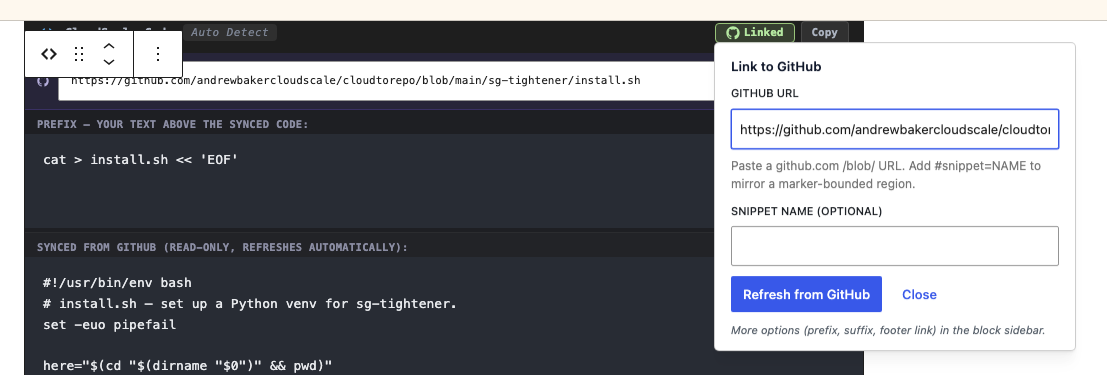
┌─ CloudScale Code · BASH ───────────── [🐙 GitHub] [⧉ Copy] [Paste] [Clear] ┐
│                                              ⬇  click                            │
│                                       ┌─ Link to GitHub ──────────────────────┐ │
│                                       │                                       │ │
│                                       │  GitHub URL                           │ │
│                                       │  ┌──────────────────────────────────┐│ │
│                                       │  │ https://github.com/owner/repo/.. ││ │  ← paste here
│                                       │  └──────────────────────────────────┘│ │
│                                       │  Paste a github.com /blob/ URL.       │ │
│                                       │  Add #snippet=NAME to mirror a        │ │
│                                       │  marker-bounded region.               │ │
│                                       │                                       │ │
│                                       │  Snippet name (optional)              │ │
│                                       │  ┌──────────────────────────────────┐│ │
│                                       │  │ login-form                       ││ │  ← matches csdt:start markers
│                                       │  └──────────────────────────────────┘│ │
│                                       │                                       │ │
│                                       │  [ Fetch from GitHub ]   [ Close ]      │ │
│                                       │                                       │ │
│                                       │  More options (prefix, suffix,        │ │
│                                       │  footer link) in the block sidebar.   │ │
│                                       └───────────────────────────────────────┘ │
└──────────────────────────────────────────────────────────────────────────────────┘
Once the block is linked, the GitHub button turns green with a Linked label and the same popover gains a Refresh from GitHub action for pulling updates on demand.
Two-field popover, by design:
- GitHub URL, the canonical link (GitHub or GitLab, despite the field’s name). Validated live: a Fetch button enables when the URL parses as a valid
github.com/OWNER/REPO/blob/BRANCH/PATHorgitlab.com/OWNER/REPO/-/blob/BRANCH/PATH. - Snippet name (optional), pairs with
csdt:start name=NAME/csdt:end name=NAMEmarkers in your source file to mirror only that region. Leave empty to mirror the whole file.
Power options (prefix, suffix, footer-link toggle, snippet preview, stale flag) live in the standard block-settings sidebar → GitHub Source panel on the right of the editor. Use them when you need wrappers around the synced body, want to hide the public footer link, or want to see the last-synced timestamp.
What the block looks like in the editor when linked
When a block has a GitHub URL set, the block canvas swaps the usual single textarea for a three-zone split editor. This makes it visually obvious which part of the block you can edit and which part is auto-managed:
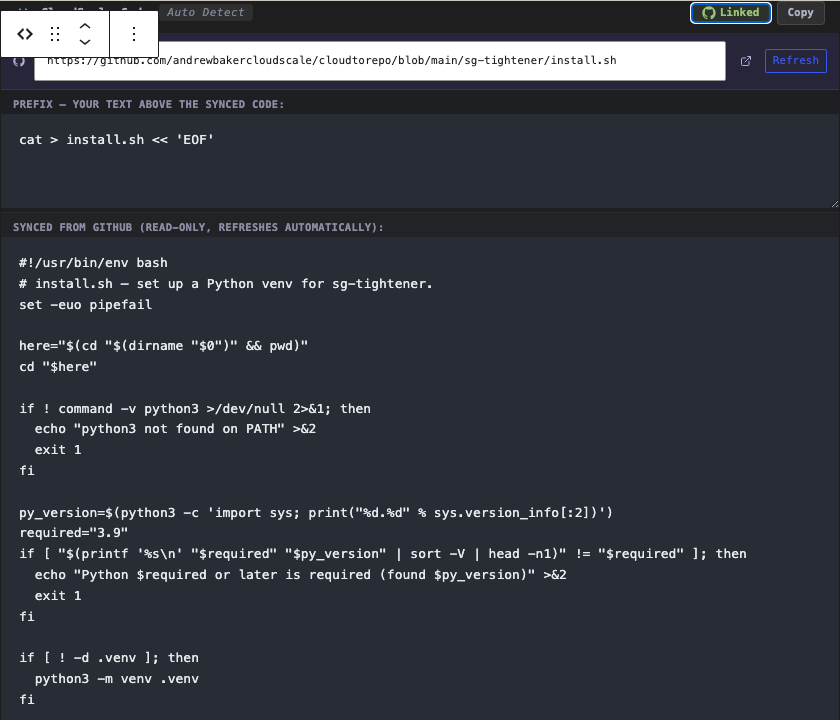
┌─ CloudScale Code · BASH · 🐙 Linked · ☼ · ⧉ Copy ─────────────────┐
│                                                                  │
│ 🐙 https://github.com/owner/repo/blob/main/install.sh  [Refresh]  │  ← URL header (click to edit)
│                                                                  │
│ PREFIX, YOUR TEXT ABOVE THE SYNCED CODE:                       │
│ ┌──────────────────────────────────────────────────────────────┐ │
│ │ cat > install.sh << 'EOF'                                    │ │  ← editable
│ └──────────────────────────────────────────────────────────────┘ │
│                                                                  │
│ SYNCED FROM GITHUB (READ-ONLY, REFRESHES AUTOMATICALLY):        │
│ ┌──────────────────────────────────────────────────────────────┐ │
│ │ #!/usr/bin/env bash                                          │ │
│ │ # install.sh, set up a Python venv for sg-tightener.        │ │  ← locked (cursor: not-allowed),
│ │ set -euo pipefail                                            │ │     dimmed background, overwritten
│ │ ...                                                          │ │     on every Refresh / nightly sync
│ └──────────────────────────────────────────────────────────────┘ │
│                                                                  │
│ SUFFIX, YOUR TEXT BELOW THE SYNCED CODE:                       │
│ ┌──────────────────────────────────────────────────────────────┐ │
│ │ EOF                                                          │ │  ← editable
│ └──────────────────────────────────────────────────────────────┘ │
│                                                                  │
└──────────────────────────────────────────────────────────────────┘
Why split it up:
- You can’t accidentally edit the middle, the synced body is read-only and visually different (dimmed background,
cursor: not-allowed). - Edits to Prefix and Suffix survive every refresh. Edits to the middle would be overwritten anyway, so the editor prevents you from making them.
- The URL is editable inline in the header, change branch, swap to a different file in the repo, fix a typo. No need to dig into the sidebar.
- The Refresh button in the header is the same as the one in the sidebar. Click either to pull the latest right now.
- The Paste and Clear toolbar buttons are hidden when linked (they would wipe the structured layout).
On the public-facing post
Readers see the synced code rendered with syntax highlighting and two affordances pointing back to GitHub:
- An octocat icon labelled Linked in the block’s toolbar (top-right, next to Copy).
- A small View on GitHub → link in the block’s footer.
Both link to the canonical github.com URL. Either can be hidden by turning off the Show ‘View on GitHub’ link toggle in the sidebar.
Whole-file mirror, the simplest case
For a whole-file mirror, leave the Snippet name field empty and use a URL like:
https://github.com/owner/repo/blob/main/path/to/file.py
Click Fetch from GitHub. The block content becomes the raw file contents. The language attribute is auto-detected from the extension. An octocat Linked button appears in the block toolbar and a View on GitHub footer link is rendered on the public-facing post.
Snippet markers, mirror just a region
For long files you only want to excerpt, add a pair of markers in the source. The parser works in any language, it looks for the marker text on a line regardless of comment style:
// csdt:start name=login-form
... your code ...
// csdt:end name=login-form
Reference the snippet by either appending #snippet=login-form to the URL, or filling the Snippet name field directly in the sidebar.
Prefix and suffix, preserve install-pattern wrappers
Sometimes you want the blog block to keep a wrapper that the GitHub source shouldn’t have. The classic case is install instructions that use a heredoc to write the file to disk:
cat > install.sh << 'EOF'
<file body here>
EOF
Set the Prefix field to cat > install.sh << 'EOF' and the Suffix to EOF. Every sync now sets the block content to prefix + raw_github_body + suffix. The GitHub file stays clean and directly runnable; the blog block keeps its install pattern intact.
Editor view, split editor when linked
When a block is linked to GitHub, the block editor’s single textarea is replaced by a structured split editor: editable Prefix on top, read-only synced Body in the middle (dimmed and locked so you cannot accidentally edit it), editable Suffix on the bottom. The header carries the GitHub URL (editable in-place) and a Refresh button. The author can never accidentally edit the synced body. Paste and Clear are hidden when linked.
Sync model + cache
- Manual refresh: click Refresh from GitHub in the sidebar or split-view header anytime.
- Nightly cron: a daily WP-Cron event (
csdt_github_sync_daily) sweeps the linked-blocks index in batches of 100, oldest-synced first. It re-fetches fromraw.githubusercontent.com, compares the SHA, and rewrites the post viawp_update_postwith revisions suppressed when the SHA differs. - Integrity check: before any cron rewrite, the plugin verifies the post still contains a block with the indexed UID and URL, divergence drops the orphan row.
- Stale flag: if the last successful sync is more than 7 days ago, the inspector panel shows a “Stale” badge.
- When GitHub is down or the file is missing: the existing block content is preserved, the failure is recorded against the block’s index row, and cron retries on the next tick.
- Unlinking: clear the URL field and save the post. On save, the indexer removes the block’s row from the index table and the block is no longer touched by future syncs.
Worked example, sg-tightener install scripts
A real post demonstrating the full feature: AWS Security Group Hardening. The post embeds seven full Python files and config snippets, each linked to its counterpart in the cloudtorepo/sg-tightener repository. The blog uses prefix/suffix to wrap each file in a cat > FILE << 'EOF' ... EOF install pattern so readers can copy-paste each block straight into a terminal. When the repo’s sg_tightener.py is updated, the post automatically picks up the change on the next nightly sync.
Faster: paste the link and skip the popover entirely
For the common case, a whole-file mirror with no snippet marker, you don’t need to open the toolbar popover at all. Paste this shape directly into a blank paragraph in the post body:
Install the SG Tightener CLI:

[install.sh](https://github.com/andrewbakercloudscale/cloudtorepo/blob/main/sg-tightener/install.sh)

Run it as your AWS admin profile.
The link has to be alone in its own paragraph, nothing else on that line, so an ordinary sentence that happens to mention a GitHub URL is never mistaken for one. The paragraph before it becomes the new block’s Prefix, the paragraph after becomes its Suffix, and the URL becomes the GitHub URL, the same three fields the toolbar popover and sidebar panel above fill in by hand. A brand-new cloudscale/code-block is inserted and Fetch from GitHub fires immediately, no button click needed. Both the header and footer paragraph are optional; a bare link on its own creates a block with no prefix or suffix.
Works the same way for a GitLab blob link (https://gitlab.com/owner/repo/-/blob/branch/path). A snippet marker isn’t picked up from the link text, if the file needs #snippet=NAME, append it to the URL itself rather than relying on the link’s visible label.