← CloudScale Plugin Help/CloudScale Cyber and Devtools – Free WordPress Security, AI Penetration Testing & Developer Toolkit
Re-apply Default Theme
One-click bulk action that resets the per-block theme override on every CloudScale Code Block across all posts, so every block snaps back to the site-wide default theme. Other per-block settings (language, title, GitHub source) are left untouched.
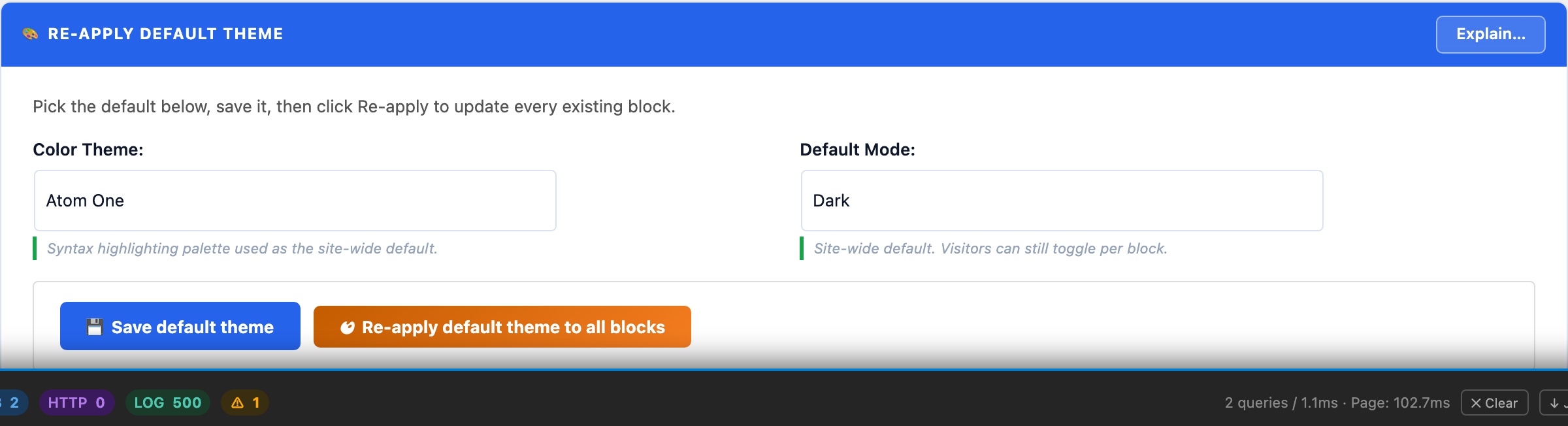
🎨 Snap Every Code Block Back to the Site Default in One Click
Once you have a site-wide default theme you like, you still have all the blocks already published with their own theme overrides. Re-applying the default by hand means opening every post and resetting each block, easily 100+ clicks on a busy blog.
This action walks every CloudScale Code Block in every published post and clears the per-block theme attribute so it inherits the new default. Other per-block settings stay exactly as they were.
What gets reset: only the theme attribute on each cloudscale/code-block. Possible per-block values were Dark, Light, or empty (inherit). After running, every block has an empty theme, so the site-wide setting in Diagnostics → Settings determines what readers see.
What is left alone:
language(auto-detect or explicit highlighter language)title(filename label shown above the block)- GitHub source attributes (
githubUrl,githubSnippet,githubPrefix,githubSuffix, etc.) - Block content itself
How it works: a single AJAX call scans wp_posts for content containing <!-- wp:cloudscale/code-block, parses each match via parse_blocks, recursively walks the block tree, clears attrs.theme on every match, and writes back via $wpdb->update(). The action returns a count of posts scanned, posts changed, and individual blocks reset.
⚠ This cannot be undone without a database backup. If you have any blocks with intentional per-block theme overrides (e.g. a “demo screen” block that should always render in Light mode regardless of site setting), back up first or skip this action.