← CloudScale Plugin Help/CloudScale Cyber and Devtools – Free WordPress Security, AI Penetration Testing & Developer Toolkit
GitHub Linking
Link any CloudScale Code Block to a file in a public GitHub repository. The block content mirrors the GitHub source, refresh on demand or let the nightly cron resync every linked block automatically. Optional marker syntax pulls in just a snippet of a larger file; optional prefix/suffix wraps the synced content with install patterns like `cat > FILE << EOF` without polluting the GitHub source.
🔗 Blog About Code That Stays in Sync with GitHub
Most code blogs go stale the moment you ship a refactor. Readers copy snippets that no longer match the repository, comments reference functions you renamed last week, and updates mean editing every post by hand.
CloudScale Code Blocks can link directly to a file in a public GitHub repo. The block content mirrors the GitHub source. Click Refresh anytime, or let the nightly cron resync every linked block automatically. Your blog stays accurate with zero effort.
1. Whole-file mirror, the simplest case
Open any CloudScale Code Block in the Gutenberg editor. In the right sidebar, expand GitHub Source. Paste a GitHub blob URL into the URL field:
https://github.com/owner/repo/blob/main/path/to/file.py
Click Fetch from GitHub. The block content becomes the raw file contents. The language attribute is auto-detected from the extension (.py → Python, .sh → Bash, .json → JSON, etc.). A small “View on GitHub” link is rendered below the block on the public-facing post, pointing readers to the canonical source.
2. Snippet markers, mirror just a region
For long files you only want to excerpt, add a pair of markers in the source. The parser looks for the marker text on a line regardless of comment style, so it works in any language:
// csdt:start name=login-form
... your code ...
// csdt:end name=login-form
Marker comments work in //, #, <!-- -->, /* */, any comment style your language supports. Reference the snippet from the block by either:
- Appending
#snippet=login-formto the URL, or - Filling the Snippet name field directly in the sidebar.
Marker names accept letters, digits, underscore, dot, and hyphen. If a marker is missing on a later sync, the block keeps its existing content and the failure is recorded on the block’s index row (visible if you query the wp_csdt_github_blocks table).
3. Prefix and suffix, preserve install-pattern wrappers
Sometimes you want the blog block to keep a wrapper that the GitHub source shouldn’t have. The classic case is install instructions that use a heredoc to write the file to disk:
cat > install.sh << 'EOF'
<file body here>
EOF
If we mirrored install.sh directly, the wrapper would be lost on every sync. Instead, set the Prefix and Suffix fields in the GitHub Source panel:
Prefix:  cat > install.sh << 'EOF'

Suffix:  EOF
Every sync now sets the block content to prefix + raw_github_body + suffix. The GitHub file stays clean and directly runnable; the blog block keeps its install pattern intact.
4. Sync model, footer link, and cache
- Manual refresh: click Refresh from GitHub in the sidebar anytime to fetch the latest version on demand. The block content, last-sync timestamp, and content SHA are all updated.
- Nightly cron: a daily WP-cron event (
csdt_github_sync_daily) sweeps the linked-blocks index (wp_csdt_github_blocks) in batches of 100, oldest-synced first. For each block it re-fetches fromraw.githubusercontent.com, compares the SHA, and rewrites the post viawp_update_postwith revisions suppressed when the SHA differs. - View on GitHub footer: a small link rendered below each linked block on the public-facing post. Pointed at the canonical file on github.com. Toggle visibility per block with the Show ‘View on GitHub’ link switch.
- Stale flag: if the last successful sync is more than 7 days ago, the GitHub Source panel shows a “Stale” badge. This indicates the cron has been failing or hasn’t run; check the index table’s
last_errorcolumn to diagnose. - When GitHub is down or the file is missing: the existing block content is preserved (no destructive rewrite) and the failure is recorded against the block’s index row. The cron retries on the next tick, picking up the row again because
last_syncis now stamped recently. - When a marker disappears: snippet-bounded blocks behave the same way, existing content preserved, error logged, retried next cron.
- Cloudflare cache: updates to public posts may be cached for a few minutes. The deploy and post-update flows purge the cache automatically; you can purge manually from the Cloudflare dashboard if you need an immediate refresh.
- Unlinking a block: clear the URL field in the sidebar and save the post. On save, the indexer removes the block’s row from
wp_csdt_github_blocksand the block is no longer touched by future syncs. - Deleting a linked block or trashing the post: the indexer removes all rows for affected blocks/posts automatically, no orphans left behind.
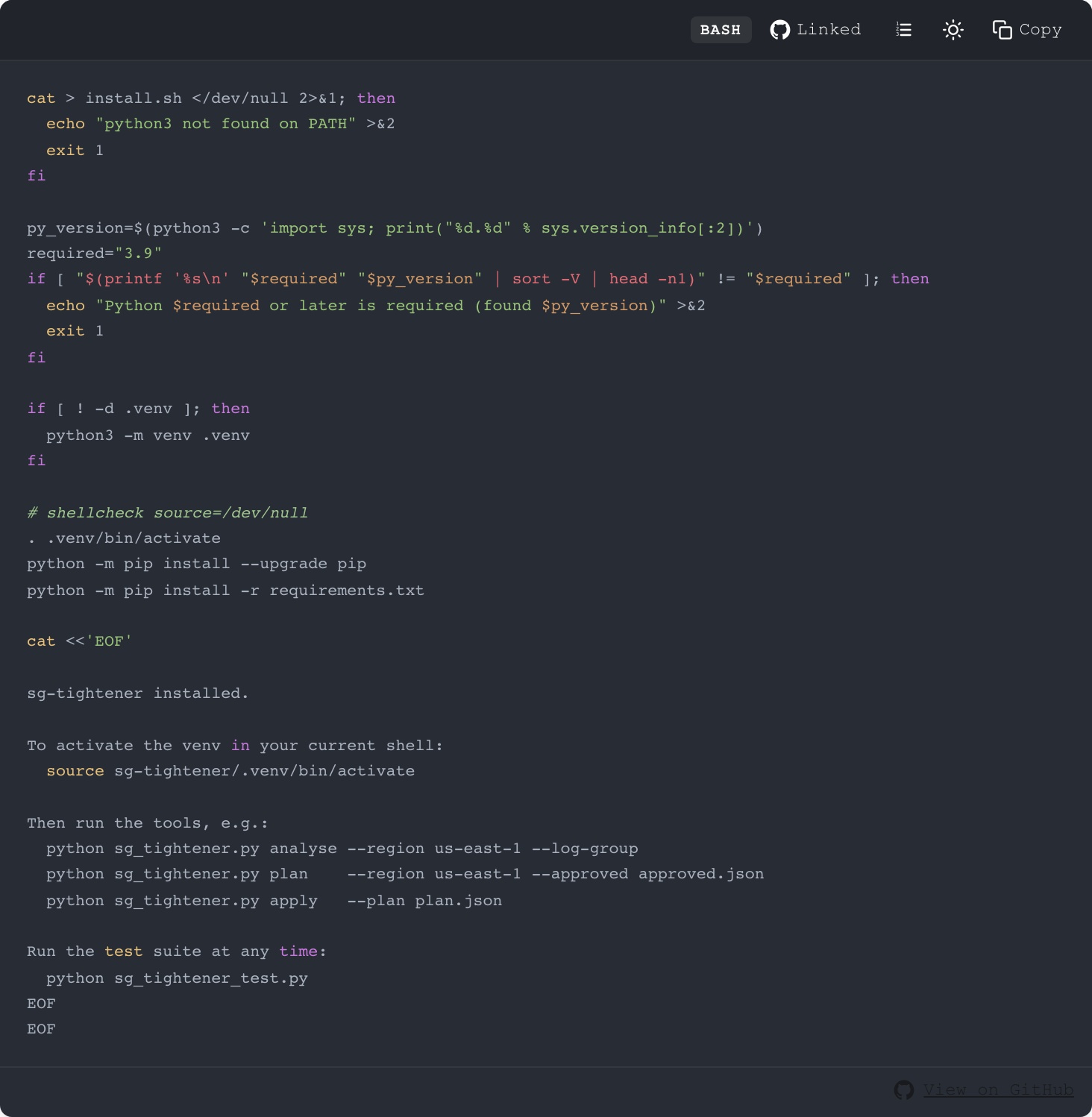
Worked example, sg-tightener install scripts
The screenshot above is the first linked block on a real post: AWS Security Group Hardening. The post embeds seven full Python files and config snippets, each linked to its counterpart in the cloudtorepo/sg-tightener repository. The blog uses prefix/suffix to wrap each file in a cat > FILE << 'EOF' ... EOF install pattern so readers can copy-paste each block straight into a terminal. When the repo’s sg_tightener.py is updated, the post automatically picks up the change on the next nightly sync, and the “View on GitHub” footer always points to the current canonical version.