← CloudScale Plugin Help/CloudScale Backup & Restore, Free WordPress Backup Plugin with One-Click Restore & Cloud Sync
Standby & DR (second site setup)
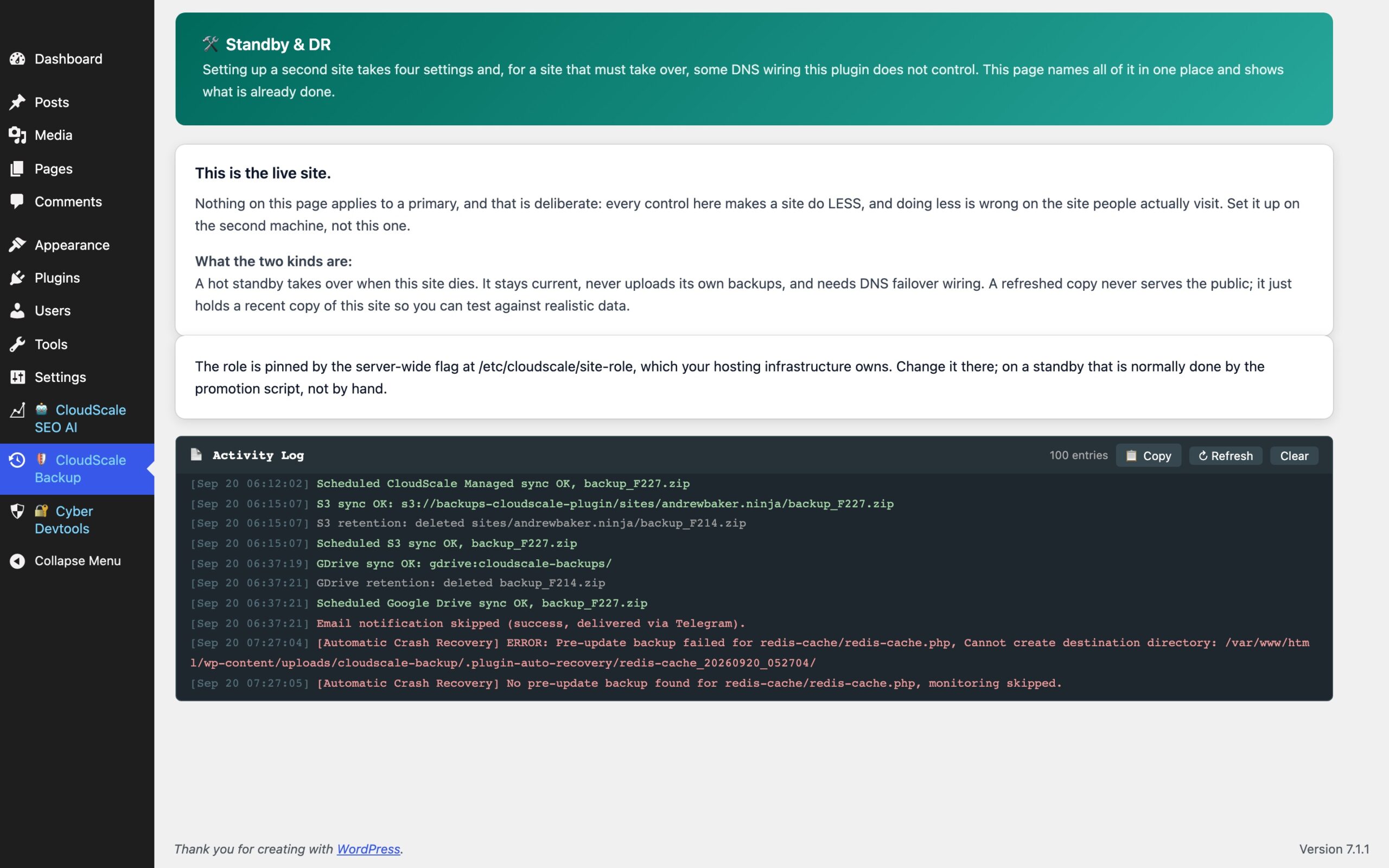
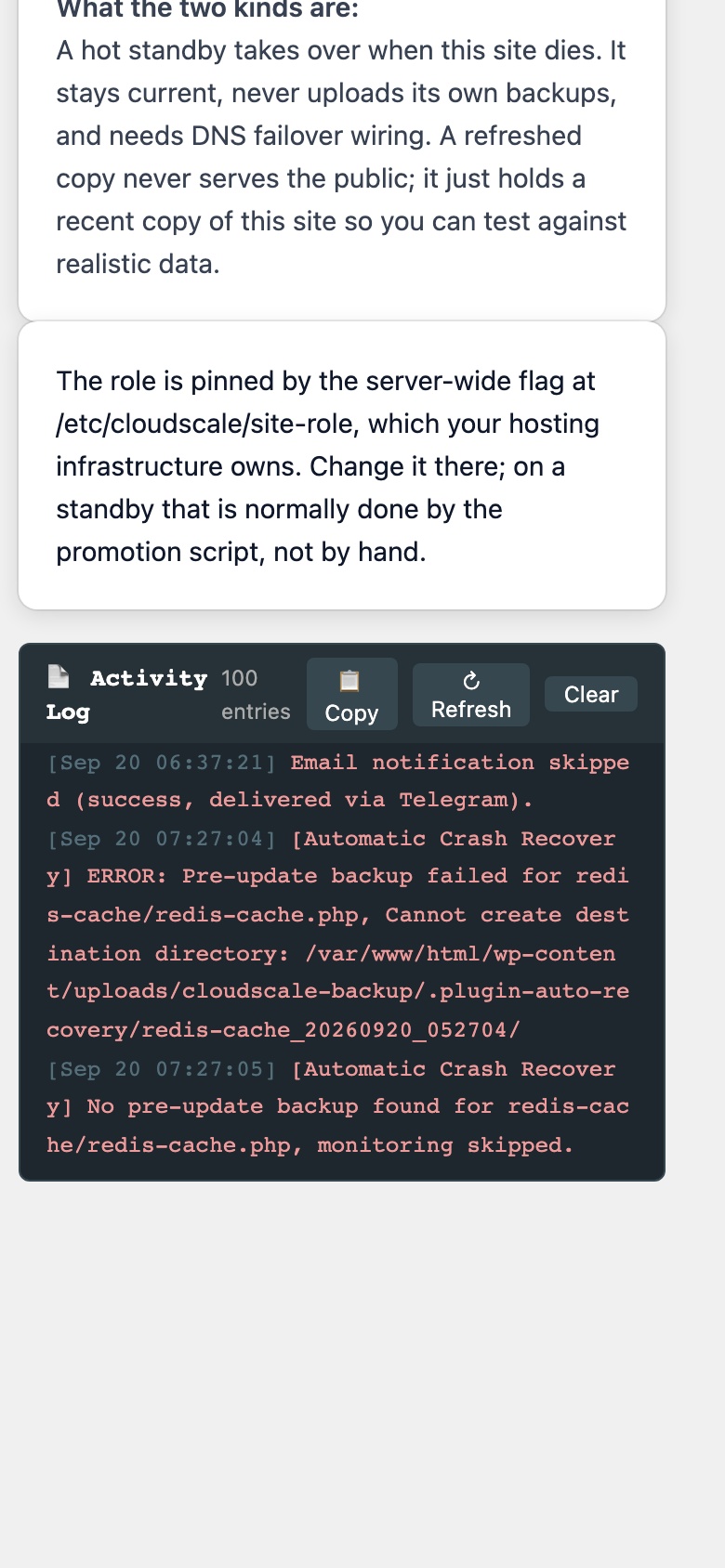
A second copy of your site is useful for two different reasons, and they need different settings. The Standby & DR tab asks which one you want and sets everything that answer implies, then shows a checklist of what is done and what is left.
- A hot standby takes over when the live site dies. It keeps itself current from the live site’s backups, never creates backups of its own, and needs DNS failover wiring outside WordPress.
- A refreshed copy never serves the public. It holds a recent copy of the live site so you can test against realistic data, and it does none of the live site’s scheduled work.
On the live site itself the tab says so and offers nothing else. That is deliberate: every control here makes a site do less, and doing less is wrong on the site people visit. Set a second site up on the second machine.
Making a site a copy
Install the plugin on the second site, open this tab, choose A hot standby or A refreshed copy, give its alerts a short label (DR> or QA>, up to 12 characters), type MAKE THIS A COPY and press Apply.
One typed confirmation sets four things at once: the site role becomes standby, failover mode is armed for a hot standby and left off for a refreshed copy, the alert label is written, and the live site’s scheduled jobs are disarmed on this copy. They are set together on purpose. A half-configured standby is the dangerous state: marked as a copy but still uploading, or refreshing but sending alerts that look exactly like the live site’s. A wizard that can be abandoned half way is a machine for producing those.
All of it is stored in files, not in the database, because the database is the thing a refresh replaces. The settings survive every restore. If your host has pinned the role with a constant or a server flag, the tab says so and goes read-only.
The checklist
Six steps, each reporting its own live state rather than a box you tick. A step that is not done has a Go there button to the screen that owns it.
- Mark what this site is. Done when the role is standby. Nothing below can be switched on until it is.
- Make its alerts recognisable. Done when an alert label is set. Without one, an alert from the copy is indistinguishable from one from the live site.
- Point it at the primary’s backups. Done when a cloud source and folder are chosen on the Automated Restore tab.
- Choose how often it refreshes. Done when a refresh is actually scheduled. If something blocks the schedule, the step says what.
- Stop it doing the primary’s work. Done when none of the live site’s scheduled jobs (backups, snapshots, scans, cleanups, uptime heartbeats) are armed on the copy. They are disarmed automatically on every page load. A refreshed copy also blocks all outbound email, because it holds the live site’s users and orders and a password reset or order confirmation from a test machine would reach a real customer. A hot standby keeps email, because a site that cannot send a password reset the moment it takes over is broken exactly when it matters. Telegram alerts are unaffected either way, so a copy that fails is still heard.
- Wire up the failover. Hot standby only. Done when the plugin knows whether this site is currently serving traffic and it is not. See below.
Armed is not the same as serving
This is the distinction the whole hot-standby arrangement rests on, and it is easy to get wrong.
Failover mode means armed: this site is allowed to take over, so it must never start a backup history of its own. On a hot standby it is on all the time. It does not mean traffic is pointing here right now.
Whether the site is serving is a separate signal, and the plugin cannot work it out for itself. After a refresh the site’s own address is the live site’s, so anything it measured would be measuring the wrong machine. It has to be told, by whatever actually moves your DNS. While it is armed:
- Not serving, the scheduled refresh runs. That is what a hot standby is for.
- Serving, the refresh is refused. Everything visitors wrote since the switch exists only here, and a restore would destroy it.
- Unknown, the refresh is refused, and the checklist says why. The safe half of the doubt is the one it keeps.
The signal is a small file the plugin reads, /etc/cloudscale/serving-apex by default. It must carry a timestamp, and it must be rewritten regularly: anything older than 15 minutes counts as unknown. That rule is what makes the arrangement safe. A script that wrote standby once and then died would otherwise be believed for ever, and the plugin would restore over a live failover on its word.
# /etc/cloudscale/serving-apex, rewritten every minute by whatever swings DNS
# checked: 2026-09-18T11:32:04Z
standby        # or: serving
Written by hand, without the checked: line, the file reads as serving and the refresh stops. That is the deny-by-default working as designed; the fix is a one-line cron on the standby that rewrites it with a fresh stamp.
A host with no /etc to write into can set define( 'CSBR_SERVING_APEX', false ); in wp-config.php instead, which a restore never touches. The constant needs no timestamp and wins over the file, but it is a value you flip by hand after each failover and failback, so it suits an estate where a person is always in the loop.
A refreshed copy never serves and never needs any of this; the checklist marks the step as not applicable.
The failover wiring the plugin cannot do for you
Taking over needs something outside WordPress to notice the live site is down and move the traffic, and something to tell this site when that has happened. A plugin cannot deploy that, and one that pretended it could would be worse than one that says so. On a hot standby the tab lists the three pieces: publish this site’s hostname, run a watchdog that moves DNS, and write the serving flag above. The Automated Restore section on this page describes a Cloudflare watchdog script that ships with the plugin’s source.
From a shell, wp csbr role and wp csbr auto-restore --status report the same state as the checklist.