← CloudScale Plugin Help/CloudScale Backup & Restore, Free WordPress Backup Plugin with One-Click Restore & Cloud Sync
Backup Schedule & Run Now
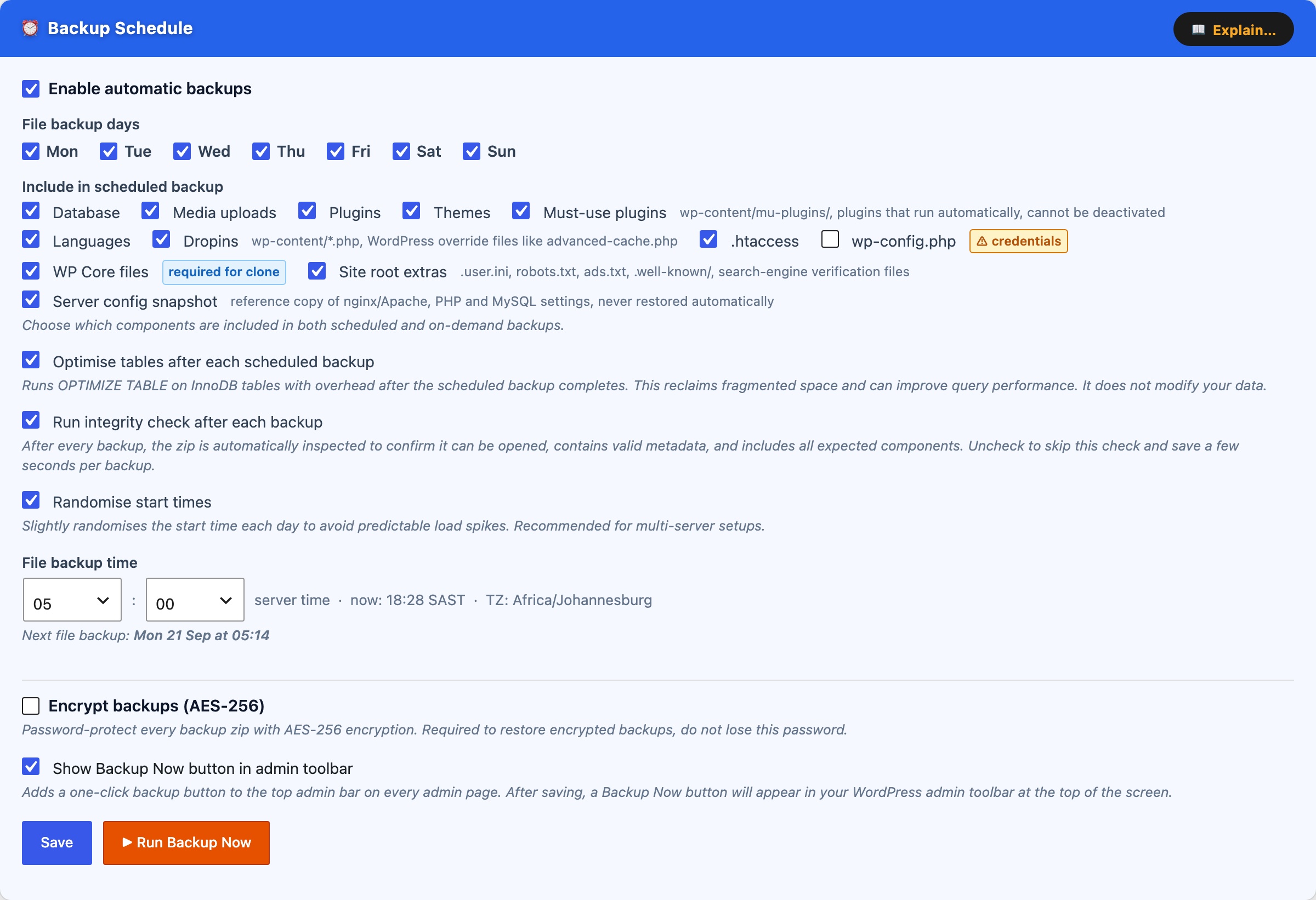
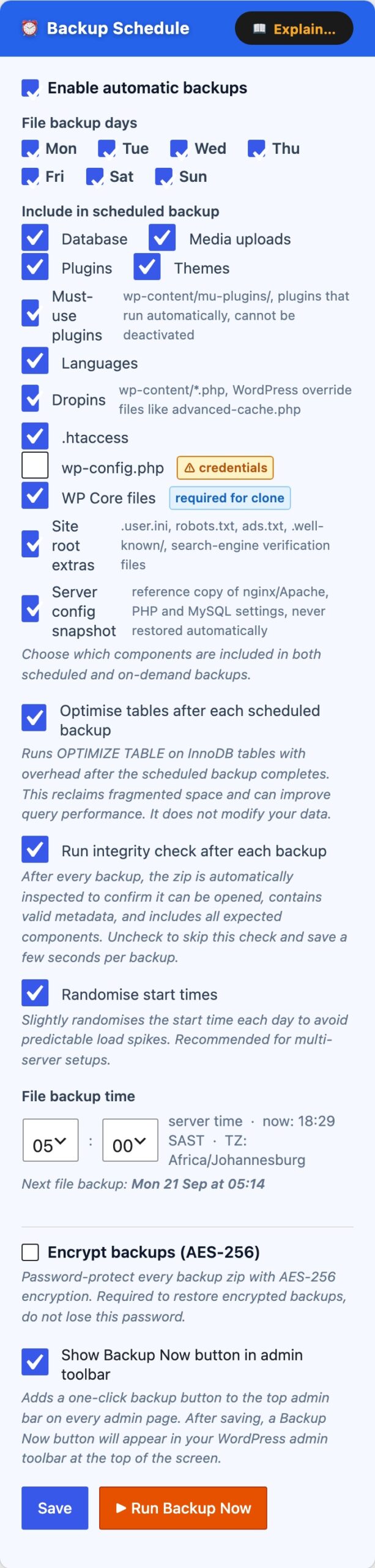
The Backup Schedule card (blue) configures automatic, unattended backups. Enable the checkbox at the top to activate the schedule, all controls are disabled when the schedule is off.
File backup days, select one or more days of the week on which the scheduled backup will run. The backup fires once per day at the configured time on each selected day.
Include in scheduled backup, choose which components are included each time the scheduled backup runs:
- Database, full SQL dump of all WordPress tables (always recommended).
- Media uploads,
wp-content/uploads/including all image sizes. - Plugins,
wp-content/plugins/(all installed plugins). - Themes,
wp-content/themes/(all theme directories). - Must-use plugins,
wp-content/mu-plugins/. - Languages,
wp-content/languages/. - Dropins, drop-in files such as
object-cache.phpinwp-content/. - .htaccess, the root
.htaccessrewrite rules file. - wp-config.php, contains database credentials and secret keys. Marked with a credentials warning badge. Include only if you intentionally want config backed up; do not restore this file to a different server without editing the credentials first.
Manual backups always let you choose components individually at run time, regardless of what is saved here.
File backup time, the hour and minute (server time) at which the scheduled backup fires. The current server time and timezone are shown inline. The next scheduled run is displayed below the time picker once a schedule is saved.
Run Table Repairs automatically, when enabled, the plugin runs OPTIMIZE TABLE on any InnoDB tables that have accumulated overhead immediately after each scheduled backup completes. This is equivalent to clicking Optimize tables in phpMyAdmin and can recover disk space from deleted posts, spam comments, and transient accumulation. It has no effect on tables that do not need it.
Show Backup Now button in admin toolbar, adds a one-click backup button to the top WordPress admin bar on every admin page. Clicking it runs an immediate backup using the default component selection and shows a live progress indicator in the toolbar.
Save Schedule, saves the schedule configuration and registers or updates the WordPress cron event. For production sites, supplement WP-Cron with a real system cron to ensure the schedule fires regardless of traffic: * * * * * curl -s https://yoursite.com/wp-cron.php?doing_wp_cron > /dev/null
Email, SMS, and push notification settings are configured in the Notifications card (purple, directly below this card). Enable the relevant channels there to be alerted after each backup or restore completes.
Backup Encryption
The Encrypt backups (AES-256) checkbox password-protects every backup zip with AES-256 encryption. When enabled, a Password field appears, enter a strong password and click Save Schedule. Every subsequent backup will be encrypted with that password. Encrypted backups show a padlock icon in the Local Backup History table.
Important things to know before enabling encryption:
- The password is required to restore the backup. If you lose it, the backup cannot be decrypted.
- The password is stored in the WordPress database. Anyone with database access can read it. Encryption primarily protects backup zips that leave the server, for example, files downloaded to your computer or synced to cloud storage.
- If you change or clear the password, existing encrypted backups cannot be restored using the new password. Keep a record of the password that was active when each backup was created, or run new unencrypted backups before clearing the password.
- Encryption requires PHP’s
libzipto be compiled with AES-256 support (ZipArchive::EM_AES_256). If your server’s libzip does not support it, a red error badge appears and the backups are created without encryption. Upgrade libzip (typically viasudo dnf upgrade php-zipon Amazon Linux orsudo apt upgrade php-zipon Ubuntu) to enable this feature.
Why CloudScale Free Backup and Restore?
Most WordPress backup plugins lure you in with a free tier, and then lock the restore button behind a paywall. UpdraftPlus Premium costs $70/year. BackupBuddy starts at $80/year. Duplicator Pro is $69/year. All of them charge you at exactly the moment you are most desperate: when your site is broken and you need to get it back.
CloudScale is free. Not “free with paid restore.” Free. Scheduled or manual backups, one-click restore, maintenance mode, S3 cloud sync, Google Drive sync, Dropbox sync, and EC2 AMI snapshots, all included, no subscription required, source code on GitHub.
Your backups are stored on your server and can be automatically synced to Amazon S3, Google Drive, or Dropbox so a server failure never means data loss. And if the entire server dies, AMI snapshots let you spin up a replacement in minutes.
Run Backup Now
The Run Backup Now button (orange, at the bottom of the schedule card) triggers an immediate backup with full control over which components are included. Select components in the two columns, then click Run Backup Now. Keep the browser tab open until the progress bar completes.
Core components:
- Database, complete SQL dump including all tables with the configured
$table_prefix. - Media uploads,
wp-content/uploads/, including all generated image sizes. - Plugins,
wp-content/plugins/(all installed plugins, not just active ones). - Themes,
wp-content/themes/.
Other components:
- Must-use plugins,
wp-content/mu-plugins/. - Languages,
wp-content/languages/. - Dropins,
object-cache.phpand other drop-ins inwp-content/. - .htaccess, the root Apache rewrite rules file.
- wp-config.php, contains environment-specific credentials. Do not restore this file to a different server without updating the credentials it contains.
Each component shows its current disk size. The Estimated backup size and Disk free space update in real time as you tick and untick components.
Save as defaults, saves the current checkbox selection as the default for future manual backups.
Cloud storage pre-check
When you click Run Backup Now, the plugin first checks whether any configured cloud providers (Google Drive and Dropbox) have enough free space to receive the backup. The button text changes to Checking cloud storage… during this check. AWS S3 does not impose a quota limit so it is not checked.
If all providers have sufficient space, the backup starts immediately, no action needed.
If a provider is running low, a yellow warning panel appears below the backup button showing, for each affected provider, the exact MB free vs the estimated MB needed. You then have three options:
- Free space on [Provider], deletes the oldest non-golden backup(s) from that provider one by one until enough space is freed (with a 15% safety margin), then reports the new free space. Golden images are never deleted by this action. Once space is freed, click Run Backup Now again to proceed, or use Run Backup Anyway.
- Run Backup Anyway, starts the backup regardless. The local backup will be created successfully. If a cloud provider genuinely has no space, the sync step will fail and the failure will be recorded in the Local Backup History table and the Activity Log.
- Cancel, dismisses the warning panel without starting a backup.
If the cloud provider cannot be reached during the check (network error, rclone not configured, etc.), the backup starts immediately without waiting.
Disk space alerts
If your server disk is running low, a banner alert appears above the tab bar:
- Warning (amber), disk is at 10 to 20% free. The banner shows free space and an estimate of how many more backups will fit. Consider reducing the retention count or removing old backups.
- Critical (red), disk is below 10% free. Free up space or move old backups off-server immediately, the next backup may fail if insufficient space remains.