← CloudScale Plugin Help/CloudScale Backup & Restore, Free WordPress Backup Plugin with One-Click Restore & Cloud Sync
Restore
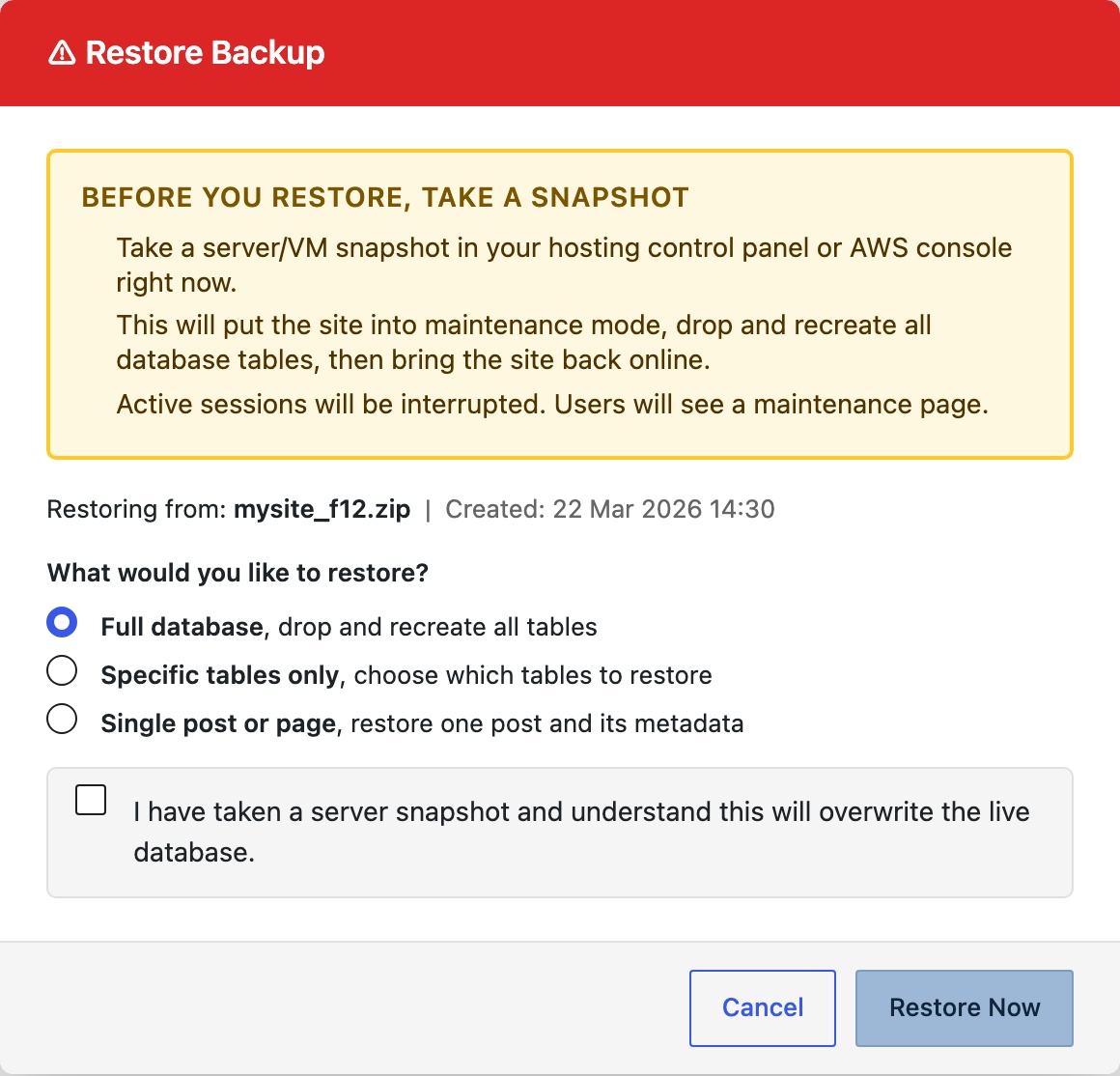
Clicking Restore next to any backup opens a unified restore modal. Choose how you want to restore before confirming:
Full database, restores the entire database. The plugin activates Maintenance Mode for the duration, serving HTTP 503 to frontend visitors while wp-admin stays accessible to administrators.
- Maintenance mode activated,
wp-content/.maintenancewritten to disk. - The backup zip is extracted to a temporary directory inside
wp-content/. - The database is replaced: all existing tables matching the backup’s table prefix are dropped and recreated from the
.sqldump. - The
uploads/,plugins/, and active theme directories are replaced (if included in the backup). - Any other included components (
.htaccess,wp-config.php, mu-plugins, etc.) are restored. - Maintenance mode deactivated,
.maintenancedeleted. OPcache flushed.
Specific tables only, restores only the tables you select. The plugin lists every table found in the backup; tick the ones you want. Only those tables are dropped and recreated, all others remain untouched. No maintenance mode is used.
Both modes require you to tick a confirmation checkbox before Restore Now activates. Take an EC2 AMI or hosting snapshot first, if anything goes wrong you can roll back instantly.
Important: a full restore is irreversible. Any changes made after the backup date are permanently lost.
If a full restore fails mid-way, maintenance mode remains active. Manually delete wp-content/.maintenance via SFTP or SSH to bring the site back online, then inspect wp-content/debug.log.
Which tables to choose for a partial restore
The Specific tables only mode is useful when you only need to recover one piece of the site without reverting everything else. The table names below assume the default wp_ prefix, if your install uses a different prefix (e.g. abc_), substitute it accordingly.
Posts, pages, and custom post types
wp_posts, every post, page, revision, menu item, and custom post type record.wp_postmeta, all post metadata (custom fields, featured image IDs, ACF data, etc.). Always restore this together withwp_posts.
Comments
wp_comments, all comment records including spam, pending, and approved.wp_commentmeta, comment metadata. Always restore together withwp_comments.
Users and login data
wp_users, usernames, email addresses, and hashed passwords.wp_usermeta, user roles, preferences, and metadata. Always restore together withwp_users.
Site settings and plugin configuration
wp_options, site URL, theme settings, plugin configuration, widget data, and transient cache. Restoring this table rolls back all plugin settings to the backup date, not just one plugin. If you only need to recover a single plugin’s settings, a full database restore is usually safer.
WooCommerce orders and customers
wp_posts+wp_postmeta, WooCommerce stores legacy orders as a custom post type. Restore both tables.wp_wc_orders+wp_wc_order_items+wp_wc_order_operational_data+wp_wc_order_addresses+wp_wc_order_stats, if HPOS (High-Performance Order Storage) is enabled, WooCommerce uses these dedicated order tables instead. Restore all of them together.
Email logs (Contact Form 7, Gravity Forms, Fluent Forms, newsletters)
These plugins store form submissions and email logs in their own tables. Look for tables with the plugin name in them, for example wp_cf7_* for Contact Form 7 add-ons, wp_gf_* for Gravity Forms, wp_fluentform_* for Fluent Forms, or wp_newsletter_* for newsletter plugins. Select all tables belonging to the plugin you want to recover. Because these tables are self-contained, restoring them does not affect posts, users, or any other part of the site.
The safest approach, before doing any partial restore on a live site, take a fresh backup first. That way if the partial restore causes unexpected problems, you can immediately do a full restore back to the moment before you started.