← CloudScale Plugin Help/CloudScale Backup & Restore, Free WordPress Backup Plugin with One-Click Restore & Cloud Sync
Restore from Uploaded File

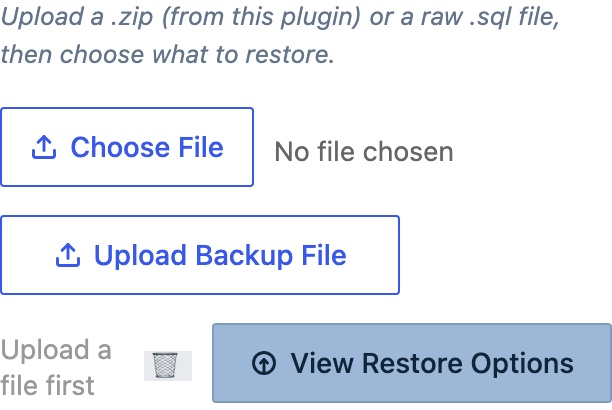
The Upload File source on the Restore tab lets you restore your site from a backup file stored on your computer, for example a backup downloaded from a cloud provider or a different server. Open the Restore tab and choose Upload File as the backup source.
Click Choose File and select either:
- A
.zipcreated by this plugin, restores all components included in that backup. - A raw
.sqlfile, restores the database only, leaving files untouched.
Click Restore from Upload. The file is staged to the server, then the standard restore modal opens, giving you the same two options as a local backup restore:
- Full database, drops all current tables and recreates them from the uploaded backup.
- Specific tables only, choose which tables to restore from the uploaded file, leaving all others untouched.
This makes it possible to do a selective restore on a backup downloaded from S3, Google Drive, Dropbox, or OneDrive, download the file to your computer, upload it here, then restore just the tables you need.
Cross-server migration: after restoring a backup from a different domain, run: wp search-replace 'https://oldsite.com' 'https://newsite.com' --all-tables