← CloudScale Plugin Help/CloudScale Backup & Restore, Free WordPress Backup Plugin with One-Click Restore & Cloud Sync
Restoring a Hacked Site (Protected Mode)
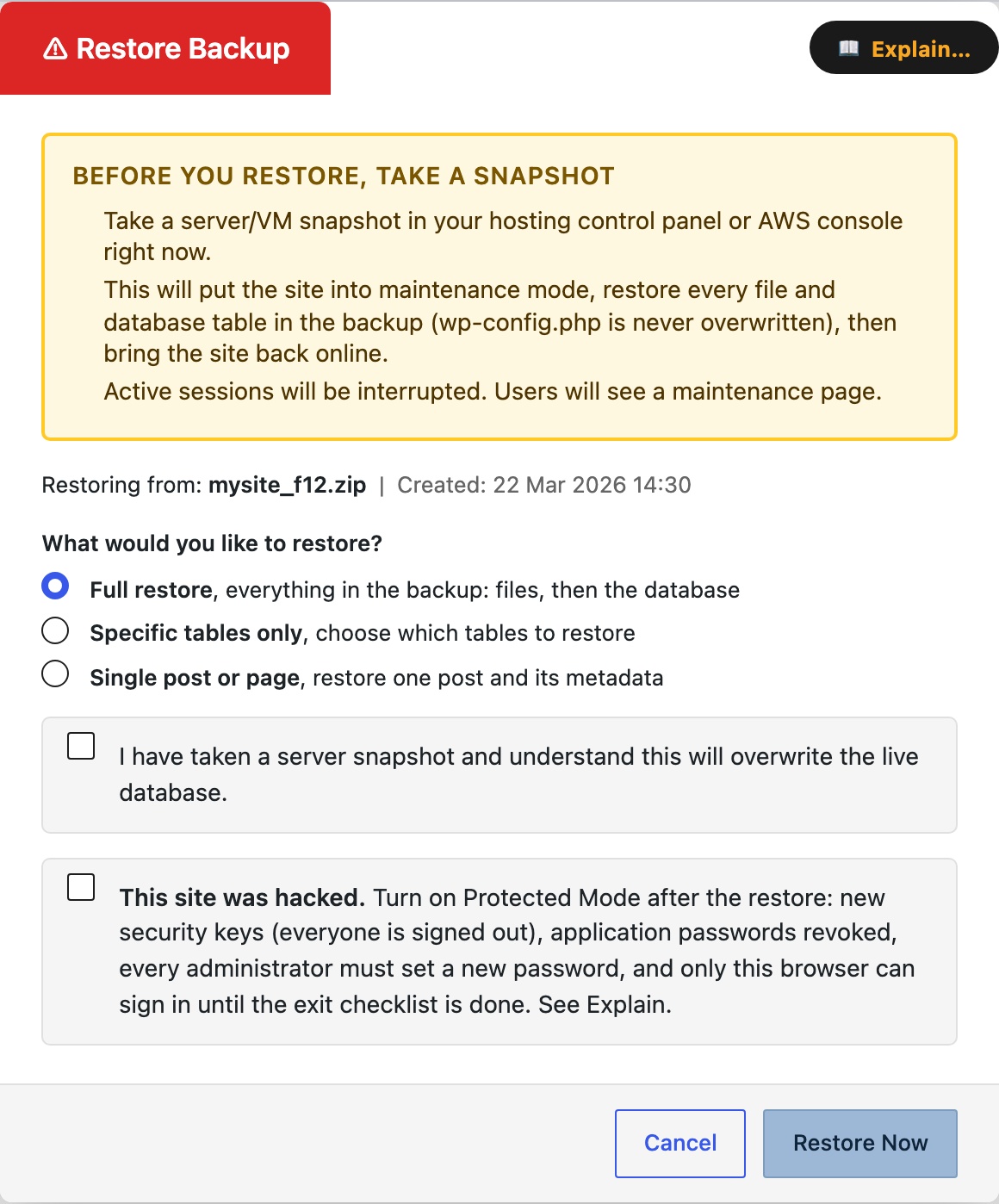
A plain restore of a hacked site is usually re-hacked within hours. It brings back the vulnerable plugin the attacker came through, and every stolen password, session and application password keeps working. Protected Mode is the restore option for that day: it shuts the doors after the restore, before visitors return, and keeps them shut until you have closed the hole.
The public site keeps working throughout. Only sign-in and administration are locked.
Turning it on
On the Restore tab, choose a backup from before the break-in, choose Full restore, and tick This site was hacked. The tick appears only for a full restore, and a standby refuses it because its restores are routine refreshes.
After the restore, and before maintenance mode lifts, the plugin:
- Replaces the security keys and salts in
wp-config.php, which signs everyone out everywhere. If the file cannot be changed, the checklist tells you to do it by hand. - Revokes every application password.
- Requires every administrator to set a new password before they can use the admin.
- Limits sign-in, wp-admin, XML-RPC and changing REST requests to browsers holding a device pass. The browser that started the restore is given one.
- Blocks installing plugins and themes, and the file editor. Updates stay allowed, because updating is the cure.
- Stops PHP running in the uploads folder on Apache and LiteSpeed. nginx ignores that rule, so the card shows the line to add to your server block yourself.
Leaving Protected Mode
A red card at the top of the plugin page lists the exit checks. There is no timer, because a site that quietly unprotects itself overnight is the failure this exists to prevent. Exit Protected Mode becomes available once every check is done:
- Up to date: no plugin, theme or WordPress update is pending. Update or delete the ones listed.
- New passwords: every administrator listed has set a new password. Each is sent to their profile until they do.
- Outside passwords: tick this once you have changed your hosting panel, SFTP or SSH, database and email passwords, which the plugin cannot see.
- Security keys by hand: appears only if the restore could not replace them.
Exiting removes the lock, the device passes and the uploads rule, and writes who exited to the Activity Log.
The plugin does not scan your files. Before you exit, look for administrators you do not recognise, unknown must-use plugins, unfamiliar scheduled tasks and PHP files in uploads. Protected Mode also cannot help if the backup you chose was made after the break-in, so choose one from before it.
If you are locked out
A browser without a pass sees a page explaining Protected Mode instead of the sign-in form. Create an empty file named protected-mode-unlock in wp-content/csbr-state/ with your host’s file manager or SFTP, or run wp csbr protected-mode unlock. Sign-in opens for 15 minutes, and your password and any two-factor check still apply.
Revoke all device passes removes the pass from every other browser and gives yours a new one. Use it if a device holding a pass was lost or shared.
If the Protected Mode state file ever cannot be read, the site stays locked, because failing open is the wrong direction for this feature. Use the unlock file to get in, then exit from the card.