← CloudScale Plugin Help/CloudScale Backup & Restore, Free WordPress Backup Plugin with One-Click Restore & Cloud Sync
Automatic Crash Recovery
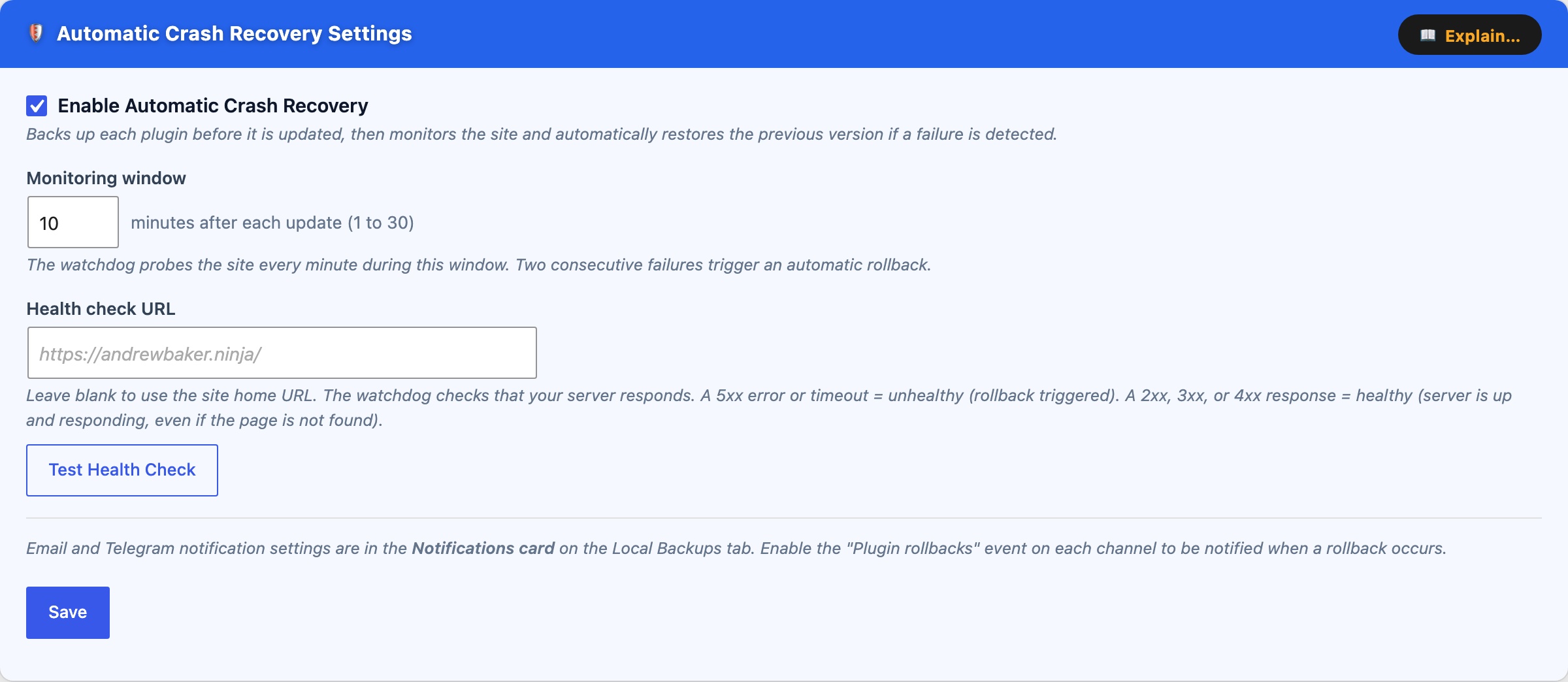
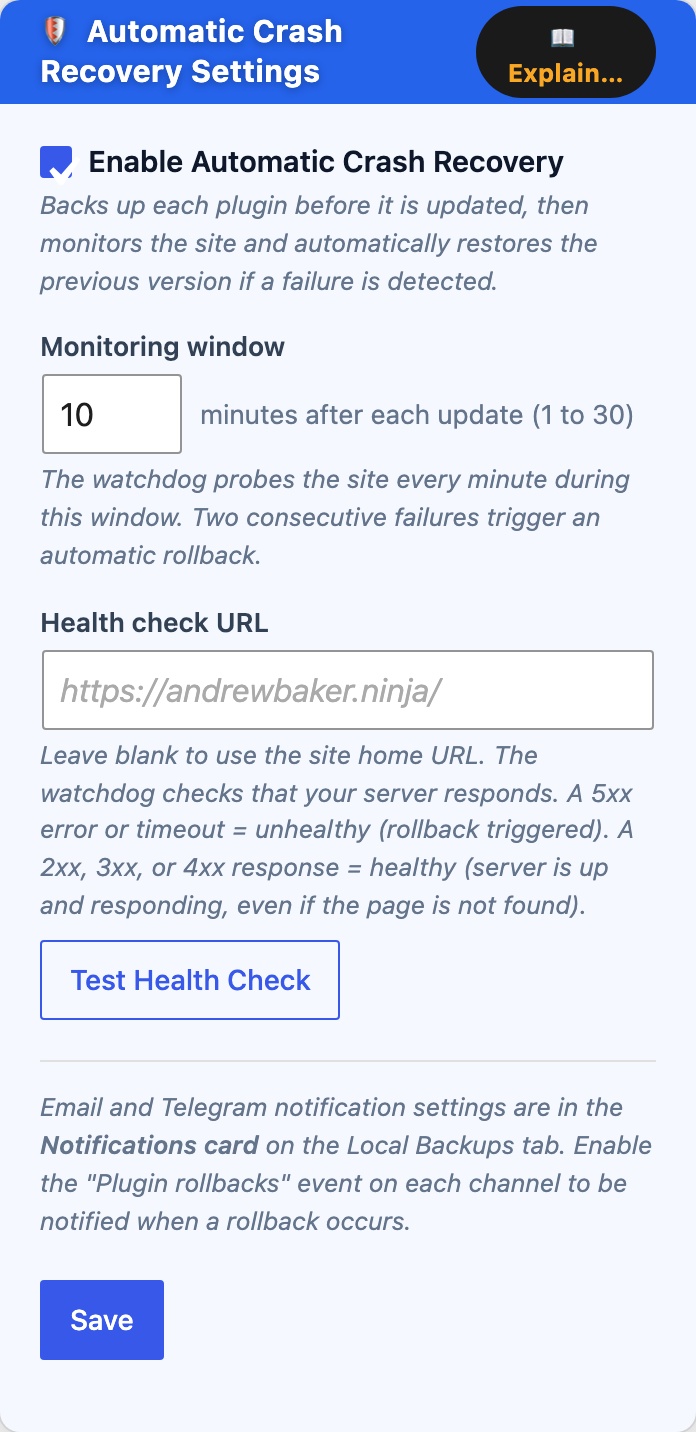
Automatic Crash Recovery automatically backs up each plugin directory before WordPress applies an update, then watches your site for failures. If something goes wrong, it rolls back to the previous version, with no manual intervention required.
How it works
- Pre-update backup, the moment WordPress begins updating a plugin, the current plugin directory is copied to a secure location on the server before any new files are placed.
- Monitoring window, after the update completes, a system-cron watchdog script probes the health check URL once per minute for the configured window (default 10 minutes).
- Automatic rollback, two consecutive probe failures (5xx error or connection timeout) trigger a rollback. The broken plugin directory is renamed and the backup is copied back. This happens entirely outside of WordPress, so it works even during a PHP fatal error.
- Notification, on the next WordPress page load after recovery, the rollback is recorded in the Rollback History card and an email is sent to the WordPress admin address. If Twilio SMS is configured, an SMS is sent as well.
- Branded recovery page, while the site is in a crash state, visitors see a branded “Automatic Crash Recovery is recovering this site” page with a live spinner instead of a white screen of death.
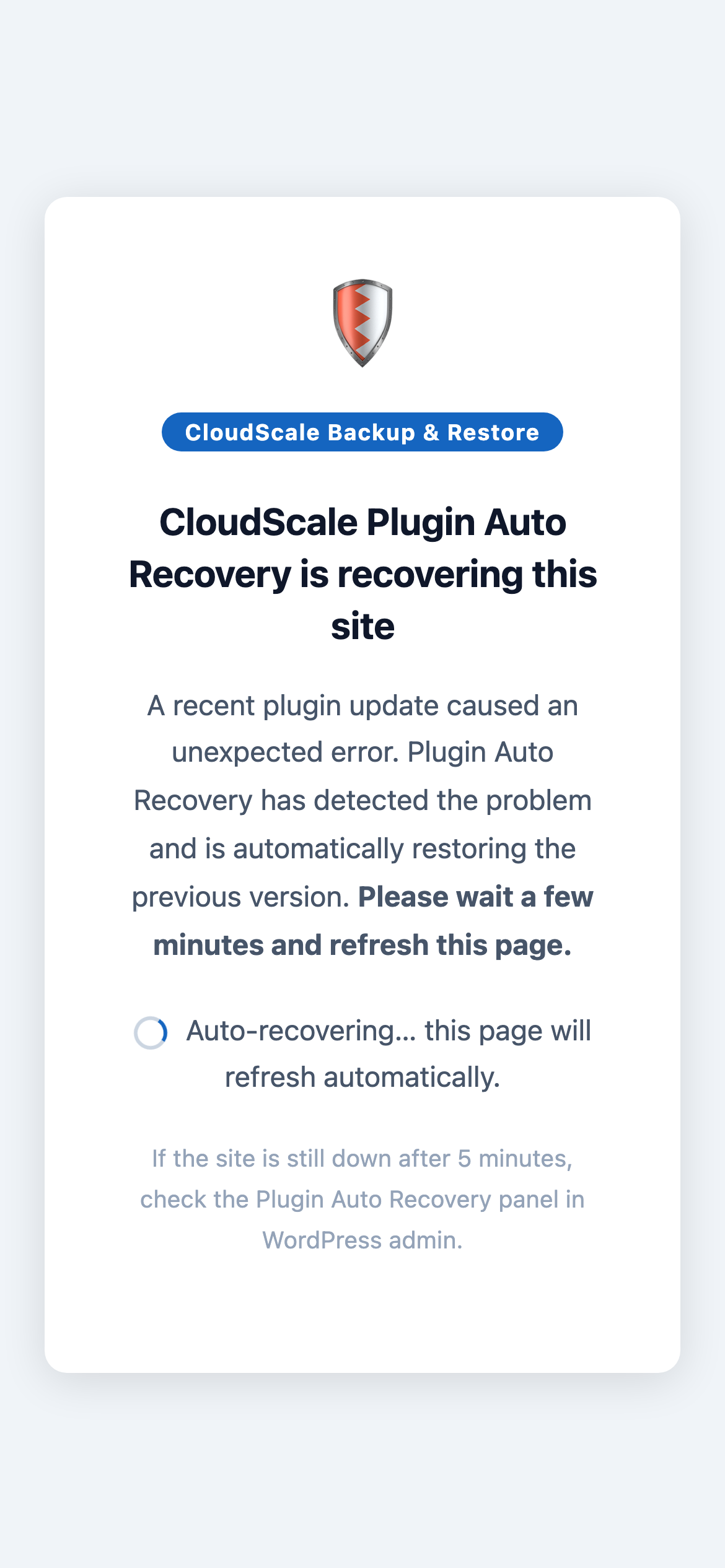
What visitors see while Automatic Crash Recovery is restoring the site, a branded page with a live spinner that auto-refreshes every 30 seconds.
Settings card
The blue Settings card contains all configuration for this feature. An Explain… button in the card header opens a full feature overview modal.
- Enable Automatic Crash Recovery, turn the feature on or off. When disabled, no backups are taken before updates and no monitoring occurs. Enabled by default.
- Monitoring window, how many minutes after an update the watchdog actively probes the site. Increase this for sites that take longer to stabilise after a plugin update (for example, sites that run cache warming or build steps). Maximum 30 minutes.
- Health check URL, the URL the watchdog fetches each minute to check site health. Leave blank to use the site home URL. A 5xx response or connection failure is treated as unhealthy; 4xx responses (including 404) are treated as healthy, the server is up even if the page is missing.
- Test Health Check, fetches the health URL immediately from the server and shows the HTTP status code. Use this to confirm the watchdog can reach your site before relying on it.
Watchdog Script card
The watchdog is a bash script that runs every minute via the server’s system cron (root’s crontab). It operates completely independently of WordPress and can detect and fix problems even when the entire site is returning errors. An Explain… button in the card header explains the setup in detail. The Watchdog status indicator turns green once the script has run in the last 90 seconds; amber means it has not run recently.
Step 1, copy the script from the card using the Copy button.
Step 2, paste it onto the server:
sudo tee /usr/local/bin/csbr-par-watchdog.sh <<'EOF'
(paste script here)
EOF
sudo chmod +x /usr/local/bin/csbr-par-watchdog.sh
Step 3, add the cron line to root’s crontab:
sudo crontab -e
Paste this line and save:
* * * * * root /usr/local/bin/csbr-par-watchdog.sh >> /var/log/cloudscale-par.log 2>&1
Why system cron and not WP-Cron? If a plugin update causes a PHP fatal error, WordPress crashes completely, wp-cron.php never fires. A system cron job running every minute operates outside of WordPress entirely and can detect and recover from the problem before any visitor notices.
Active Monitors card
After each plugin update a monitor is created automatically. It appears in the Active Monitors table with a live countdown timer. The table auto-refreshes every 15 seconds while monitors are active, and you can reload it at any time with the Refresh button. An Explain… button describes what each column means.
- Plugin, the plugin being monitored.
- Version, the version before the update (left) and after (right). A rollback restores the “before” version.
- Time Remaining, countdown to when this monitor expires. A red fail badge shows consecutive probe failures detected so far, a second failure triggers a rollback.
- Roll Back Now, manually trigger an immediate rollback without waiting for the watchdog. Use this if you spot a problem before the watchdog does.
During a healthy update the monitor appears, counts down, then disappears automatically. No action is needed unless a problem is detected.
Rollback History card
Every automatic and manual rollback is recorded here. An Explain… button describes each column and what to do after a rollback.
- Plugin, the plugin that was rolled back.
- Versions, the failed version (left) and the version it was restored to (right).
- Rolled Back, date and time the rollback completed (UTC).
- Trigger, Watchdog / site failure (automatic) or Manual rollback (admin-initiated).
- Dismiss, removes the entry from this list. Does not undo the rollback or reactivate the updated version.
Each rollback also writes an entry to the Activity Log and sends a notification via whichever channels are enabled in the Notifications card.
Rollback notifications
Email, SMS (Twilio), and push (ntfy) alerts for plugin rollbacks are all configured in the Notifications card on the Local Backups tab. Each channel has a Plugin rollbacks checkbox, enable it on any channel you want to be alerted on when a rollback occurs. This means you can receive a rollback SMS without subscribing to backup success/failure SMS, or vice versa.