← CloudScale Plugin Help/CloudScale Backup & Restore, Free WordPress Backup Plugin with One-Click Restore & Cloud Sync
Microsoft OneDrive
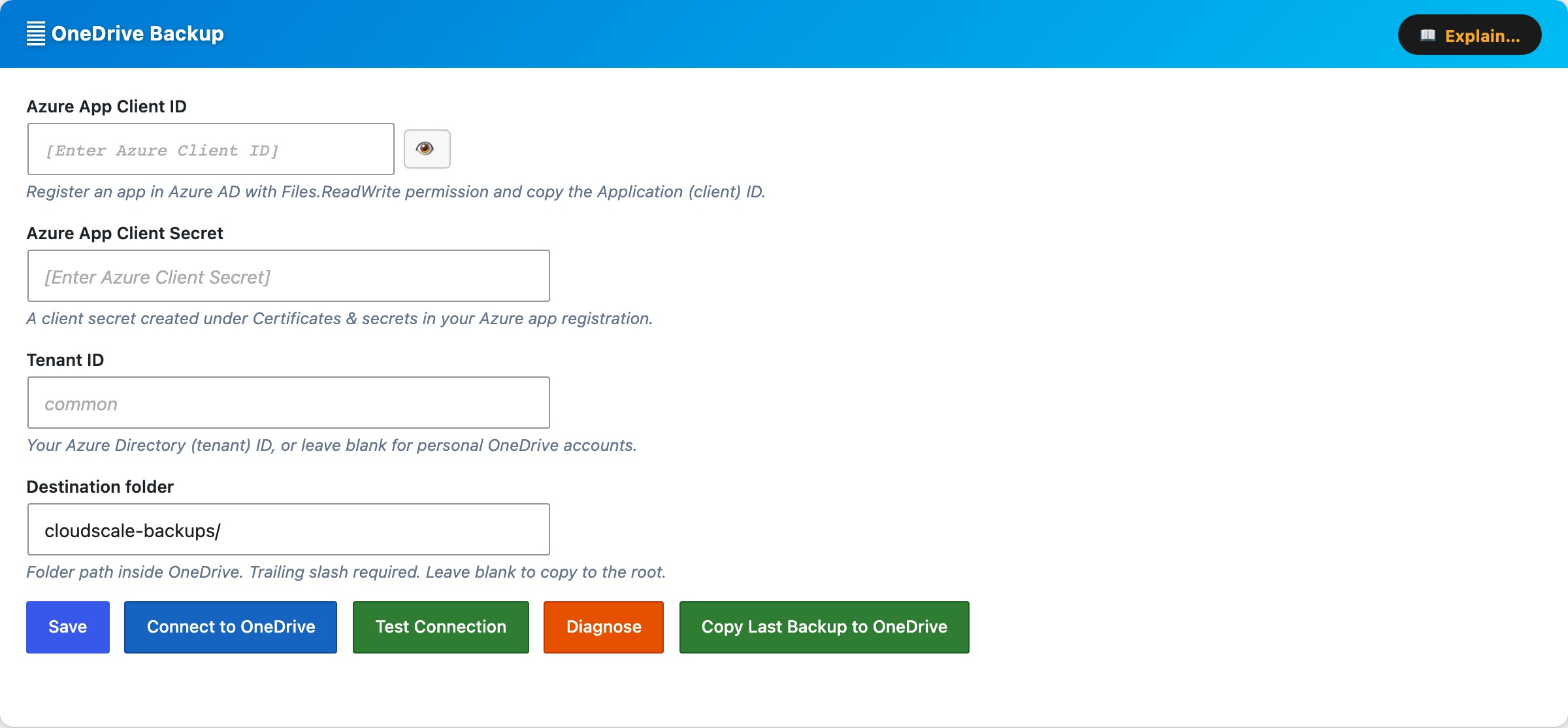
The Microsoft OneDrive Backup card uses rclone to copy backup zips to OneDrive after every local backup. If you already set up rclone for Google Drive or Dropbox, skip straight to Step 3, you just need to add a new remote.
rclone remote name, the name you gave the remote during rclone config, e.g. onedrive.
Destination folder, path inside OneDrive where backups are copied. Trailing slash required (e.g. cloudscale-backups/). Leave blank for the OneDrive root.
Test Connection, verifies rclone can reach OneDrive with the configured remote.
Diagnose, shows rclone version, remote name, and troubleshooting tips.
Copy Last Backup to Cloud, immediately copies the most recent local backup zip to OneDrive, outside of any schedule. Before starting, the plugin checks how much free OneDrive space is available:
- If OneDrive has enough space, the sync starts immediately.
- If OneDrive is running low, an inline warning appears with Delete oldest and Sync anyway options.
When configured, the card shows the destination path, number of backups in OneDrive, and time of last sync.
OneDrive Setup Guide
Step 1, Install rclone on the server (if not already installed)
curl -fsSL https://rclone.org/install.sh | sudo bash
Step 2, Fix apache home directory permissions
sudo mkdir -p /usr/share/httpd/.config/rclone
sudo chown -R apache:apache /usr/share/httpd/.config
sudo chmod 700 /usr/share/httpd/.config/rclone
sudo chown apache:apache /usr/share/httpd
sudo chmod 755 /usr/share/httpd
Step 3, Run the setup wizard as the apache user
sudo -u apache rclone config
Answer each prompt as follows:
| Prompt | Type |
|---|---|
e/n/d/r/c/s/q> | n (New remote) |
name> | onedrive |
Storage> | onedrive or the number for Microsoft OneDrive |
client_id> | Enter (leave blank) |
client_secret> | Enter (leave blank) |
region> | global (Microsoft Cloud Global) |
| Edit advanced config? | n |
| Use web browser / Use auto config? | n (no browser on server) |
config_token> | Paste token from laptop (see below) |
config_type> | onedrive (OneDrive Personal) or business |
| Select drive | 0 (your default drive) |
| Keep this “onedrive” remote? y/e/d> | y |
e/n/d/r/c/s/q> | q (Quit) |
For the highlighted config_token> step, run this on your laptop (install rclone first with brew install rclone if needed):
rclone authorize "onedrive"
A browser window opens, sign in to your Microsoft account and click Accept. The browser shows “Success! All done. Please go back to rclone.” Rclone prints a long token like {"access_token":"..."}, copy the entire JSON and paste it at the config_token> prompt on the server.
Step 4, Save settings in the plugin
Enter onedrive in the rclone remote name field and your destination folder (e.g. cloudscale-backups/), click Save OneDrive Settings, then Test Connection.
Running out of OneDrive space
Microsoft 365 personal plans include 1 to 5 TB. Free Microsoft accounts include 5 GB. The plugin detects an OneDrive quota problem in two places:
- Before a manual backup, the cloud space pre-check warns you and offers a Free space on OneDrive button.
- Before a Copy Last Backup to Cloud sync, an inline warning appears on the card with Delete oldest and Sync anyway options.
The Delete oldest / Free space action removes the oldest non-golden backup from OneDrive one file at a time until the required space (plus a 15% buffer) is available. Golden images are never deleted automatically.