← CloudScale Plugin Help/CloudScale Backup & Restore, Free WordPress Backup Plugin with One-Click Restore & Cloud Sync
Notifications
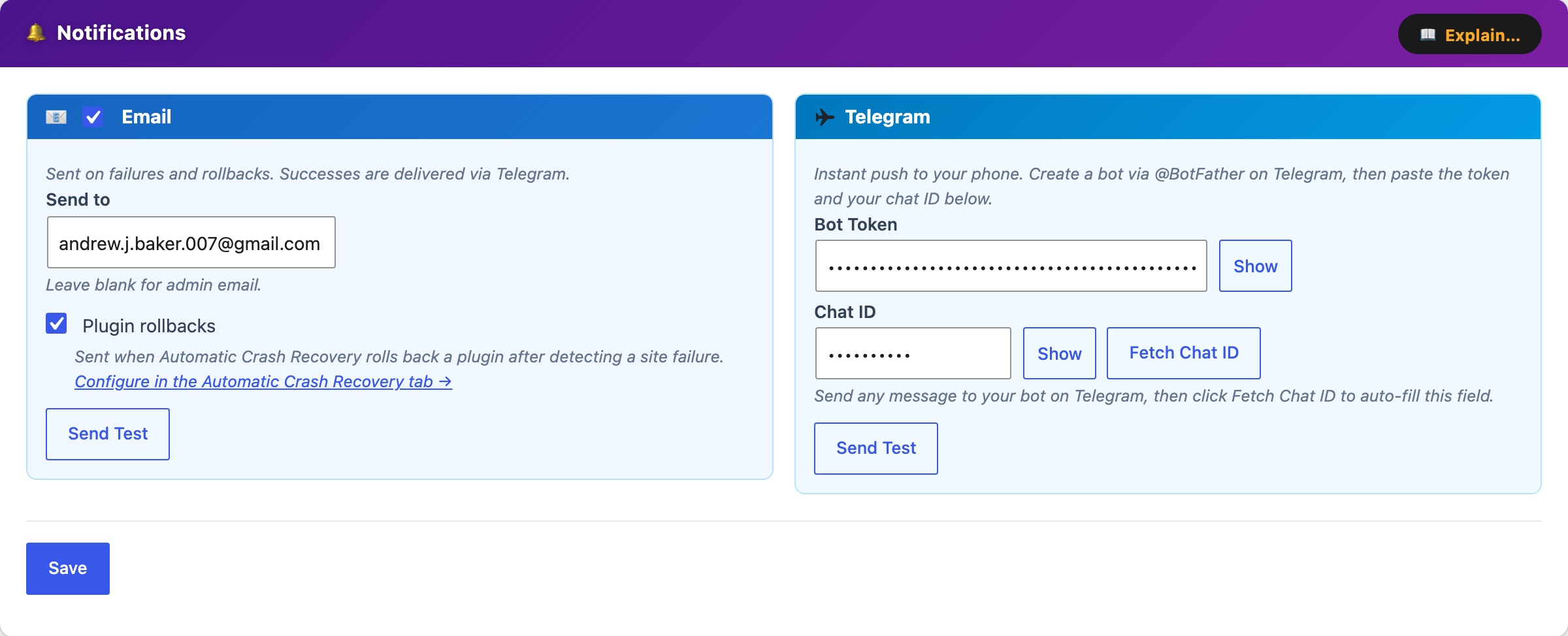
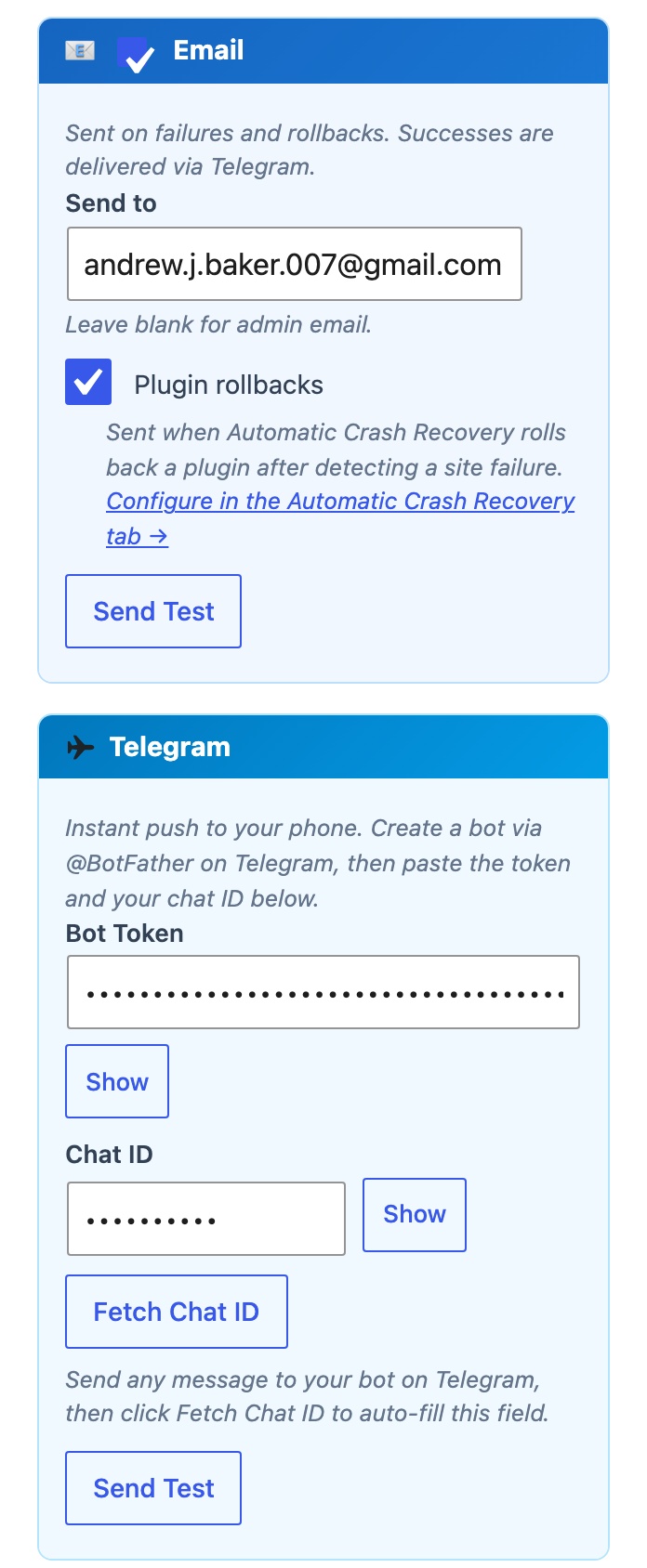
The Notifications card (purple) configures all alerts sent after backup, restore, and plugin rollback events. Three channels are available simultaneously, enable any combination. All settings are saved with a single Save Notification Settings button at the bottom of the card.
Enable Email to send an email after every backup or restore operation.
- Send to, the address that receives notifications. Leave blank to use the WordPress admin email (
Settings → General → Administration email address). - Success & failures, sends an email after every operation regardless of outcome. The most reliable option for unattended monitoring.
- Failures only, silent on success; sends an email only when something goes wrong. Good for set-it-and-forget-it installs where you only want to hear bad news.
- Success only, confirmation after every successful backup. Useful during initial setup to confirm the schedule is firing.
- Plugin rollbacks, sends an email whenever Automatic Crash Recovery rolls back a plugin update.
Send Test, sends a test message immediately to the configured address and reports success or failure inline. If email delivery is not working, a diagnostic banner appears explaining the likely cause:
- All outbound SMTP ports blocked, your hosting provider is blocking ports 587, 465, and 25. WordPress uses the server’s local
sendmailbinary to deliver email, so if those ports are blocked, nothing gets through. Install a plugin like WP Mail SMTP to route mail through an external provider such as Gmail, SendGrid, or Mailgun. - SMTP ports open but no local mail agent, the server can reach mail servers, but no local MTA (Postfix, Sendmail, Exim) is installed. WordPress has no way to hand off the email. Use WP Mail SMTP.
- Postfix running but no relay configured, Postfix is installed but will attempt direct delivery on port 25, which most ISPs and cloud providers block to prevent spam. Configure Postfix to relay through your email provider, or use WP Mail SMTP.
Any wp_mail() failure is also written to the Activity Log so you can see the exact error message without checking server logs.
SMS via Twilio
Enable SMS via Twilio to receive a text message alert. You will need a Twilio account, a free trial is available with no credit card required for testing.
- Account SID, found on your Twilio console dashboard (starts with
AC). - Auth Token, the secret token shown alongside the Account SID.
- From number, your Twilio phone number in E.164 format (e.g.
+12025551234). - To number, the destination mobile number in E.164 format (e.g.
+12025556789).
When to send SMS:
- Backup & restore, enable to receive SMS after backup and restore operations, with a sub-filter for All results, Failures only, or Successes only.
- Plugin rollbacks, enable to receive an SMS whenever Automatic Crash Recovery rolls back a plugin update.
Send Test, immediately sends a test SMS to verify credentials before saving.
Push via ntfy
Enable Push via ntfy for instant push notifications to your phone. ntfy.sh is completely free with no account needed, install the ntfy app on your phone, enter a unique topic name here (e.g. my-site-backups-a7x9), and subscribe to that topic in the app. Alerts arrive within seconds.
- Topic, a unique string appended to
https://ntfy.sh/. Choose something non-guessable to prevent unauthorised subscriptions. The full URL is shown inline as you type.
When to send push:
- Backup & restore, enable to receive push notifications after backup and restore operations, with a sub-filter for All results, Failures only, or Successes only.
- Plugin rollbacks, enable to receive a push notification whenever Automatic Crash Recovery rolls back a plugin update.
Send Test, immediately sends a test notification to your ntfy topic to verify connectivity before saving.