← CloudScale Plugin Help/CloudScale Backup & Restore, Free WordPress Backup Plugin with One-Click Restore & Cloud Sync
Google Drive
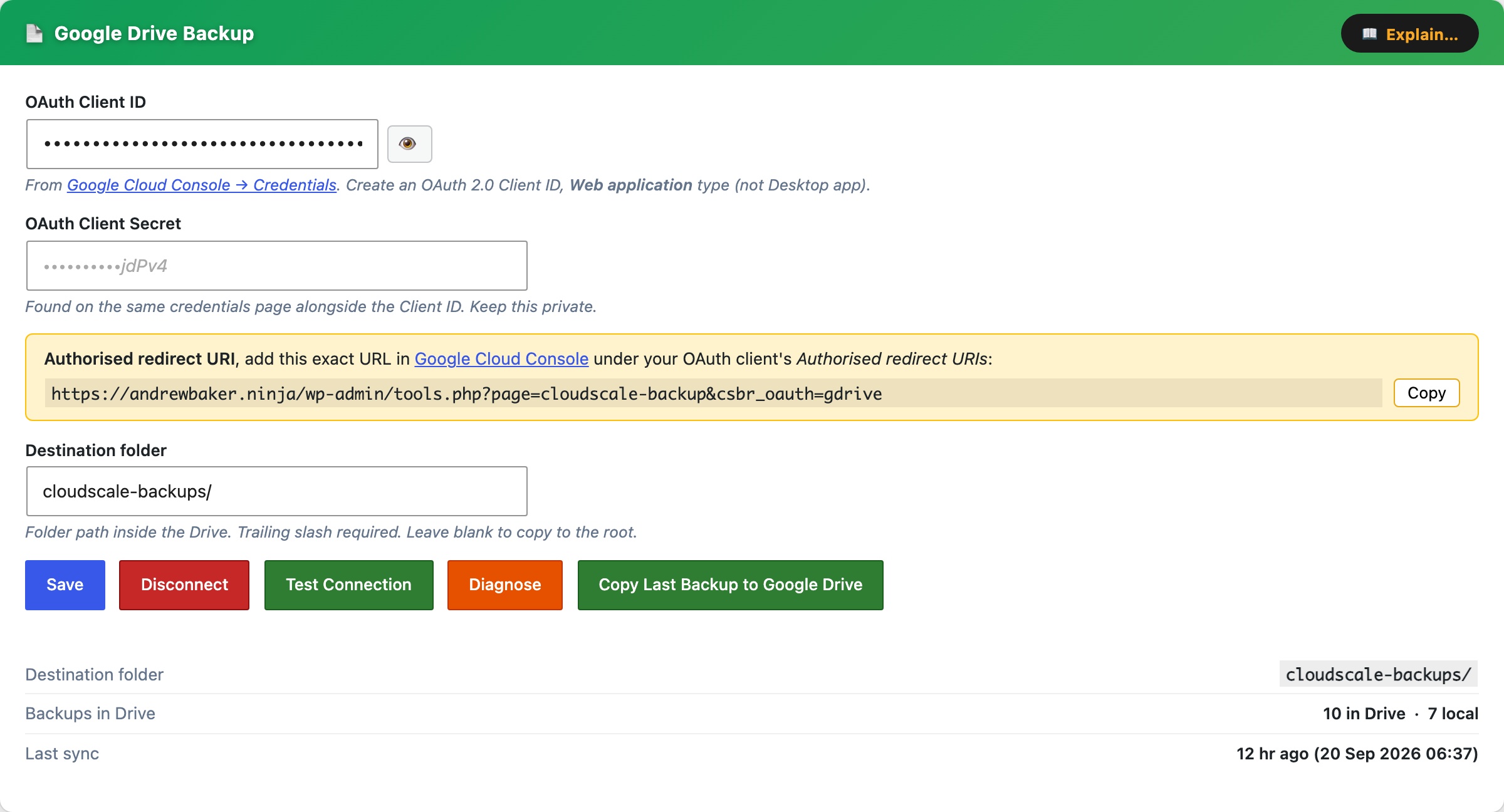
The Google Drive Backup card uses rclone to copy backup zips to Google Drive after every local backup. Setup takes about 5 minutes and only needs to be done once.
rclone remote name, the name you gave the remote during rclone config, e.g. gdrive. Case-sensitive.
Destination folder, path inside Google Drive where backups are copied. Trailing slash required (e.g. cloudscale-backups/). Leave blank for the Drive root.
Test Connection, runs rclone lsd and reports success or the error message.
Diagnose, shows rclone version, remote name, and authentication errors.
Copy Last Backup to Cloud, immediately copies the most recent local backup zip to Drive, outside of any schedule. Does not create a new backup, it copies whatever zip is already on the server. Before starting, the plugin checks how much free space Google Drive has:
- If Drive has enough space, the sync starts immediately.
- If Drive is running low, an inline warning appears showing MB free vs MB needed, with two options: Delete oldest (removes the oldest non-golden backup from Drive to make room, then starts the sync) or Sync anyway (proceeds regardless).
When configured, the card shows the full destination path, number of backups in Drive, and time of last sync.
Google Drive Setup Guide
Step 1, Install rclone on the server
SSH into your server, then run:
curl -fsSL https://rclone.org/install.sh | sudo bash
The install log ends with: rclone v1.x.x has successfully installed. Now run "rclone config" for setup.
Step 2, Fix apache home directory permissions
rclone saves its config in apache’s home folder. Run these commands or it will fail silently:
sudo mkdir -p /usr/share/httpd/.config/rclone
sudo chown -R apache:apache /usr/share/httpd/.config
sudo chmod 700 /usr/share/httpd/.config/rclone
sudo chown apache:apache /usr/share/httpd
sudo chmod 755 /usr/share/httpd
Step 3, Run the setup wizard as the apache user
sudo -u apache rclone config
Answer each prompt as follows:
| Prompt | Type |
|---|---|
n/s/q | n (New remote) |
name> | gdrive |
Storage> | drive or the number for Google Drive |
client_id> | Enter (leave blank) |
client_secret> | Enter (leave blank) |
scope> | 1 (full access) |
service_account_file> | Enter (leave blank) |
| Edit advanced config? | n |
| Use web browser to authenticate? | n (no browser on server) |
Step 4, Authorise on your laptop
The server prints: Execute the following on the machine with the web browser. Open a new terminal on your laptop (leave the SSH session open). Install rclone on your laptop if needed (brew install rclone), then run:
rclone authorize "drive"
Your browser opens, sign in to Google and click Allow. The laptop terminal prints a JSON token block. Copy the entire JSON (from { to }) and paste it into the SSH session at the config_token> prompt.
Step 5, Finish the wizard
Answer n to “Configure as Shared Drive”, y to confirm the remote, then q to quit. You should see: Current remotes: gdrive / drive.
Step 6, Save settings in the plugin
Enter gdrive in the rclone remote name field, your destination folder in Destination folder (e.g. cloudscale-backups/), click Save Drive Settings, then Test Connection.
Permission error? If the wizard prints permission denied when saving config, write the config file manually:
sudo bash -c 'cat > /usr/share/httpd/.config/rclone/rclone.conf << EOF
[gdrive]
type = drive
scope = drive
token = PASTE_YOUR_JSON_TOKEN_HERE
EOF'
sudo chown apache:apache /usr/share/httpd/.config/rclone/rclone.conf
sudo chmod 600 /usr/share/httpd/.config/rclone/rclone.conf
Replace PASTE_YOUR_JSON_TOKEN_HERE with the full JSON token from Step 4, then re-run Test Connection.
Running out of Google Drive space
Google Drive free tier provides 15 GB shared across Drive, Gmail, and Photos. If your backups are large, you may run out of quota. The plugin detects this in two places:
- Before a manual backup, the cloud space pre-check (see Create Local Backup Now) warns you and offers a Free space on Google Drive button.
- Before a Copy Last Backup to Cloud sync, an inline warning appears on the card with Delete oldest and Sync anyway options.
The Delete oldest / Free space action removes the oldest non-golden backup from Google Drive one file at a time until the required space (plus a 15% buffer) is available. Golden images are never deleted automatically. If all deletable backups have been removed and there is still not enough space, you will need to free up quota manually in Google Drive, upgrade your Google One storage, or reduce your retention count.
Note: the plugin computes free space as total quota − used quota rather than trusting Google’s reported free field, which can be inaccurate when the account is over quota.