← CloudScale Plugin Help/CloudScale Backup & Restore, Free WordPress Backup Plugin with One-Click Restore & Cloud Sync
Cloud Backup Settings
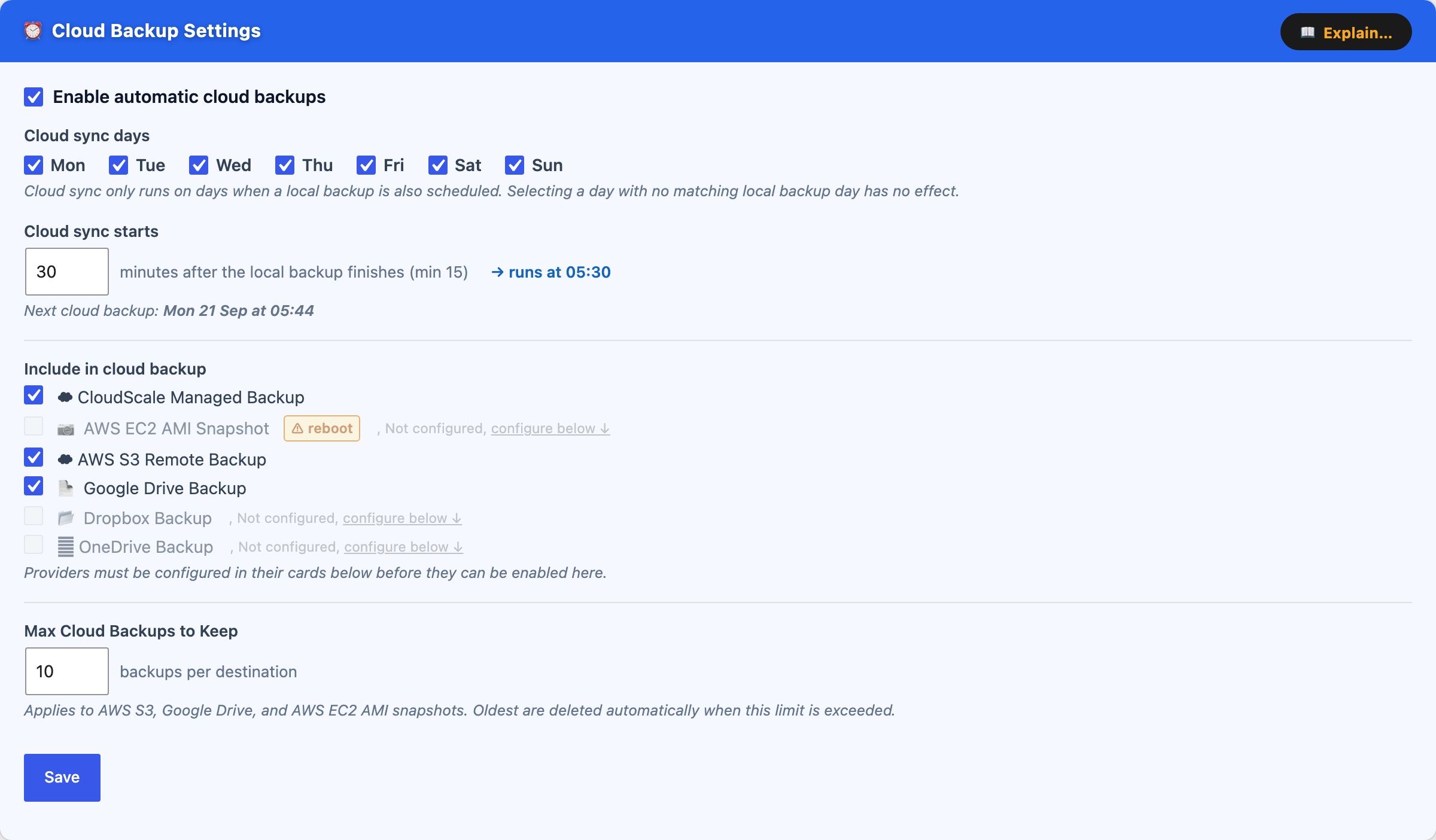
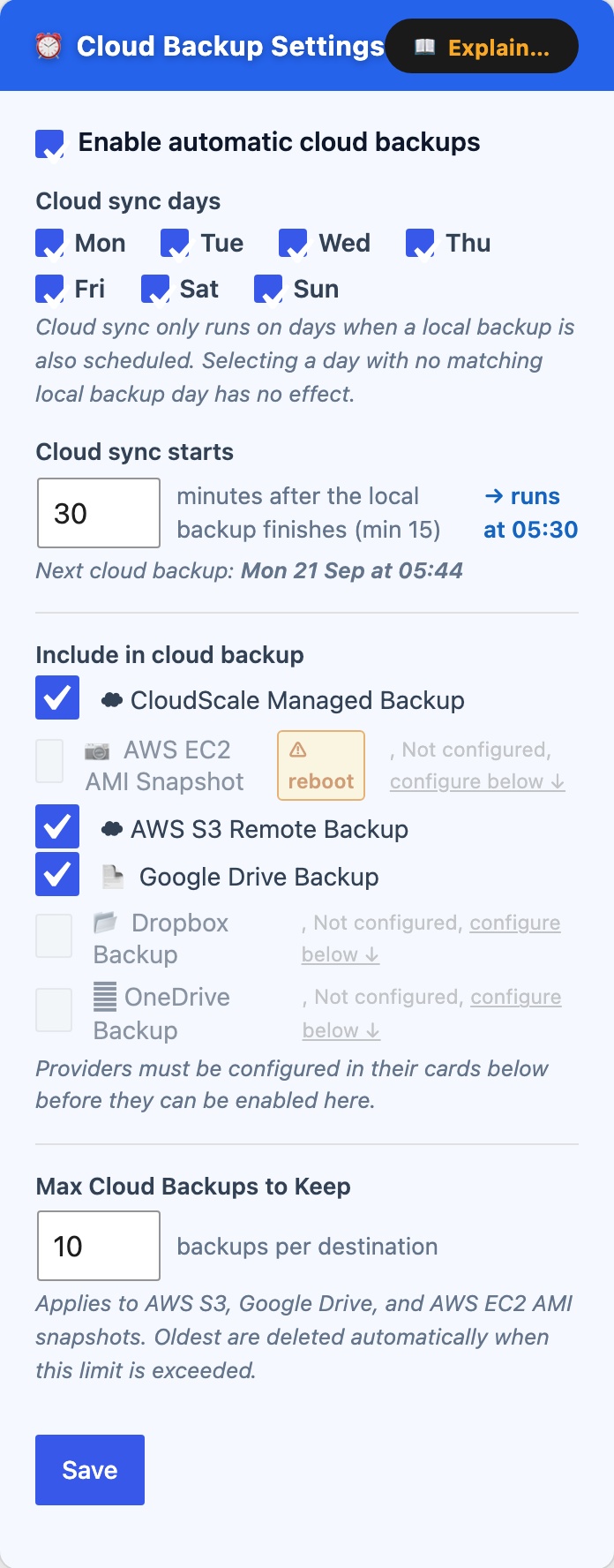
The Cloud Backup Settings card (blue) is the master control for all automated cloud syncing. It lives at the top of the Cloud Backups tab.
Cloud backup days, the days on which cloud sync runs. On each selected day the plugin runs providers in this fixed order: AMI snapshot → AWS S3 → Google Drive → Dropbox → OneDrive. Each provider is independent, a failure on one does not prevent the others from running.
Cloud Backup Delay, minutes after the local backup completes before cloud sync begins. Minimum 15 minutes. This ensures the local zip is fully written and closed before upload starts. The scheduled cloud sync time is shown when a schedule is configured.
Include in cloud backup, checkboxes to enable each provider individually:
- AWS S3, uploads the backup zip to your S3 bucket using the AWS CLI.
- Google Drive, copies the backup zip to Google Drive using rclone.
- Dropbox, copies the backup zip to Dropbox using rclone.
- Microsoft OneDrive, copies the backup zip to OneDrive using rclone.
- AWS EC2 AMI Snapshot, creates an Amazon Machine Image of the entire EC2 server.
Providers that have not been configured in their cards below are greyed out and cannot be enabled here. All five providers can be active simultaneously, the backup zip is uploaded to each in turn.
Max Cloud Backups to Keep, the retention limit applied to each cloud destination independently. When this limit is exceeded after a sync, the oldest non-golden backup is deleted automatically. Applies to S3 objects, Google Drive files, Dropbox files, OneDrive files, and AMI snapshots. Golden images are exempt from this limit.
If the local backup schedule is disabled while cloud sync is enabled, a warning banner appears at the top of the page, cloud sync will upload the most recent existing backup, but no new local backups will be created first.