← CloudScale Plugin Help/CloudScale Backup & Restore, Free WordPress Backup Plugin with One-Click Restore & Cloud Sync
Cloud Backup History
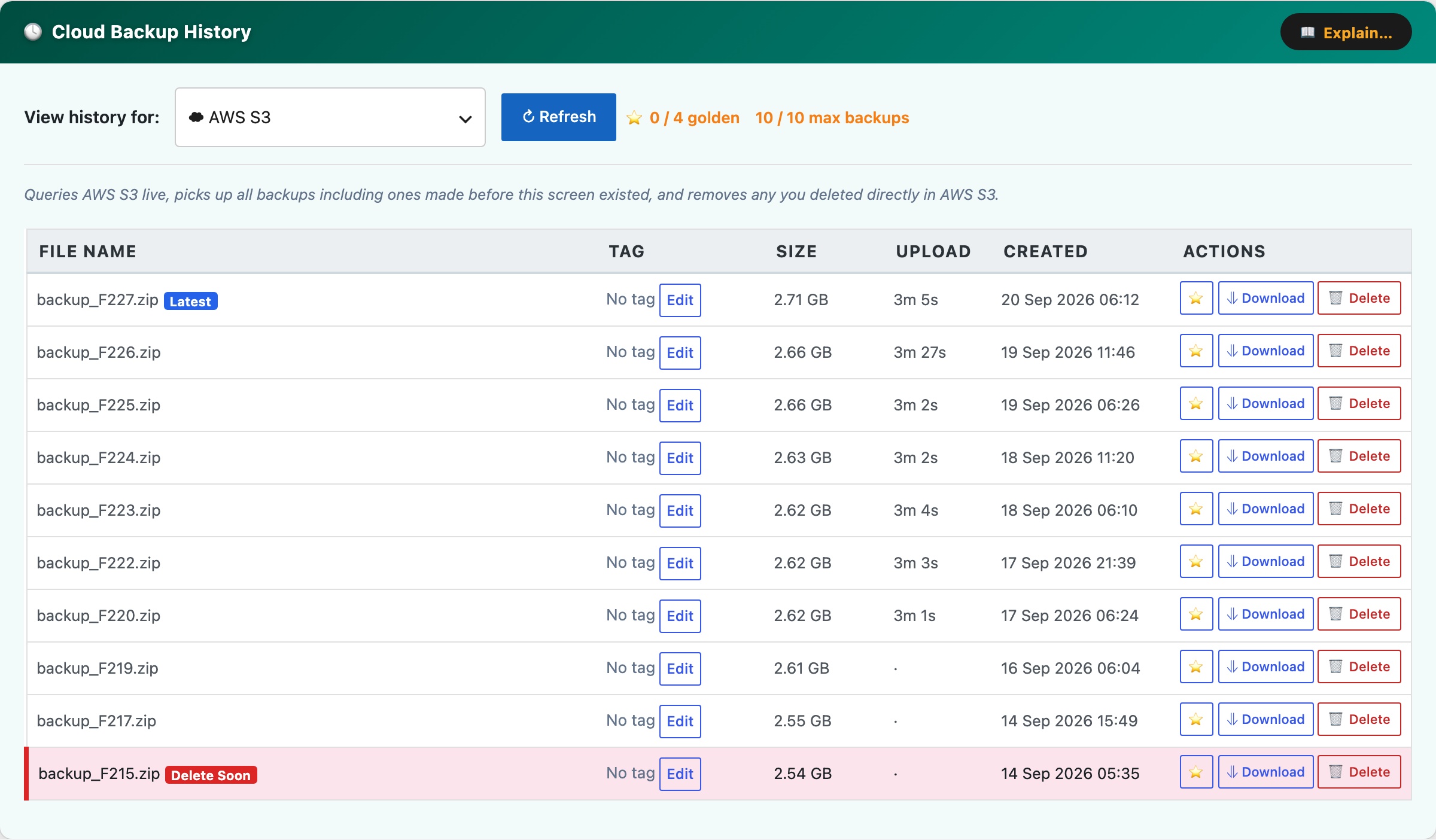
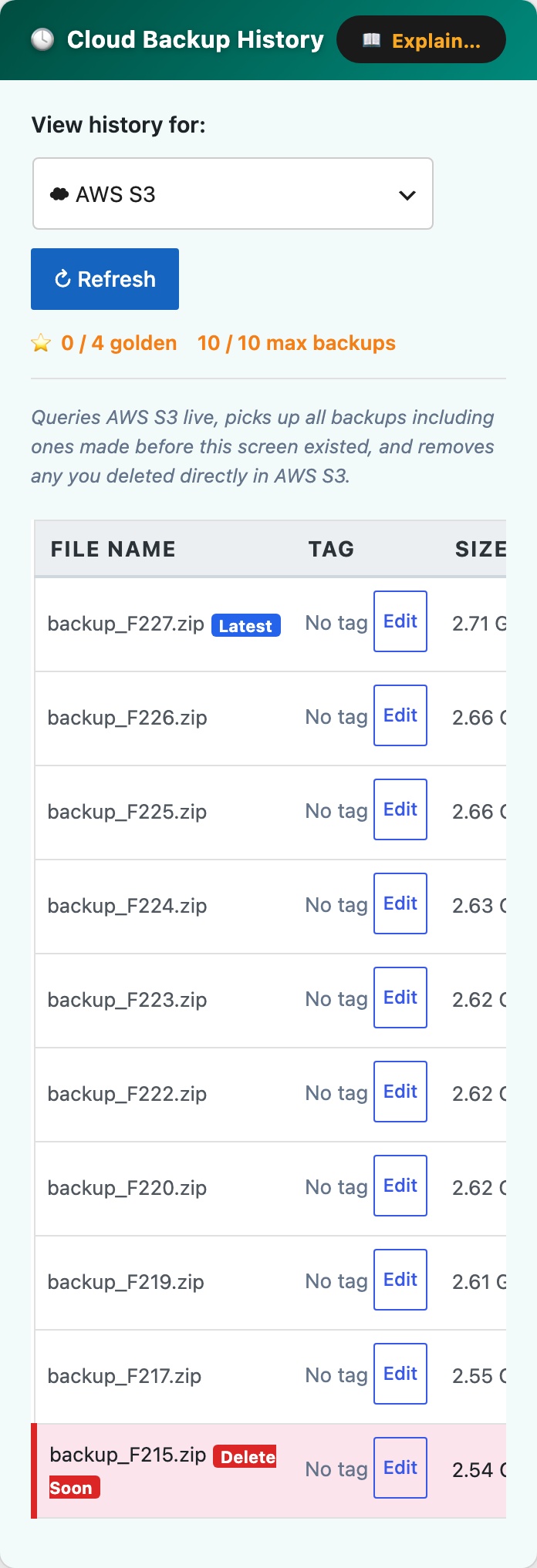
The Cloud Backup History panel (teal, at the bottom of the Cloud Backups tab) gives you a unified view of all backups stored across your configured cloud providers. Use the View history for dropdown to switch between AWS S3, AWS EC2 AMI Snapshots, Google Drive, Dropbox, and Microsoft OneDrive.
Each provider’s history table queries the cloud service live when you click Refresh, so it reflects the true current state, including backups created outside of this plugin and files deleted directly in the cloud console.
Columns:
- File Name / AMI Name, the filename in S3, Google Drive, or Dropbox, or the AMI name for EC2 snapshots. The most recent entry is marked with a latest badge.
- Tag, an optional free-text label you can attach to any backup for identification (e.g. “pre-launch”, “client handover”). Click Edit to set or change the tag inline.
- Size, file size as reported by the cloud provider (S3, Drive, Dropbox) or N/A for AMI snapshots.
- Created, the date and time the backup was uploaded or the AMI was created.
Row actions:
- Golden image (star icon), marks a backup as a golden image, protecting it permanently from automatic deletion by the Max Cloud Backups to Keep retention limit. Up to 4 golden images are tracked per provider. Golden rows are highlighted in yellow.
- Download, downloads the backup zip directly from S3, Google Drive, or Dropbox to your browser. Not available for AMI snapshots (use the AWS console to restore those).
- Delete, permanently deletes the file from the cloud provider. Cannot be undone.
The header bar shows a golden image counter (N / 4 golden) and the current non-golden count against your retention limit (N / max backups). The oldest non-golden backup is flagged with a Delete Soon badge when the retention limit is about to be exceeded, it will be removed automatically on the next cloud backup run.