← CloudScale Plugin Help/CloudScale Backup & Restore, Free WordPress Backup Plugin with One-Click Restore & Cloud Sync
Automated Restore (warm standby)
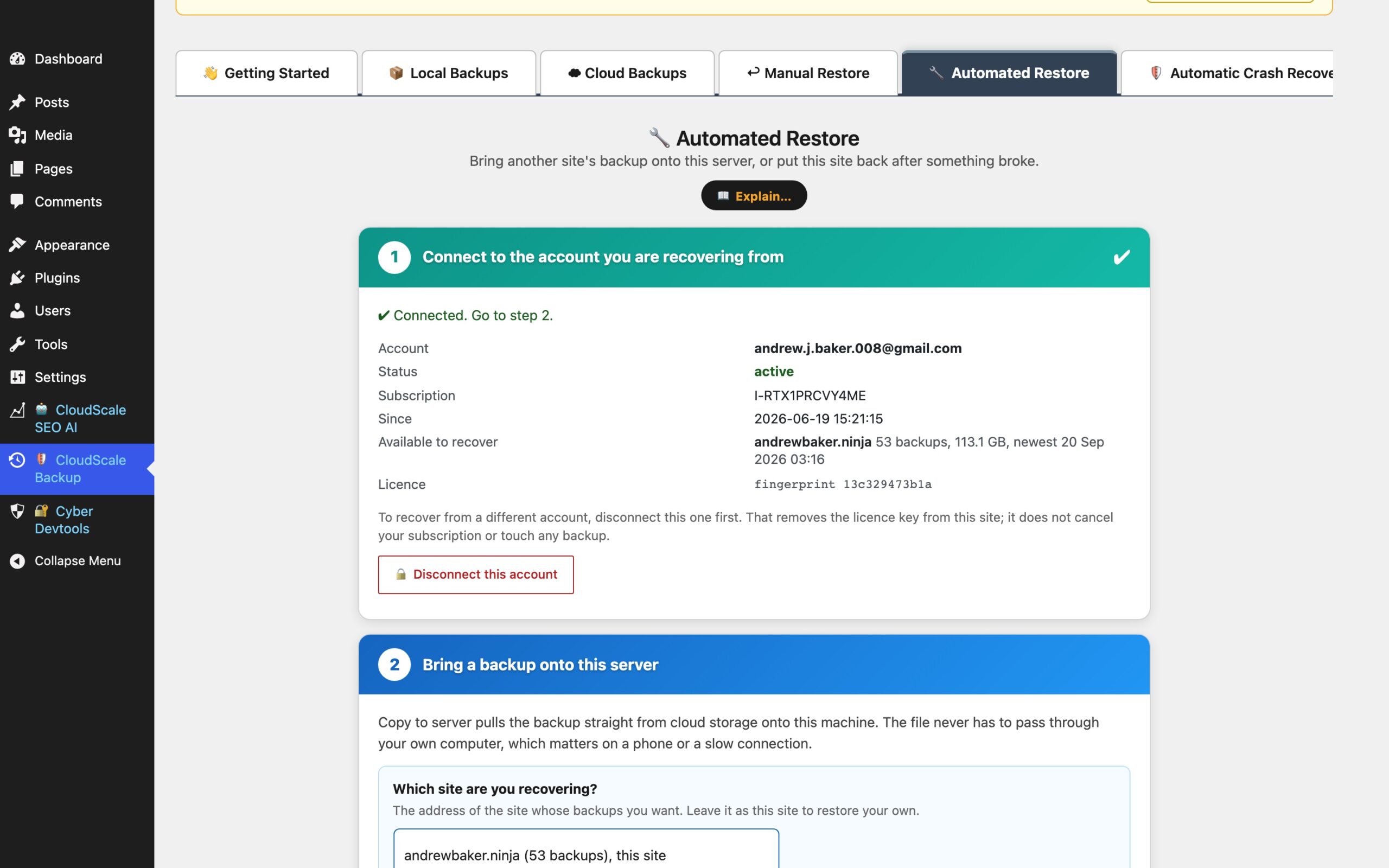
A warm standby is a second, working copy of your site that refreshes itself from the live site’s backups on a schedule. If the live site goes down, you point traffic at the standby and carry on. This is what the Automated Restore tab builds.
It is different from the Restore tab in one important way. Manual Restore puts this site back from its own backup. Automated Restore brings another site’s backup onto this server, over and over, unattended.
The reason to run it every night is not only that a standby is useless when stale. A backup that has never been restored onto a different machine is a hypothesis, not a backup. A nightly refresh turns the thing you are relying on into the thing you exercise daily, so it breaks on a Tuesday morning in front of you rather than during an outage.
Before you start: mark the copy as a standby
Use the Standby & DR tab on the copy (never on the live site) and choose whether it is a hot standby or a refreshed copy. That marks the role, arms or leaves off failover mode, and labels its alerts in one step. The Environment tab still holds each setting individually if you need to change one.
This matters more than it looks. A standby is built by restoring the live site’s backup over it, so it comes up holding your settings and your schedule, and will cheerfully start backing itself up to the same cloud location as the real site. The retention limit there then deletes one of the live site’s genuine backups to make room for a copy of the standby. Marking the role stops all of that: a standby never uploads and never prunes remote backups.
The role is stored in a file, not the database, precisely because the database is the thing a restore replaces. It survives every refresh.
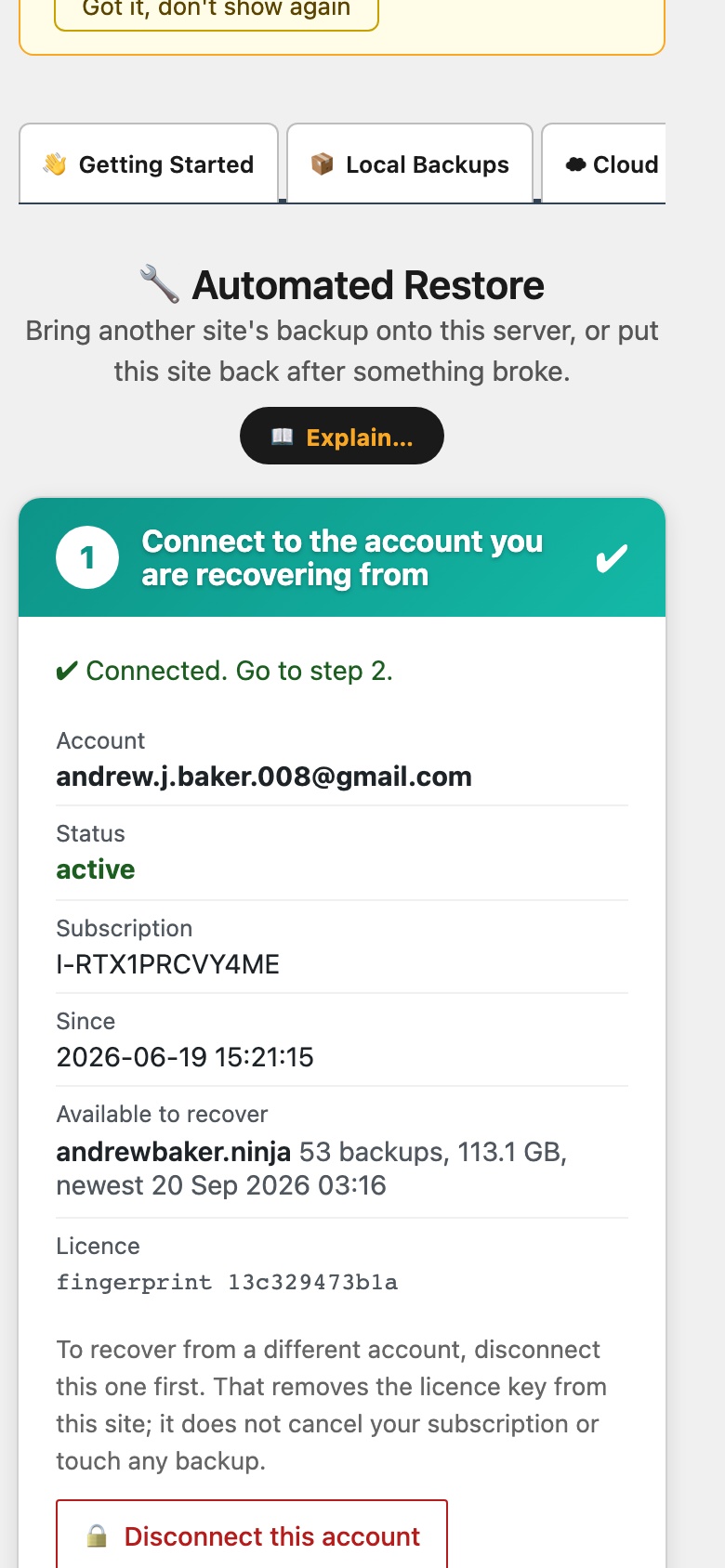
Step 1: Connect to the account holding the backups
Enter the email address of the CloudScale Managed account whose backups you want. A six-digit code is sent to that address; enter it and this site can list and restore that account’s backups. The code is short-lived and single-use, and the email address on its own grants nothing.
If the backups live in your own cloud rather than Managed, configure that provider on the Cloud Backups tab instead and skip this step. Cloud credentials are kept in the plugin’s secret store outside the database, so a refresh does not overwrite them with the live site’s copy.
Step 2: Bring a backup onto this server
Copy to server pulls the chosen backup straight from cloud storage onto this machine. It never passes through your computer, which matters on a phone or a slow connection. A copy that stops part way resumes from where it stopped rather than starting again, and the unattended run retries a stalled copy up to twelve times before giving up.
Once the file is local, Restore this site from it does the restore.
Step 3: Put it on a schedule
Tick Restore this site from the primary’s newest cloud backup on a schedule, then choose:
- Restore from, which cloud source to read. Only storage this site is actually connected to is offered.
- Which folder in the bucket the primary uploads to (S3), set it explicitly. Left blank, the schedule reads the folder named after this site’s address, and the restore rewrites that address to the primary’s, so a blank box points at the wrong folder before the first run and the right one after it. Naming it is also what lets a staging copy and a DR copy both track one primary without interfering.
- Copy FROM which site (Managed), one Managed account holds the backups of every site on it, each filed under its own web address. Choose the site this one is a copy of, not this site. If the account holds exactly one site it is selected for you.
- On these days, which days the refresh may run.
- When to look for the backup, Work it out from the backups themselves is recommended: it reads when the primary’s last backups actually arrived in your cloud storage, starts looking after the latest of them, and waits for a fresh one rather than trusting a clock time. Or pick a time yourself; the card shows the arrival times it has seen and warns when backups have started landing after the time you chose.
- Refuses a backup older than, a staleness limit. If nothing newer than this has arrived, the standby is left alone rather than being refreshed from something old. The default is 36 hours: one missed nightly backup does not alarm you, two do.
Save schedule only writes settings; it never starts a restore. Check the source now is a dry run that reads the cloud storage and reports what tonight would pick, how old it is, whether the limit would refuse it and whether there is room on disk, without touching this site. Run the automatic restore now does the whole thing immediately with a progress bar; it asks you to type a confirmation first, because there is no 04:00 between the click and the site being replaced.
When the backup is late
If the run finds nothing new, it does not fail and it does not restore something old. It waits: it looks again every 15 minutes for up to three hours, and the card shows WAITING with how many looks it has taken and when it will give up. If a usable backup arrives in that window it is restored then. If nothing arrives, the run stops and raises an alert, because a job that does nothing and says nothing is indistinguishable from a job that is working. That silence is exactly how a standby goes stale for a day and a half with nobody knowing.
What a refresh actually replaces
A restore installs whatever the backup held, including the plugins and their versions. A standby therefore ends up running the primary’s plugin set, not its own. That is usually what you want, and it is worth knowing before you wonder why a version you installed on the standby disappeared.
It replaces the database too, so anything written only on the standby is lost at the next refresh. A standby is a copy, not a second place to work.
A few things deliberately survive, because they identify this machine rather than the site: the site role, the failover switch, the alert label, the automatic-restore settings themselves, the stored cloud credentials, and wp-config.php. Without that, a standby would switch itself back into being a primary the first time it refreshed. The restore also checks afterwards that the site still serves a page, and backs out any drop-in the backup brought with it (an object cache expecting a Redis this machine does not run, say), renaming rather than deleting, and says what it disabled.
Last recovery
After each refresh this panel reports what the recovery cost and whether it left anything wrong: how long it took broken down by phase, the size of the backup and what was restored, how far behind the primary the backup was, a per-component count of the files restored, and any way in which this machine differs from the one that made the backup (a lower upload_max_filesize, a missing Redis, and so on), with a note of where that limit was set and where to set it here.
The Reconciliation line is the one to read. It re-opens the backup after the restore and compares it against what is on disk, reporting how many files are missing, the wrong size, or could not be written. Clean is only shown when a real comparison happened and found nothing, a check that could not run says so instead of reporting zero problems.
Failing over, and failing back
On a hot standby, failover mode is on all the time. It means armed: this site may take over, so it never starts a backup history of its own. It does not, on its own, stop the refresh. What stops the refresh is the site being told it is serving: while the serving flag says so, the schedule is suspended, because anything visitors wrote since the switch exists nowhere else and a restore would destroy it. When the flag says standby again, the schedule resumes on its own at the next run. When nothing says either way, the refresh stays off and the Standby & DR checklist tells you what to write. The flag, its format and its 15-minute freshness rule are described under Standby & DR above.
Switching the traffic is a DNS job, not a WordPress one. The rest of this page is a script that does it.
Automatic failover with Cloudflare
The Automated Restore tab keeps a standby ready to serve. It does not move any traffic to it, because traffic is DNS, not WordPress. This is the DNS half.
tools/cloudflare-failover.sh ships in the plugin’s GitHub repository (it is excluded from the WordPress.org zip, which carries no shell scripts). It polls a health URL on the primary and, after a run of consecutive failures, rewrites one Cloudflare DNS record to point at the standby. That is the whole mechanism: one record, one value, changed through Cloudflare’s API with a token scoped to that one zone.
Failing over, and failing back, are both automatic. Only one of them is cheap.
Failover happens after three consecutive failed probes. Failback happens after ten consecutive clean probes, one per timer tick, so about twenty minutes on the suggested two-minute cron. The asymmetry is deliberate: leaving is cheap to get wrong because the standby is ready, while returning to a primary that is still flapping on boot would drag traffic back and forth. A single failed probe during the recovery run resets the count to zero.
This is the part worth reading twice, because automating failback does not make it safe; it only makes it prompt.
While the standby carries traffic it accepts real work: orders, comments, form entries, uploads, sessions. That data exists only on the standby. The primary has no idea any of it happened. Failing back publishes a site missing every one of those things, and the standby’s next scheduled refresh then restores the primary over the standby and erases them.
So every failback, automatic or by hand, prints a RECONCILE reminder. Whatever the standby collected has to be copied to the primary, or written off, before the standby’s next refresh runs. If you need more time, hold the standby’s serving flag at serving and the refresh stays suspended. --failback still exists for doing it sooner by hand, and refuses if the primary is not answering its health URL at that moment.
Setting it up
- Create a Cloudflare API token with Zone:DNS:Edit on the one zone. Do not use a Global API Key, it is account-wide and cannot be scoped.
- Write
~/.cloudflare-failover.envandchmod 600it (or export the same names;CF_FAILOVER_CONFIGpoints at a different file):
CF_API_TOKEN=your-scoped-token
CF_ZONE_ID=your-zone-id
CF_RECORD_NAME=www.example.com
PRIMARY_TARGET=203.0.113.10
STANDBY_TARGET=203.0.113.20
HEALTH_URL=https://www.example.com/?cf-failover-probe=1
HEALTH_EXPECT=
bash cloudflare-failover.sh --status, changes nothing, and proves the token, the zone and the record. It also says whether the record currently points at the primary, the standby, or something else entirely.bash cloudflare-failover.sh --dry-run --watch, read what it says it would do.- Put
--watchon a timer on a third machine.
*/2 * * * * /path/to/cloudflare-failover.sh --watch >> /var/log/cf-failover.log 2>&1
Not on the primary. A failover script running on the primary cannot fire when the primary is the thing that died. Not on the standby either, ideally, a box that promotes itself is one network partition away from a split brain.
The commands, in full: --status reports, --watch polls and fails over when the threshold is reached, --failover and --failback move the record now, and --dry-run with any of them decides but changes nothing. Four knobs have sensible defaults and can be set in the same file: FAIL_THRESHOLD (3 consecutive failures), RECOVER_THRESHOLD (10 consecutive clean probes before failing back), HEALTH_TIMEOUT (10 seconds per probe) and PROBE_GAP (5 seconds between the retries). The failure count, the recovery count and the current direction are kept in ~/.cloudflare-failover.state so separate runs from cron share them.
Choosing the health URL
Point HEALTH_URL at something WordPress must render, not a static file. A web server will happily keep serving /favicon.ico long after PHP or the database has stopped, and that is precisely the outage you are watching for. A normal page is a good probe. Set HEALTH_EXPECT to a string that only appears when the page really rendered, and a white screen of death stops counting as healthy.
Probe a hostname that stays pinned to the primary, not the record that moves. Once the record has been switched, a probe of that record is measuring the standby, and the script could never see the primary come back.
Pair it with the plugin
Three moments matter, and the script prints a reminder at each of the last two. It does not reach into WordPress to do any of them for you.
- Before anything happens: the standby is marked as a hot standby on its Standby & DR tab, so failover mode is armed and it never starts a backup history of its own. Its serving flag says standby, so it refreshes every night.
- After a failover: tell the standby it is serving. That is what suspends the scheduled refresh, which would otherwise overwrite the live traffic the standby is now taking. Whatever writes the serving flag on the standby should switch it now; with the constant arrangement, set
CSBR_SERVING_APEXtotrue. - After a failback (automatic, once the primary has been healthy for ten probes in a row): set it back to standby, and the refresh resumes at its next scheduled run. Deal with whatever the standby collected first, or keep the flag at serving until you have; the next refresh will erase it.
The flag has to be rewritten regularly to stay valid (anything older than 15 minutes reads as unknown, which refuses the refresh), so a cron on the standby that writes it every minute is the robust arrangement. This script runs on a third machine and does not write it. The same contract holds whatever does your DNS switching: a Cloudflare Worker, an uptime service with a DNS hook, or a person. Whatever swings the DNS is what tells the standby.
Two smaller details
- Three failures, not one. A single timeout is a network hiccup. A script that moves production DNS on one bad
curlwill flap. Once the first probe fails the remaining ones are taken immediately rather than waiting for the next timer tick, so a real outage moves in seconds. - The record type is carried over, not guessed. Writing a hostname into an A record, or an IP into a CNAME, is rejected by Cloudflare, and the middle of an outage is the wrong moment to discover that. The proxied setting and TTL are carried over the same way.