← CloudScale Plugin Help/CloudScale Backup & Restore, Free WordPress Backup Plugin with One-Click Restore & Cloud Sync
Activity Log
On a phone
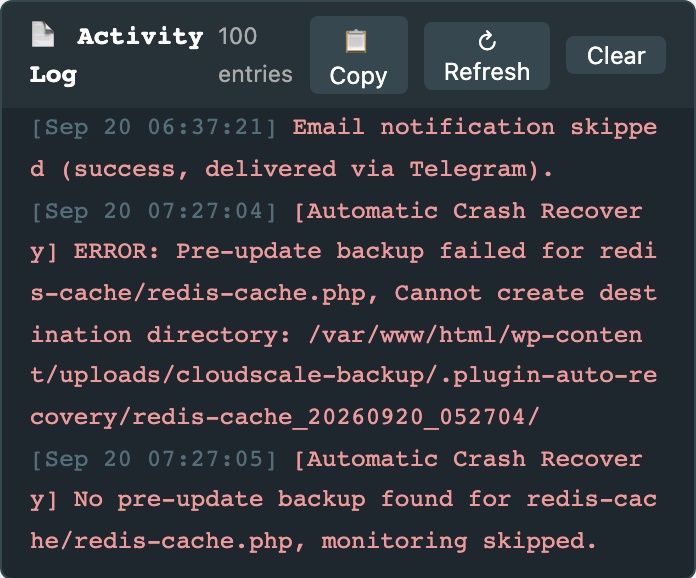
The same panel at 390px, showing how it reflows. Cropped to the first screens.
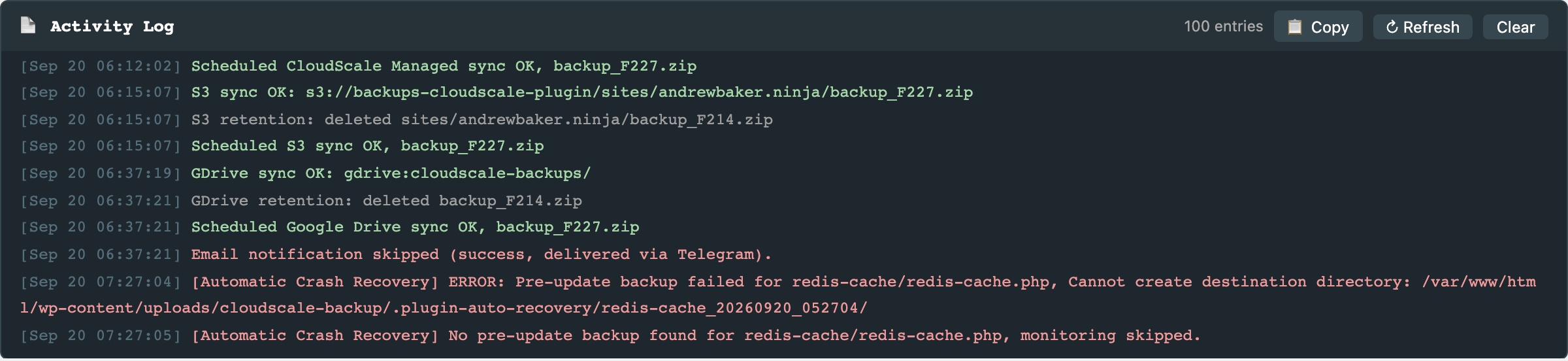
The Activity Log panel appears at the top of the plugin admin page, above the Local Backups and Cloud Backups tabs. It gives you a real-time, timestamped record of everything the plugin does, useful for verifying that scheduled jobs ran, diagnosing sync failures, or copying a log dump for support.
What gets logged:
- Backup created, filename and size (e.g.
bkup_f42.zip (18.3 MB)). - Scheduled backup starting, components included (database, media, plugins, etc.).
- Cloud sync result per provider, S3, Google Drive, Dropbox, and OneDrive each log success or failure immediately after a backup.
- Manual cloud sync, when you click Sync Latest for any provider.
- Cloud connection tests, pass or fail result for S3, Google Drive, Dropbox, and OneDrive.
- Settings saved, local schedule, retention, S3, Google Drive, Dropbox, OneDrive, AMI, and cloud schedule settings all log when saved.
- AMI creation started, AMI ID, name, and instance ID logged on success; error details logged on failure.
- AMI state transitions (pending → available) detected during background polling.
- Retention deletions, each local backup deleted by the retention policy is logged with the retention limit.
- Selective restore initiated and completed, filename and table list logged at start and finish.
- Full restore and restore-from-upload, start and completion (or failure) with filename.
- Backup downloaded, logged when an admin downloads a backup zip.
- Backup deleted, filename logged when an admin deletes a backup.
- Automatic Crash Recovery events, pre-update backup, monitoring start, rollback triggered (with trigger reason and HTTP code), rollback complete.
- Plugin activated and deactivated.
- Errors and exceptions, all caught exceptions log the message and context before returning an error to the UI.
Entry colours:
- Green, success: backup completed, sync OK, deletion confirmed.
- Teal, in-progress: starting, running, retrying.
- Red, error: failed, skipped, aborted, access denied.
- Grey, informational: all other events.
Controls:
- Copy, copies all visible log lines (with timestamps) to the clipboard as plain text. Paste directly into a support ticket or bug report.
- Refresh, manually reloads the log. The panel also auto-refreshes every 5 seconds while the page is open.
- Clear, permanently erases all log entries from the database. Cannot be undone.
The log displays up to 100 entries and auto-scrolls to the newest entry on each refresh. Entries are stored in wp_options (key cs_activity_log). Background sync workers write temporary per-job entries (keys like cs_log_*) which are merged into the main log on the next load.